 Commy
Voice and noise cancellation
Voice channels
Click a voice channel to join. Everyone in the channel connects directly to each other, encrypted, with no media server in the middle. The channel list shows who is in each voice channel and for how long, and a person's ring lights up while they talk.
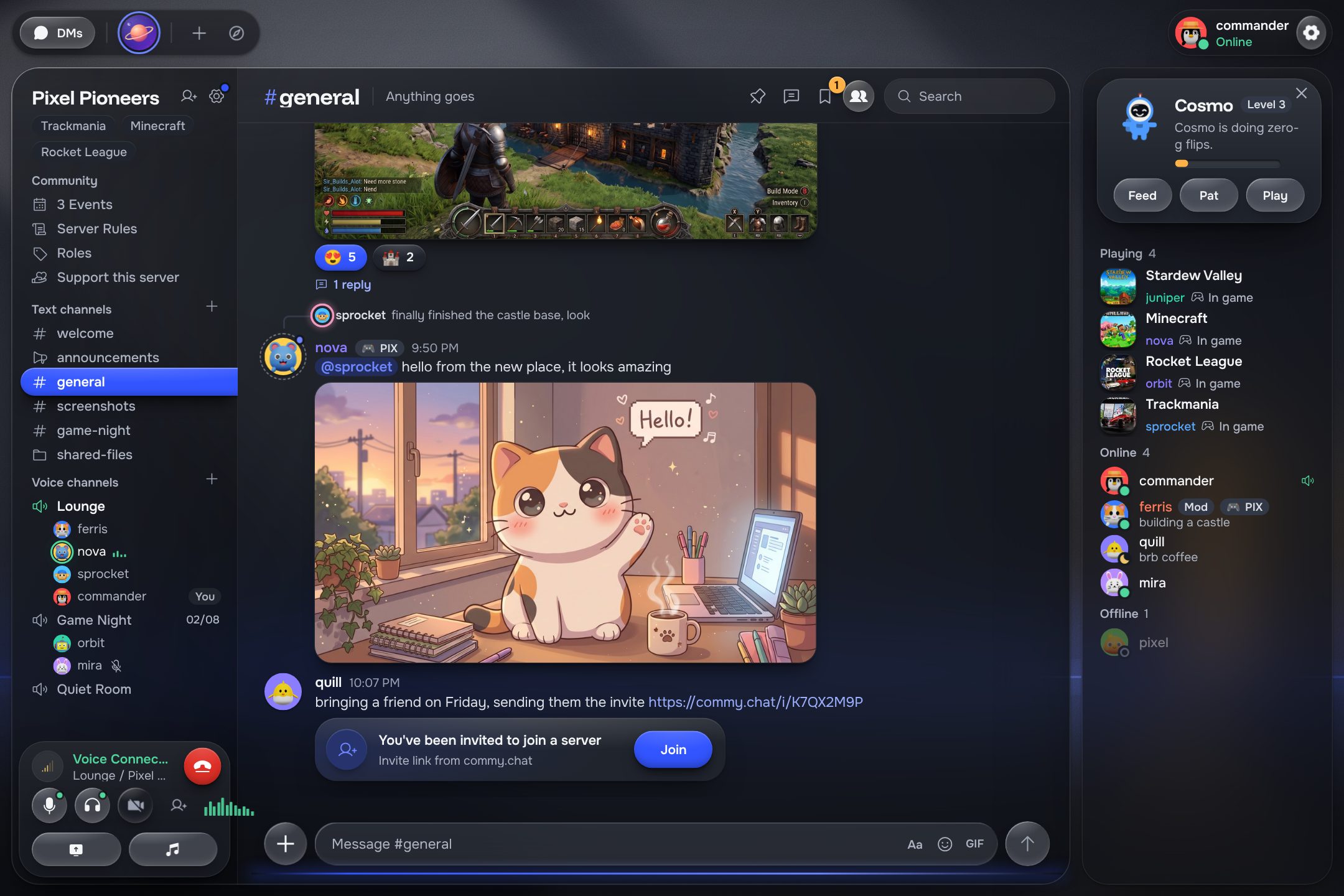
Once you are connected, the Voice Connected panel at the bottom of the channel list is your control strip:
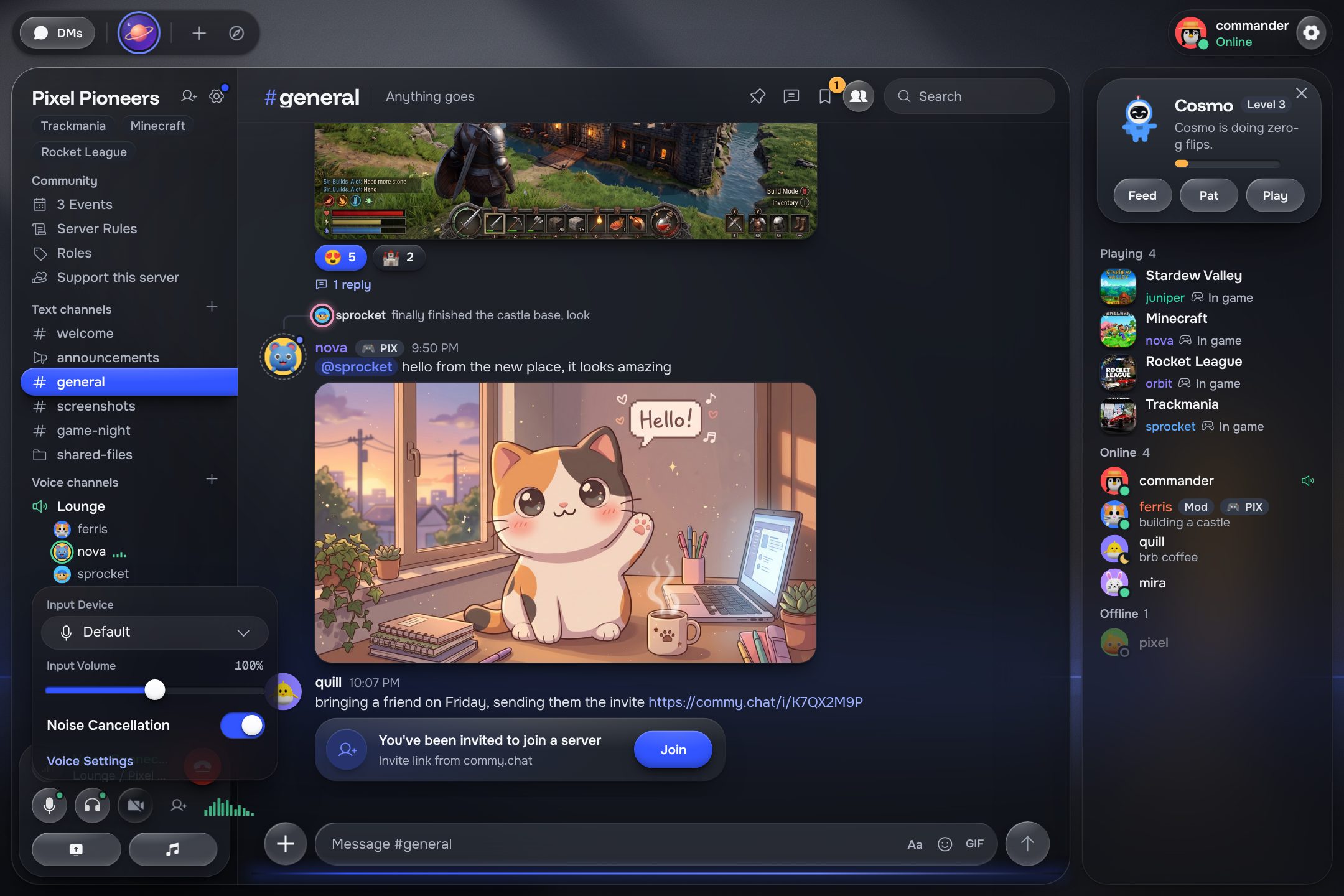
- Mute and deafen buttons, each with a small arrow for input and output options. The arrow on the mute button also has a quick Noise Cancellation switch.
- Camera turns your camera on.
- Invite to Call sends a friend or a channel a card that shows who is in the call right now and a Join button.
- Disconnect leaves the channel.
- Share Screen and Soundboard sit underneath, with Activities beside them when the server has activities turned on. See Screen and game sharing.
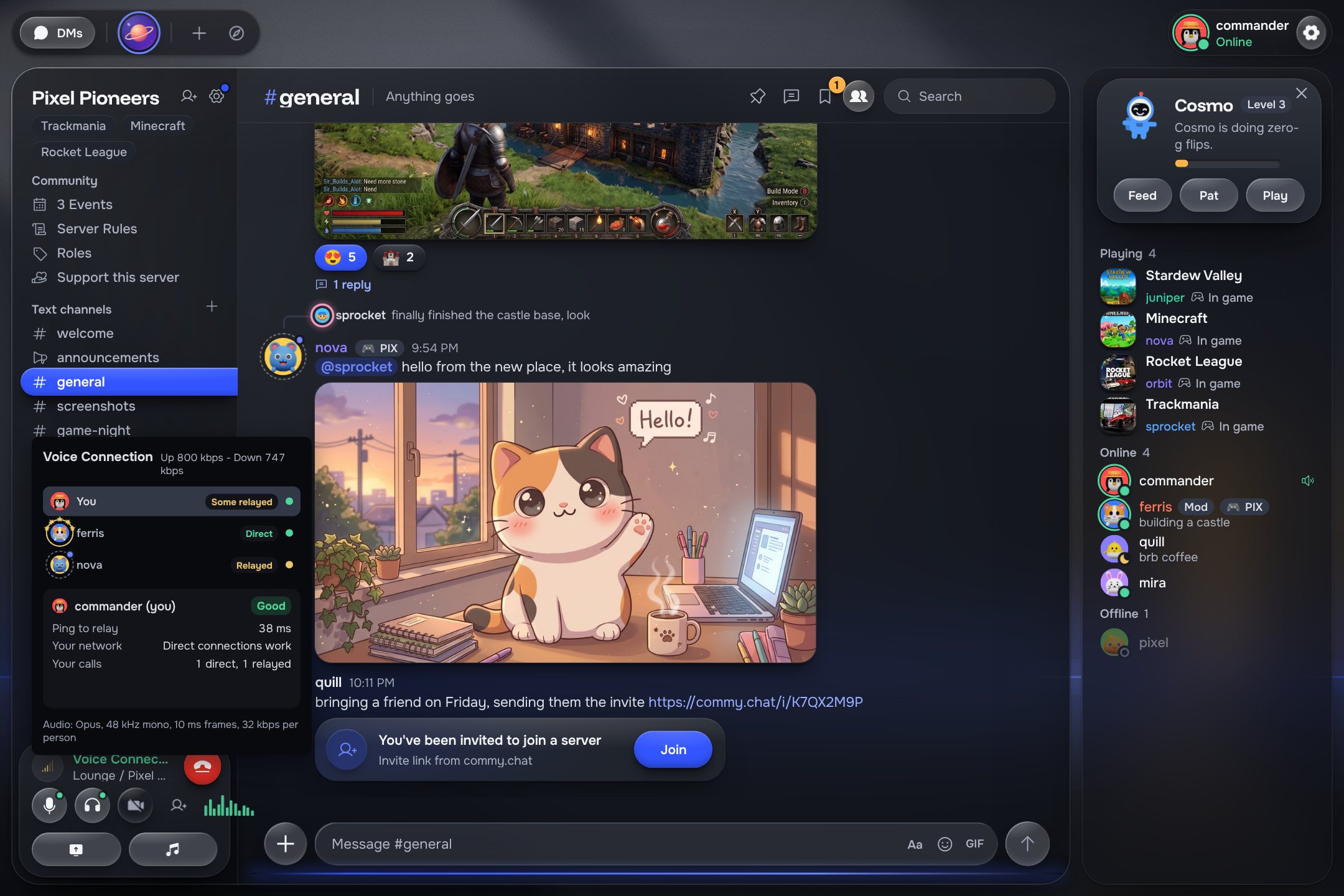
The signal bars in the panel follow your live connection quality. Click Voice Connected to open the connection panel. You come first, with your own call quality, your ping to the relay and how your network does, then everyone else with their ping, packet loss and jitter. Every person is tagged Direct or Relayed, so you can see at a glance who you reach straight away and who goes through the relay. Tabs along the top of the panel switch between the people in the channel.
The voice room
Click the voice channel you are in to open the voice room. Everyone gets a tile with their picture, a speaking line lights up while someone talks, and cameras and streams play right in the room. The channel's own chat sits on the right, so you can drop a link without leaving.
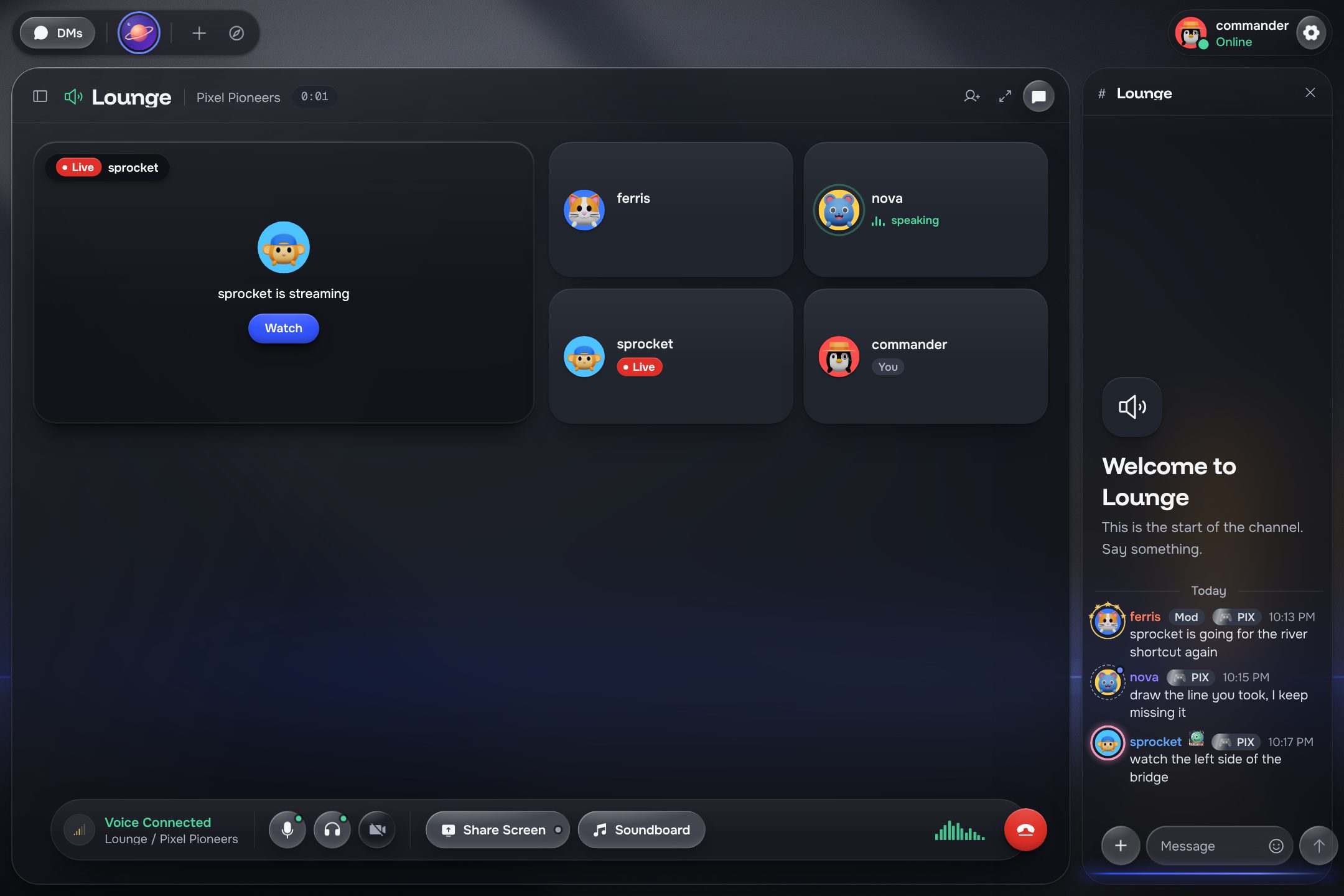
- The bar along the bottom has mute, deafen, camera, Share Screen, Soundboard, your mic level and the red hang up button.
- The buttons at the top invite people to the call, make the room full screen and show or hide the chat. The button at the far left brings the channel list back.
- When you hang up, the room stays for a moment with a Rejoin button, in case you left by mistake.
Joining waits for a steady connection
When you open Commy or come back online, voice channels wait a moment until Commy is connected and has caught up with the server, so you never join a channel that is out of date. The channel list says what it is waiting for, such as Getting the latest from the server, in a note above the channels and on each voice channel, and the channels open on their own once it is ready. Moving between channels in the server you are talking in, and leaving, never wait.
To join right away instead, turn off Wait for a steady connection before joining voice in Settings, Voice, Connection. The browser app always waits, and has no switch for it.
Volume for each person
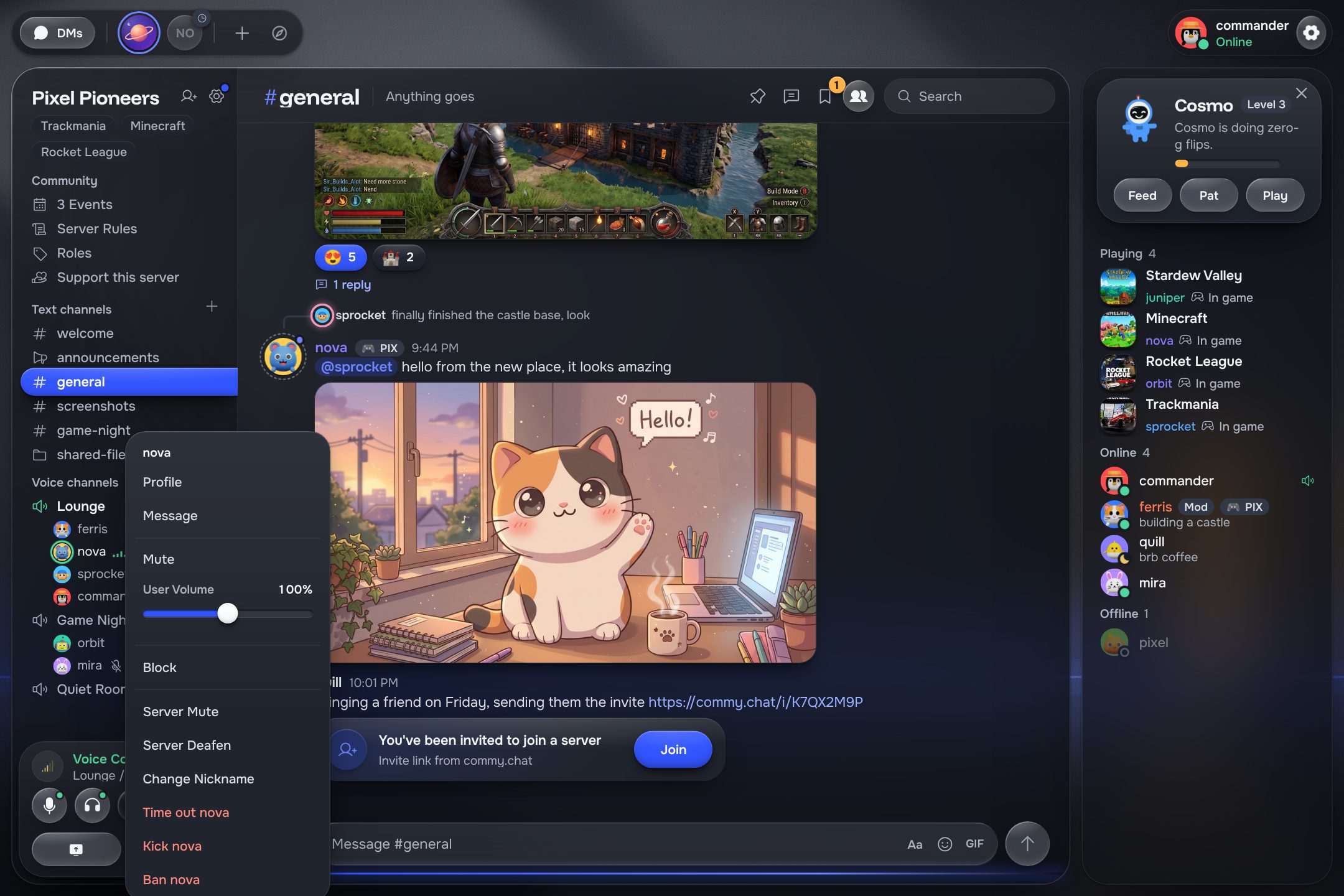
Right click someone in the voice list for User Volume, Mute and Block. The volume goes up to 200%, which really is about twice as loud. Moderators also see Server Mute, Server Deafen, Time out, Kick and Ban there.
Noise cancellation and mic level
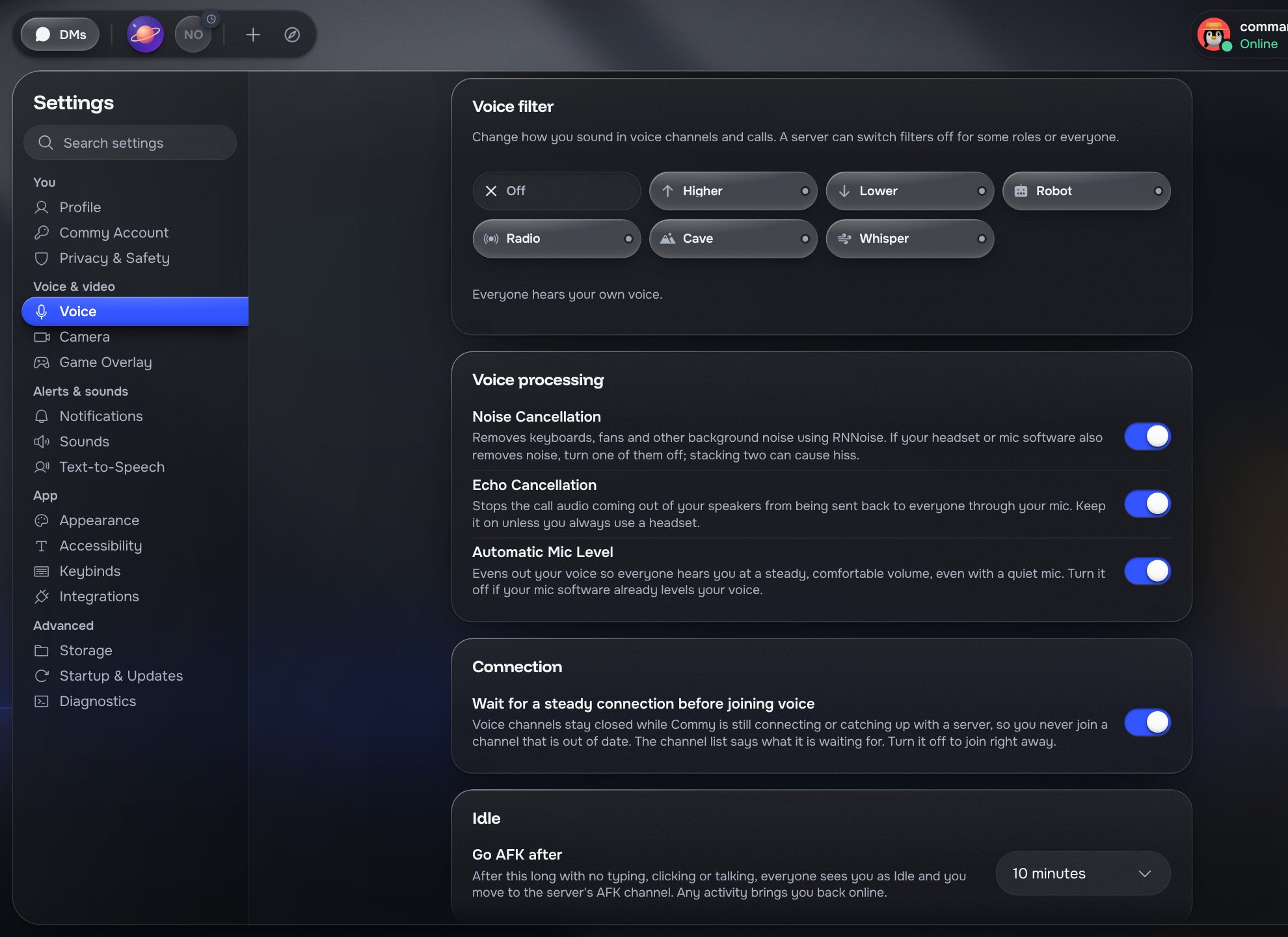
Settings, Voice, Voice Processing has three switches, all on by default and all running on your device. They are free for everyone.
- Noise Cancellation removes fans, keyboards and background chatter with RNNoise.
- Echo Cancellation stops call audio from your speakers going back out through your mic. Keep it on unless you always use a headset.
- Automatic Mic Level evens out your voice so everyone hears you at a steady, comfortable volume, even with a quiet mic.
If your headset or mic software already removes noise, turn one of the two off. Stacking them can cause hiss.
Voice filters
Change how you sound in voice channels and calls. In Settings, Voice, Voice Filter, pick one:
| Filter | Sounds like |
|---|---|
| Higher | Bright and squeaky |
| Lower | Deep and booming |
| Robot | One steady metal note |
| Radio | A crackly walkie-talkie |
| Cave | Echoes off stone walls |
| Whisper | Breathy and hushed |
The mic test plays your voice back through the filter, so you hear what others hear. Filters change your voice on your own device before it is sent. A server can switch filters off for some roles or for everyone with the Use voice filters role switch, and you are told when your own voice is going out instead.
Push to talk and hotkeys
In Settings, Voice, choose Voice Activity or Push to Talk. On the desktop, pick a push to talk key and a Release delay that keeps your mic open for a moment after you let go. On a phone, push to talk gives you a Hold to talk button. On the desktop app, Settings, Keybinds sets hotkeys to mute or deafen from any app.
Camera
Turn the camera on from the Voice Connected panel. In Settings, Camera, choose a camera, a background of Off, Blur or Image, and Mirror my video. You can also use an avatar instead of your face, either one of the starter avatars or your own. Effects run on your device and the preview shows what the call sees.
Soundboard
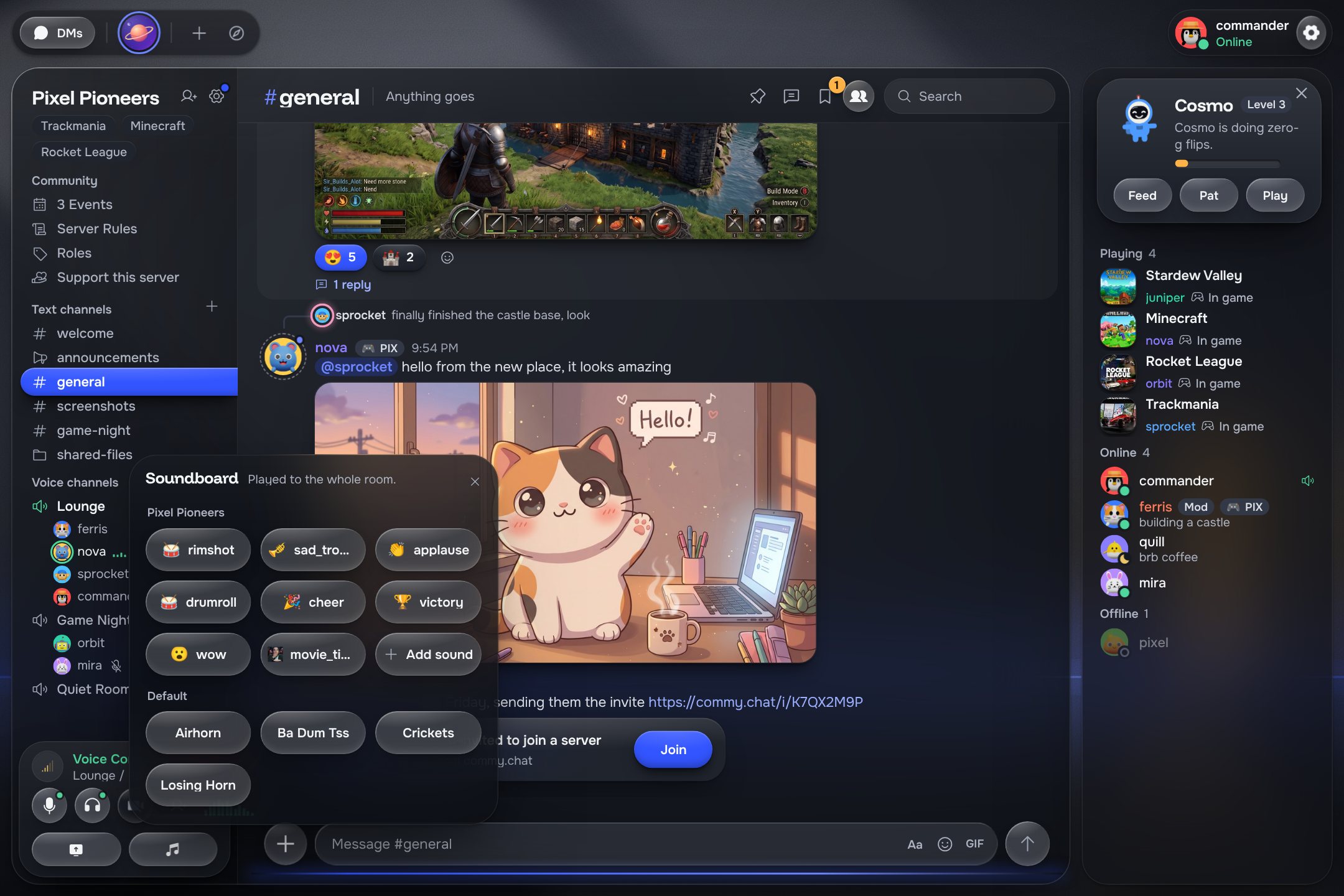
Open Soundboard in the panel to play a short clip for everyone in the voice channel. The active server's sounds come first, then sounds shared from your other servers, then the built-in ones. Each person can mute soundboard clips or change their volume in Settings, Sounds. Servers add their own clips, see Make your server yours.
Join sounds
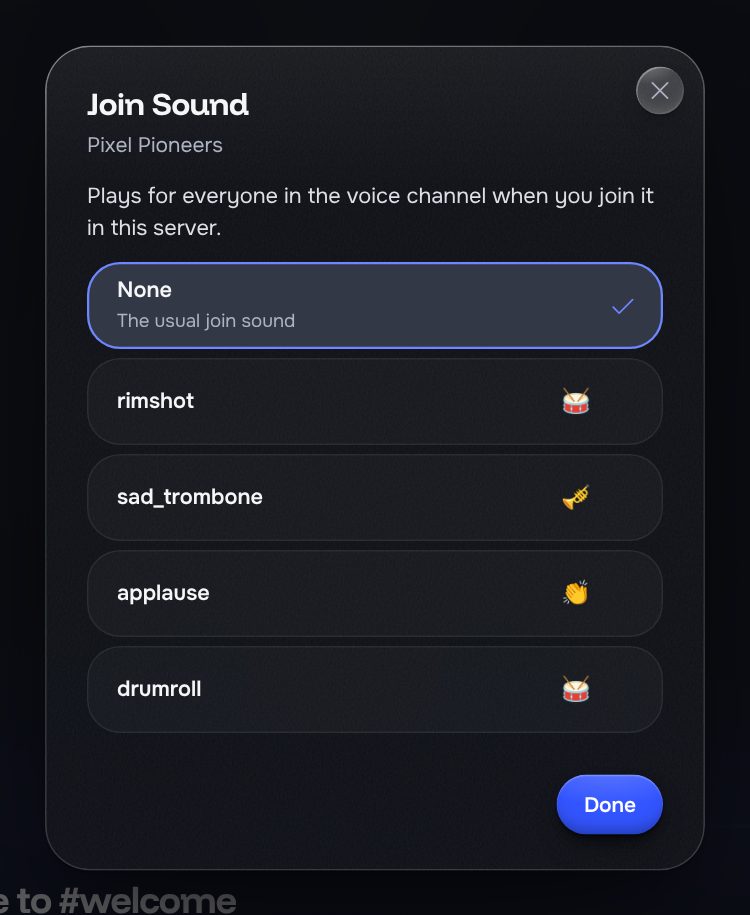
Pick a sound that plays for everyone in the voice channel when you join it. Open the server menu, choose Join Sound and pick one of the server's soundboard clips or a built-in one. Each server can have its own. Owners can turn join sounds off for the server, and anyone can stop hearing them in Settings, Sounds.
Moving around
Drag yourself onto another voice channel to move there. Members with the right role can drag other people between channels, or right click them to move them. If you go idle you are moved to the server's AFK channel.
Stage channels
A stage channel is for talks and events. Speakers talk, and the audience listens and can Raise hand. Hosts invite people up to speak. Create one with the Stage type when you add a channel, see Servers and channels.
Activities
An activity is something the whole voice channel does together. Choose Activities in the Voice Connected panel and pick one.
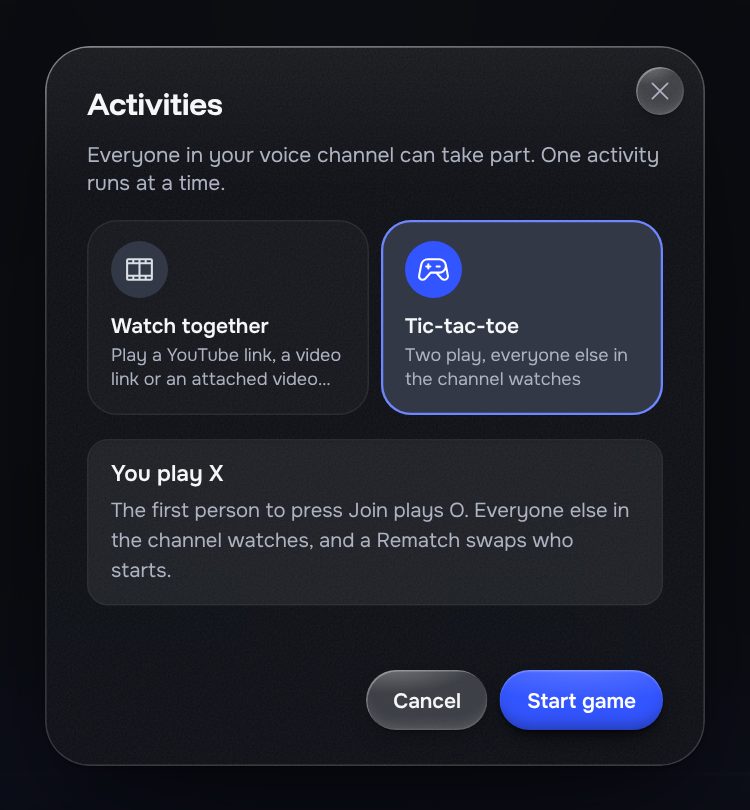
- Watch together plays a YouTube link, a direct video link or an attached video for everyone. Play, pause and seeking stay in sync, within a second of each other. A YouTube video only loads after you choose Load YouTube player, so nothing from YouTube reaches you until you ask for it. If YouTube refuses to play a video inside Commy, Open on YouTube opens it in your browser.
- Tic-tac-toe is for two players while the rest of the channel watches. The first person to press Join plays O, and Rematch swaps who starts.
Activities are off until a server owner turns them on in Server Settings, Overview, Activities.
Voice channel details
Each voice channel can show a status line, such as what you are playing, and a person limit.
If someone cannot hear you
- Check the input device in Settings, Voice, and use the mic test.
- Make sure you are not muted.
- Very strict networks can block direct connections. Commy then finds another route, which adds a little latency but keeps working. Settings, Diagnostics, Test my connection tells you how your network does, see Settings.
Where it works
- Desktop and phone and tablet: everything on this page except hotkeys, which are desktop only. On Android a call keeps running with a notification while the app is in the background.
- Browser: voice channels and calls, mute and deafen, Invite to Call, volume for each person, the mic test, your microphone and speakers (where the browser lets a page choose speakers), the soundboard, join sounds, stage channels, voice channel status, server mute and deafen, and activities (Watch together with YouTube links or attached videos, and Tic-tac-toe). The noise cancellation, echo cancellation and automatic mic level switches use the browser's own processing. The camera, voice filters, push to talk and direct video links in Watch together are in the desktop and phone apps.