 Commy
Bots
A bot is a member that runs on its own, on a computer or server someone keeps online. It joins with an invite like anyone else, wears a BOT badge, and can only do what its roles allow.
Out of the box, commy-bot enforces your server's auto moderation rules: it removes held messages for everyone, can post a short note in a channel you choose, and can ban someone after repeated removals. It can also run bot code you write, post webhooks from other services into your channels, and register slash commands that members pick from the message box.
See and add bots
Open Server Settings, Bots. The page lists the bots installed in the server and has an Add a Bot button and a link to the bot guide.
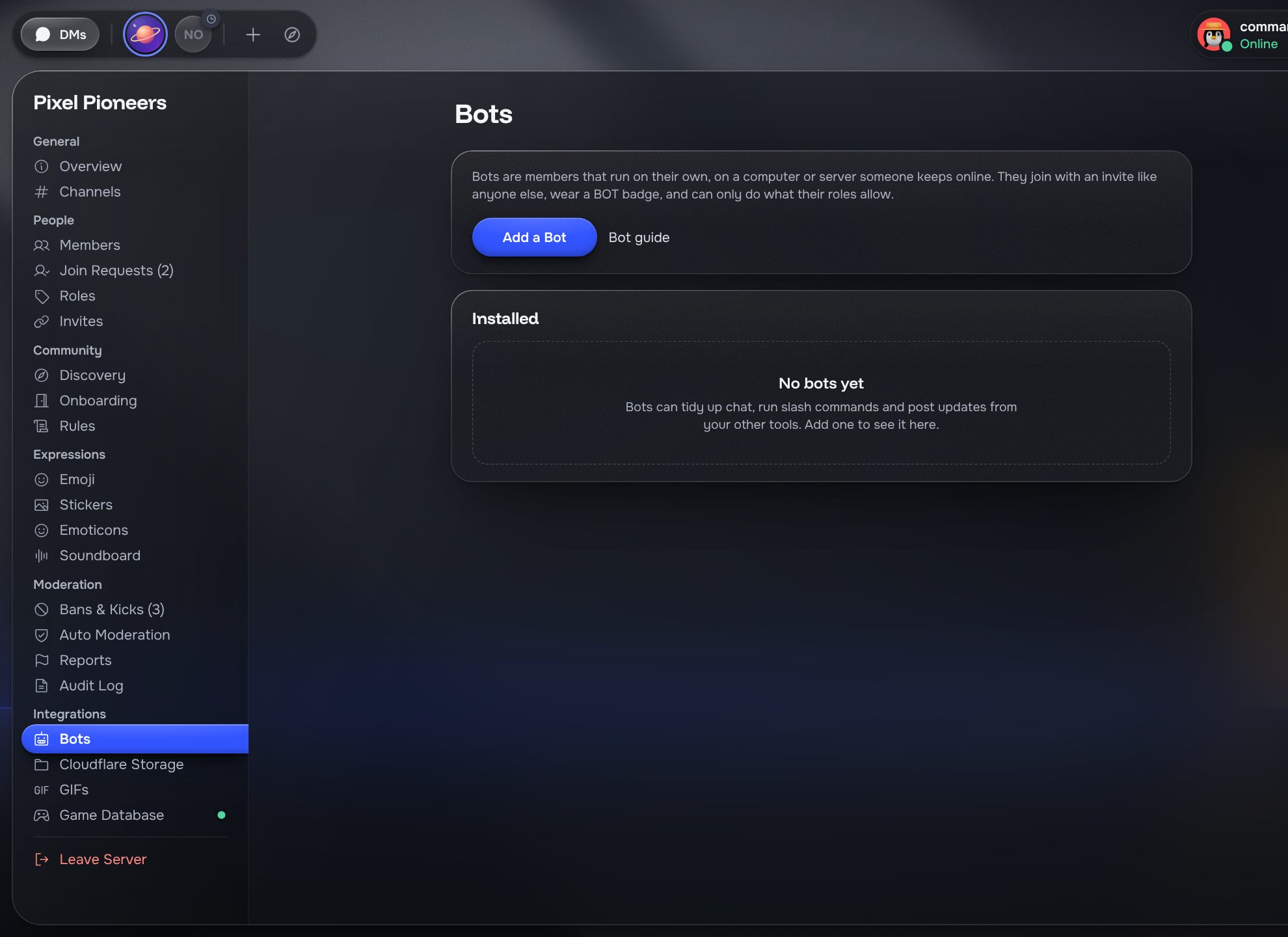
Add a Bot walks you through three steps. It makes an invite code for the bot, shows the commands to run on the bot's computer for the name you type, and then waits for the bot to join so you can give it a role. Your app has to be online the first time the bot connects, because the bot only trusts a copy of the server it gets from the owner.
Run a bot
Commy does not host bots. A bot is online only while the computer running it is, so run it on a machine that stays on, such as your own PC, a home server or a small VPS.
- Download
commy-botfor Windows, macOS or Linux from the latest release. - Create the bot with
commy-bot init Tidy. This makes a folder holding its keys, so keep it private. - In the app, open Invite People, choose Copy Invite Code, then join with
commy-bot joinand paste the code. - Start it with
commy-bot run. - In Server Settings, Roles, create a role with Manage Messages, add Ban Members if you want it to ban, and give it to the bot. Without a role it joins but does nothing.
The bot guide covers every option, webhooks, running your own bot code and slash commands.
Slash commands
When a bot registers slash commands, they appear in the message box of every member. Type / to see them with a description and option hints. Using one posts a compact "used" line that the bot answers.
Where it works
- Desktop and phone and tablet: see and add bots, and use slash commands.
- Browser: managing bots is in the desktop and phone apps.