 Commy
Direct messages and friends
Direct messages are private conversations outside any server. Click DMs at the top left of the window to open them. On a phone, they live in the Messages tab.
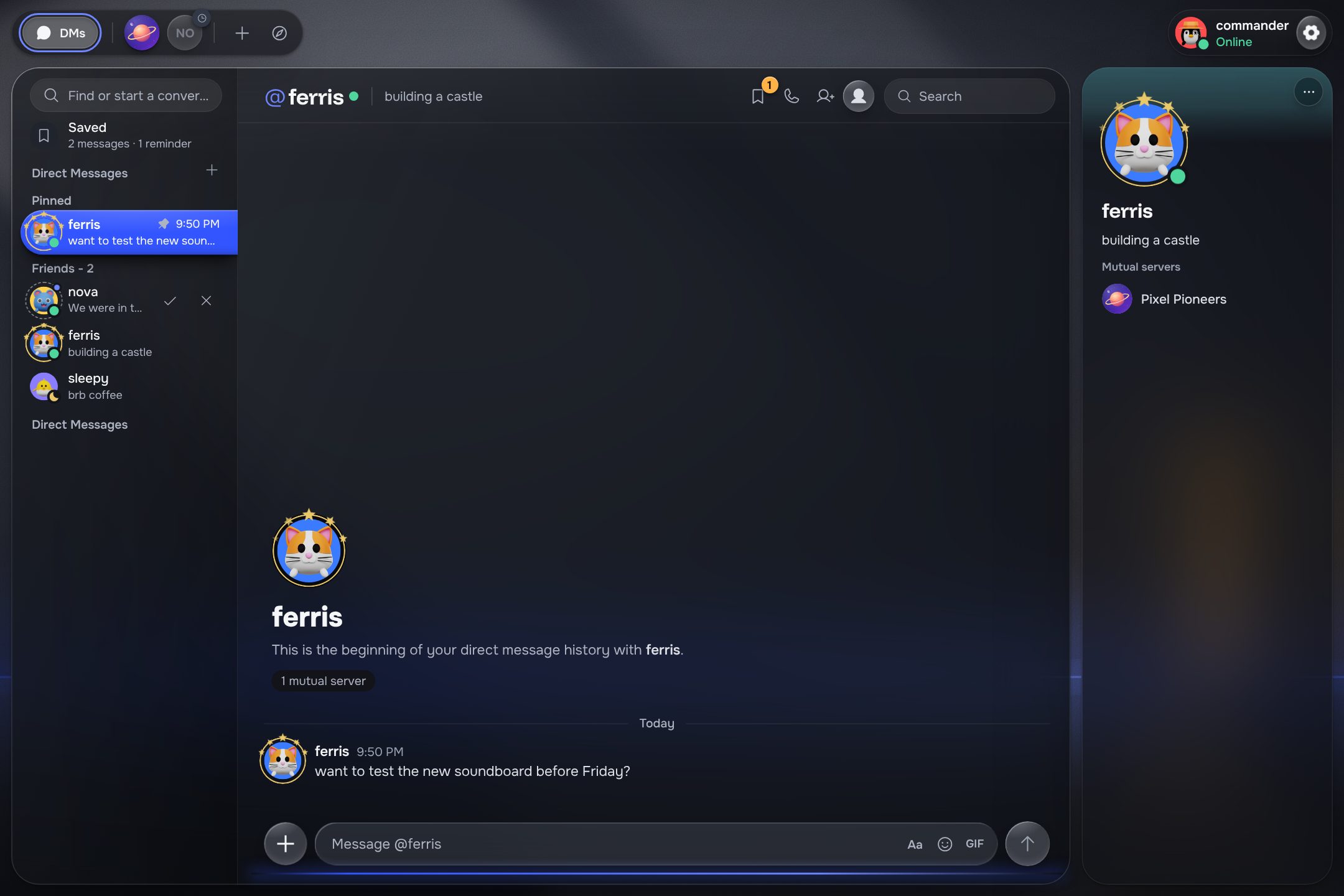
The list on the left has three parts: Saved (your saved messages), Friends and Direct Messages. The box at the top, Find or start a conversation, filters the list and starts a new conversation.
Start a conversation
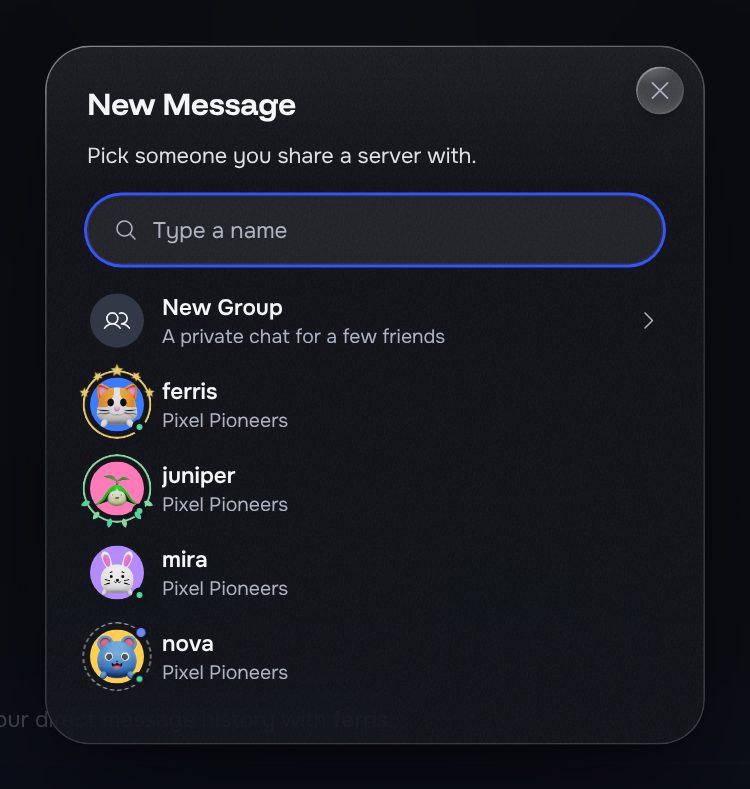
- Click the plus beside Direct Messages to open New Message, then pick someone you share a server with.
- Or click anyone in a member list to open their card and type in the Message box at the bottom of it.
Messages are delivered straight to the other person. If they are offline, a message you send waits and arrives when they come back. That works even when you no longer share a server, for example with a friend after one of you left it: the message waits for them sealed so only they can open it.
Group chats
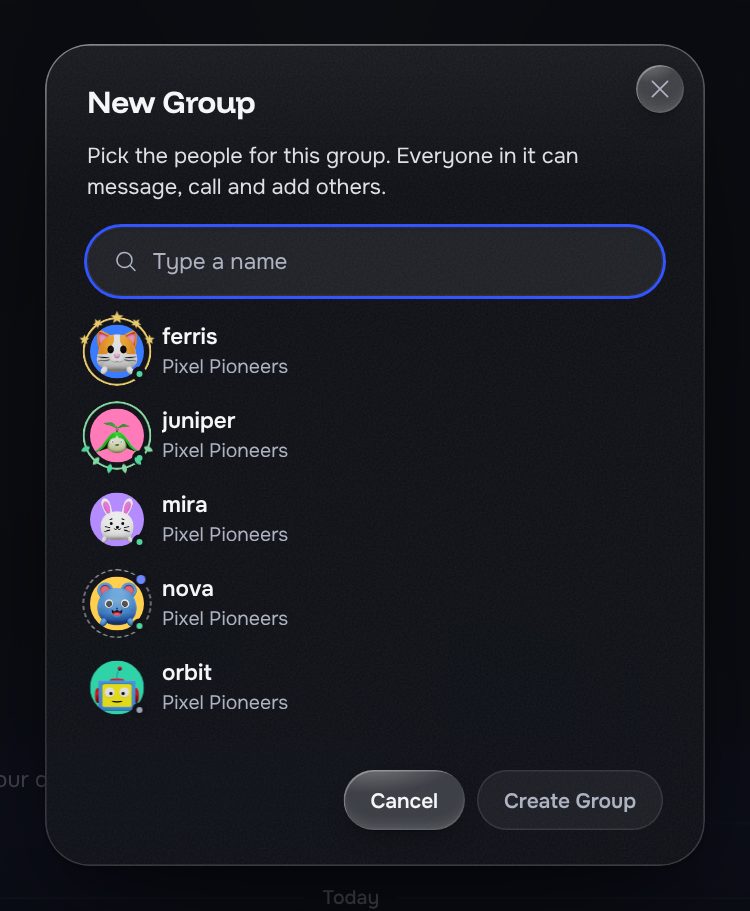
Choose New Group in the New Message window, tick the people you want and choose Create Group. Everyone in a group can message, call and add others. Inside a conversation, the Start a Group button in the header starts a new group that includes that person.
Friends
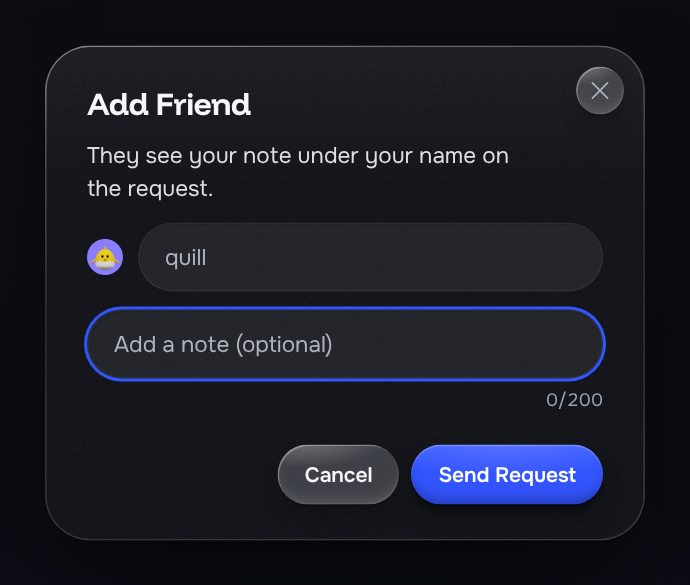
Click someone in a member list to open their card and choose Add Friend. You can add a short note, up to 200 characters, so they know who is asking.
Friend requests you receive show under Friends with a tick to accept and a cross to decline. Friends are marked online, and you can turn on a small notification when a friend comes online, for everyone or for just a few people. See Notifications.
Message requests
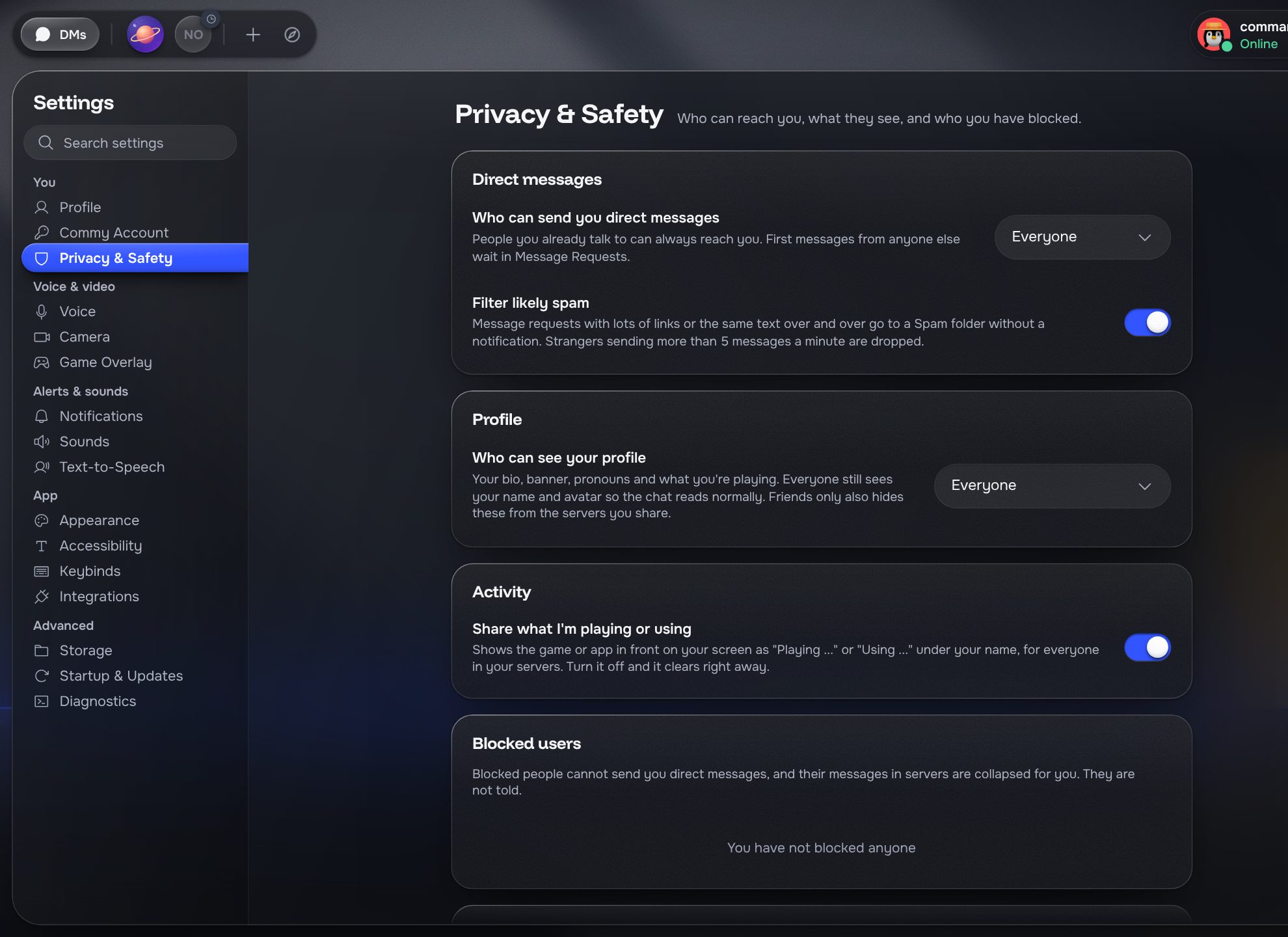
When someone you have not talked to messages you, the conversation arrives as a request. You can Accept it to reply, Decline it to delete it, or Block the person. Settings, then Privacy & Safety, controls who can send you direct messages: everyone, people in your servers, or only people you already talk to. Messages that look like spam go to a Spam folder without a notification.
In a conversation
Direct messages work like a text channel. You can format text, add colours and effects, reply, react, edit, delete and send files and voice messages, and the header has buttons for Pinned Messages, Threads, Saved Messages, Start Voice Call and Start a Group. Search can look through All direct messages at once, see Messages and chat.
Pin the conversations you use most so they stay at the top of the list on that device.
Calls
Choose Start Voice Call in the header to ring the person, or everyone in a group. They see the call ring and can answer. The call uses the same controls as a voice channel, see Voice and noise cancellation. You can also invite a friend or a channel to a call with a card that shows who is in the call right now and a Join button.
Block and report
Right click a person's name, or open the menu on their card, and choose Block. Blocked people cannot message you, their messages in servers are collapsed for you, and they are not told. Your blocked list is in Privacy & Safety. To report someone to a server's owner, use the flag button in a message's action bar or the menu on their card.
Where it works
- Desktop and phone and tablet: everything on this page.
- Browser: everything on this page, with files up to 100 MB.