 Commy
Screen and game sharing
Screen sharing is free for everyone, with no limits locked behind a subscription. You can share from the desktop app and from the Android app.
Start sharing
- Join a voice channel.
- Choose Share Screen in the Voice Connected panel.
- Pick what to share. Screens lists your monitors and Applications lists your open windows. Pick a single window to keep everything else private.
- Choose a stream quality.
- Choose Go Live.
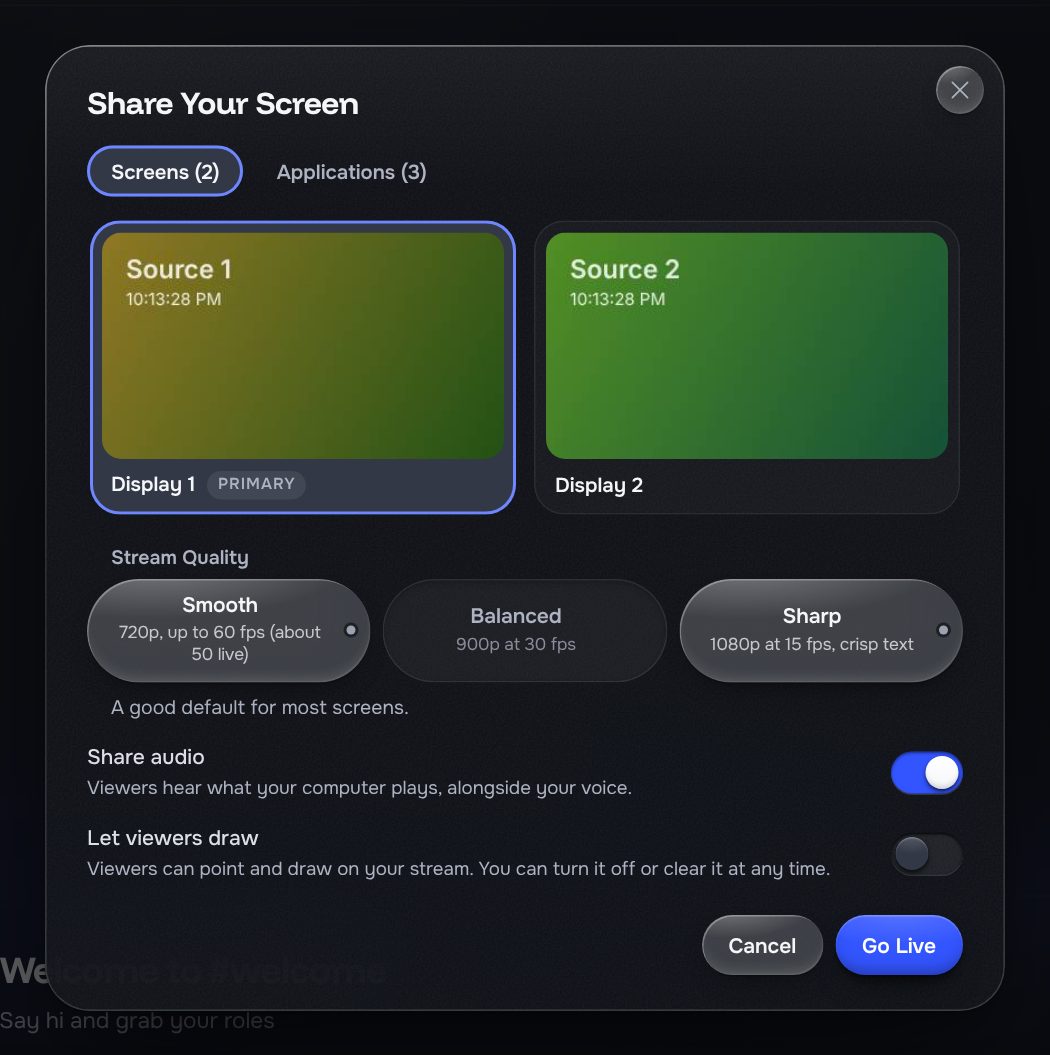
Stream quality
| Preset | What you get |
|---|---|
| Smooth | 720p, up to 60 frames per second (about 50 live), best for fast games |
| Balanced | 900p at 30 frames per second, a good default for most screens |
| Sharp | 1080p at 15 frames per second, crisp text for code and documents |
On Windows, Commy uses Windows Graphics Capture, so games stream cleanly, and HDR screens are mapped to normal colour so the picture never looks washed out. When your system supports it, Share audio also sends what your computer plays, alongside your voice. Commy's own sounds, like notifications and the soundboard, are left out of it.
While you are live
The panel shows a LIVE badge, a small preview with a viewer count and the name of what you are sharing. Click the preview to open a larger one. Switch picks a different screen or window, and End Stream stops sharing.
Let viewers point and draw
Viewers can point at things and draw on your stream, which is handy for strategy talk, a map or a bug you are chasing. It is off unless you turn it on:
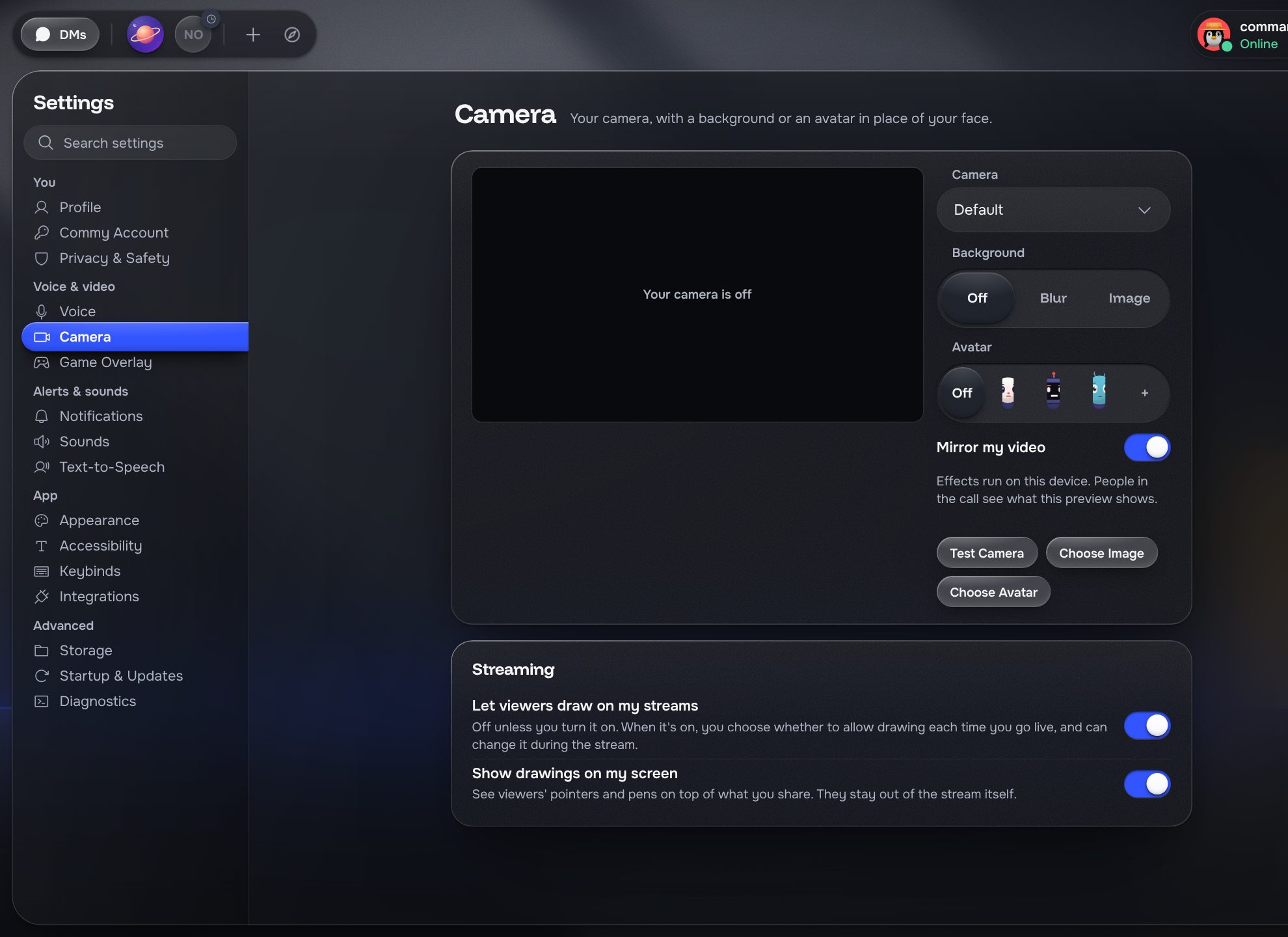
- In Settings, Camera, Streaming, turn on Let viewers draw on my streams.
- Each time you go live, choose Let viewers draw in the share window, or switch it on or off from the live panel during the stream.
Viewers then see The room can draw on this on the stream and get Draw, the pointer and the eraser under it. Everyone watching sees everyone's marks.
You see who is drawing, and you can stop one person or clear everything. With Show drawings on my screen on, the marks also appear on top of what you share, on your own screen only. They never go into the stream itself.
Watch a stream
When someone shares, a red Live badge appears next to their name in the voice channel list, and their tile in the voice room says they are streaming. Choose Watch to open the stream in the voice room, with the rest of the room in a row underneath and the channel's chat beside it.
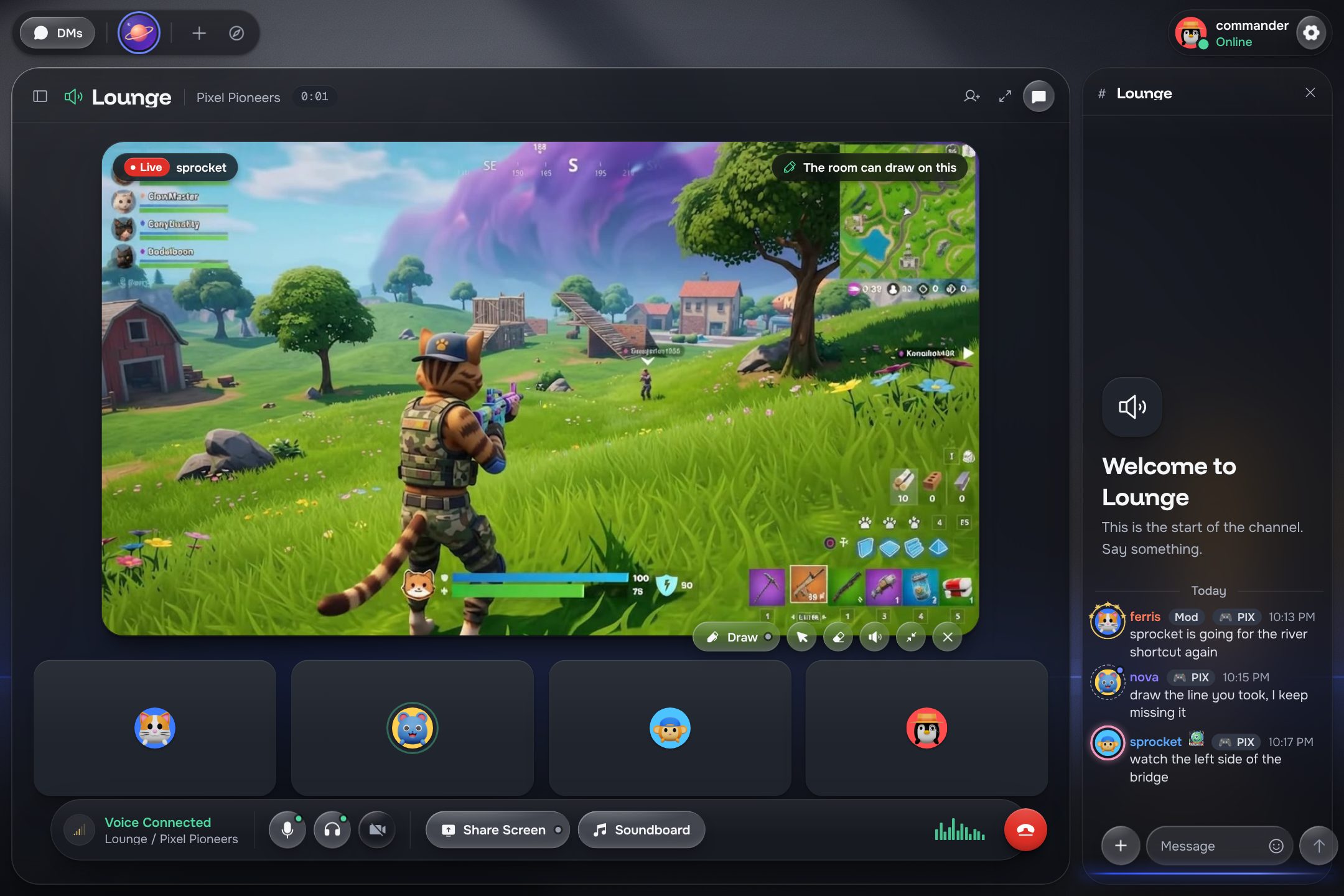
The keys under the stream are Draw and the pointer when the streamer lets viewers draw, the eraser to clear your marks, the stream's own volume, a button to make it full screen or smaller again, and the cross to stop watching. Each viewer sets their own stream volume.
Share from an Android phone or tablet
Tap Share Screen in the voice controls and allow Android to record your screen. A phone shares its whole screen, so there is no picker. While you share, Android's notification has a Stop sharing button, and stopping from Android ends the stream in Commy too.
Where it works
- Desktop: start and watch shares, and draw on streams.
- Phone and tablet: watch shares. The Android app also shares its screen.
- Browser: the browser app joins voice channels, and has no screen sharing.