 Commy
Phone and tablet
The phone and tablet apps are the same Commy with a layout made for touch. Get the iPhone and iPad app on the App Store. Get the Android app on Google Play. Your account, servers, direct messages, friends and read positions are the same ones you use on the desktop, and you sign in inside the app.
The four tabs
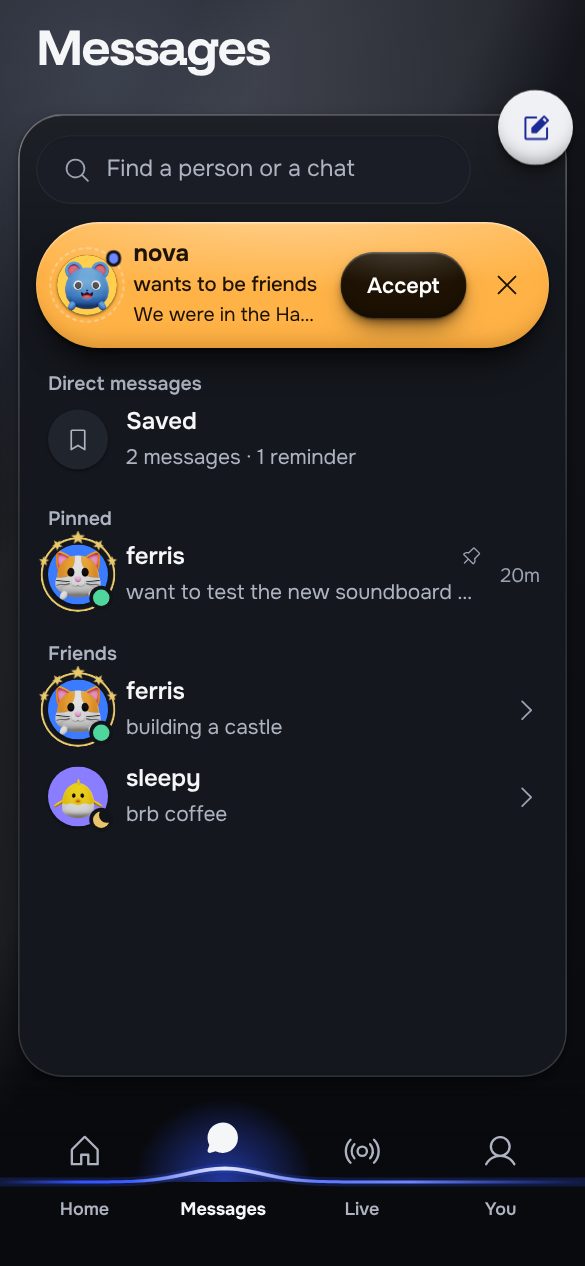
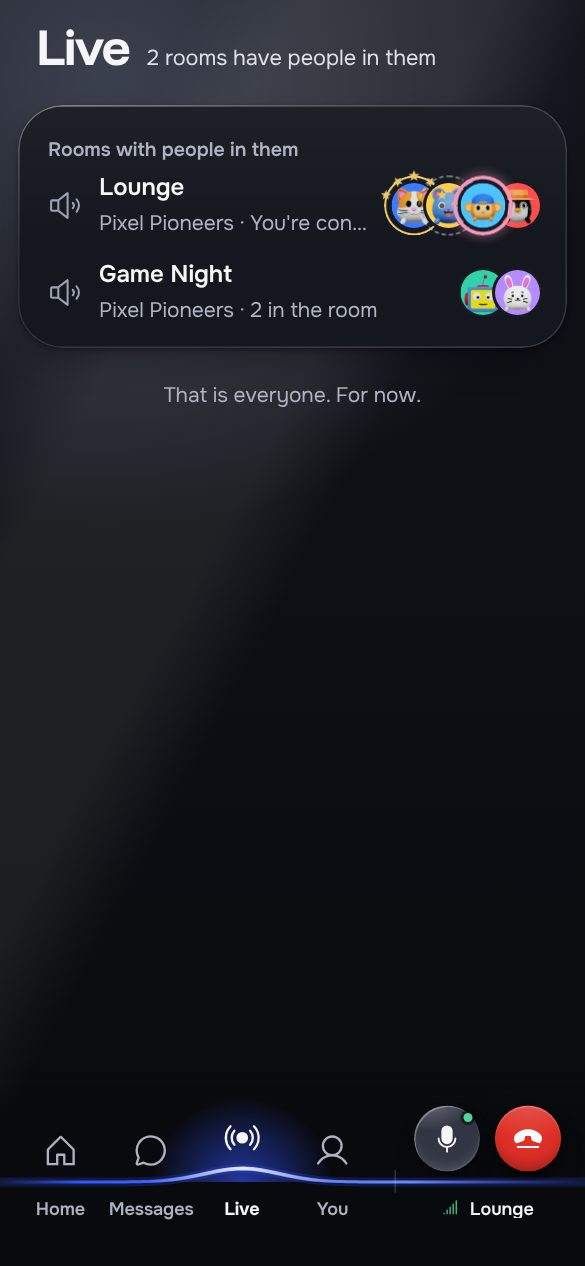
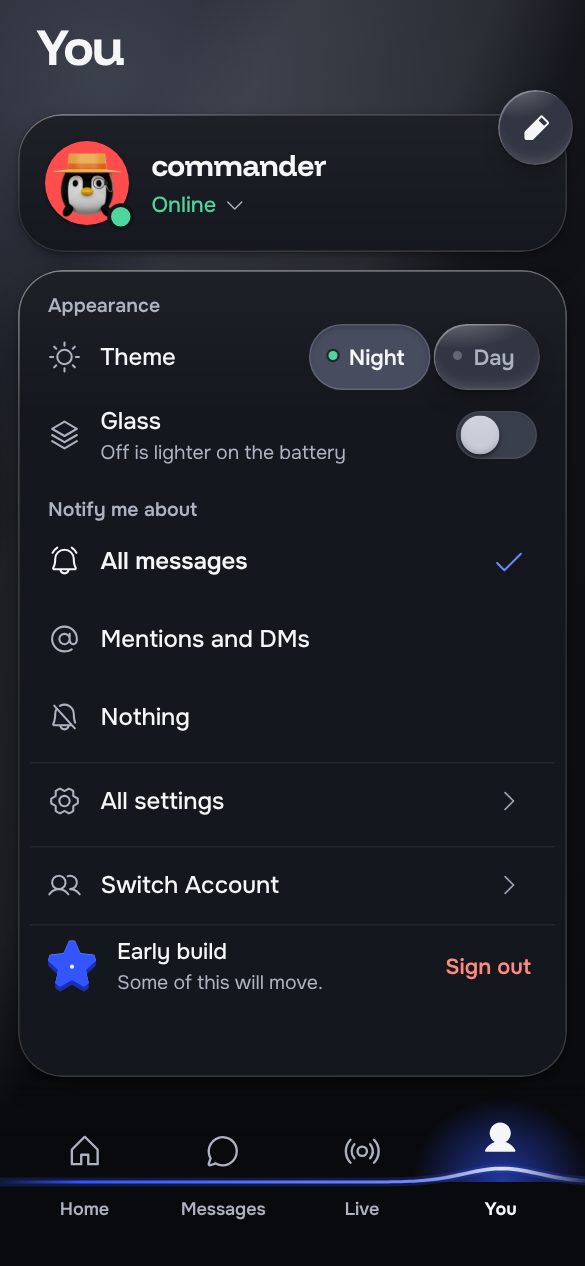
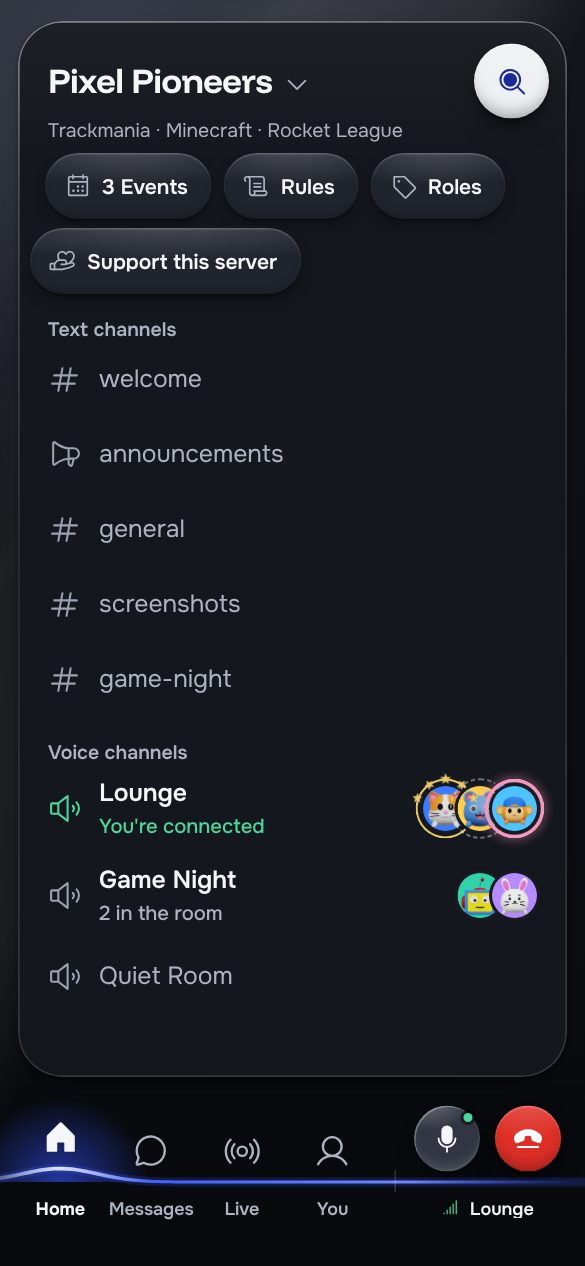
Four tabs along the bottom take you everywhere. The glowing line above them shows where you are.
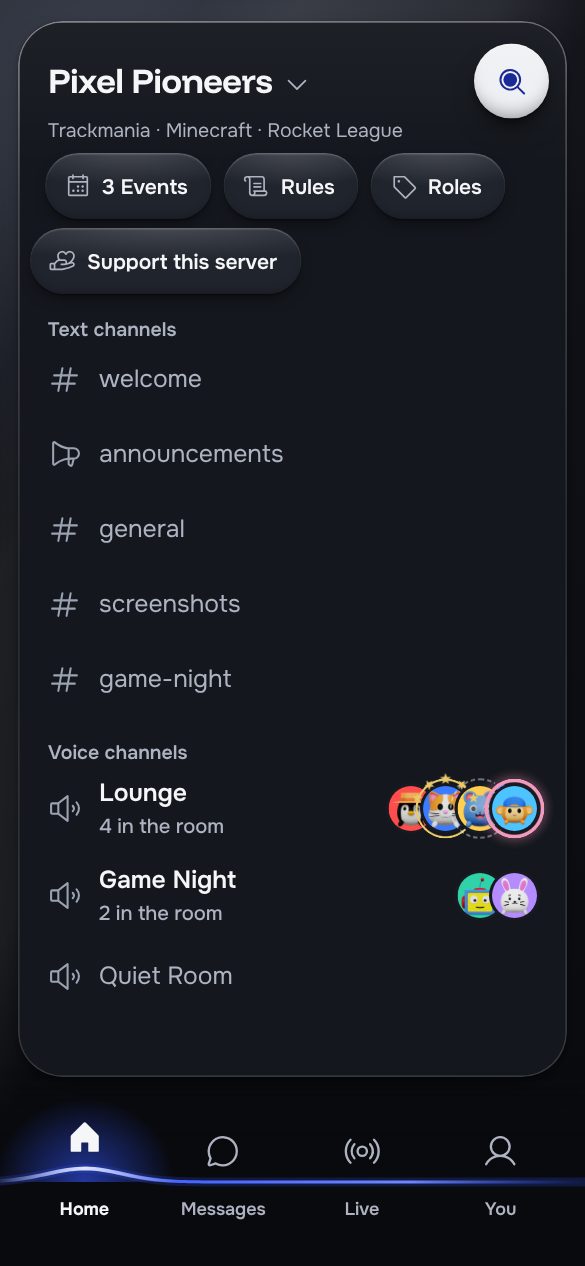
- Home. The server you are in, with its events, rules and roles at the top and its channels below. Tap a channel to open it.
- Messages. Find a person or a chat, accept friend requests, open Saved, and reach your pinned conversations and friends. The pencil starts a new message.
- Live. Every voice room with people in it, across all your servers, so you can see who is hanging out and hop in.
- You. Your picture and status, Night or Day, the Glass look (off is lighter on the battery), what to be notified about, All settings, Switch Account and Sign out.
Switch servers
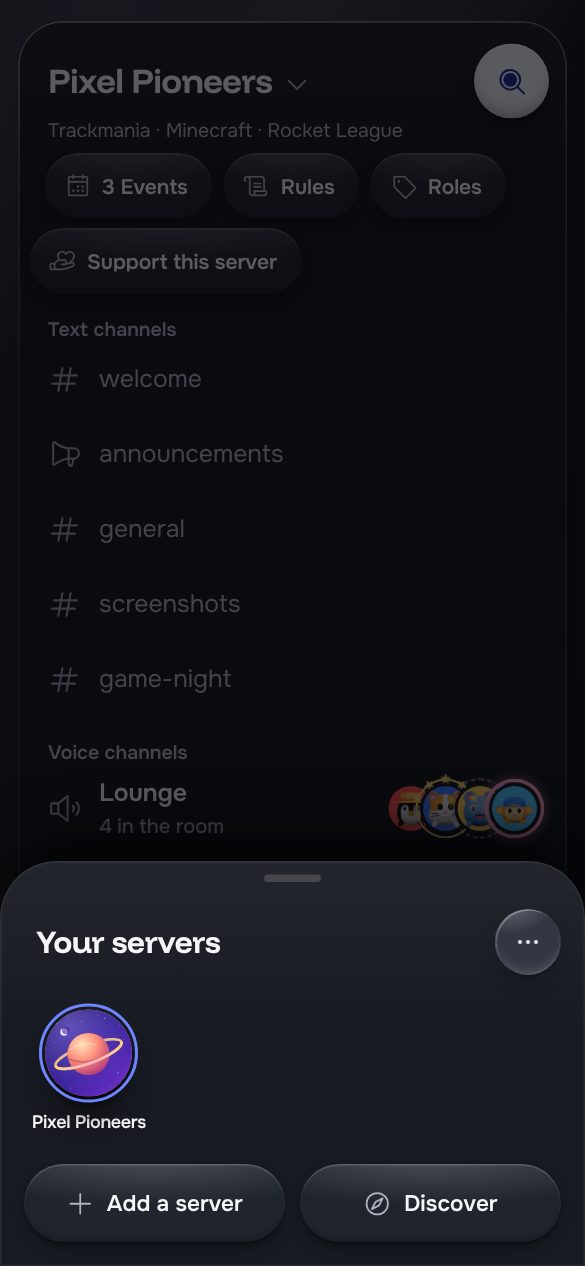
On Home, tap the server's name at the top. Your servers slides up with every server you are in, plus Add a server and Discover.
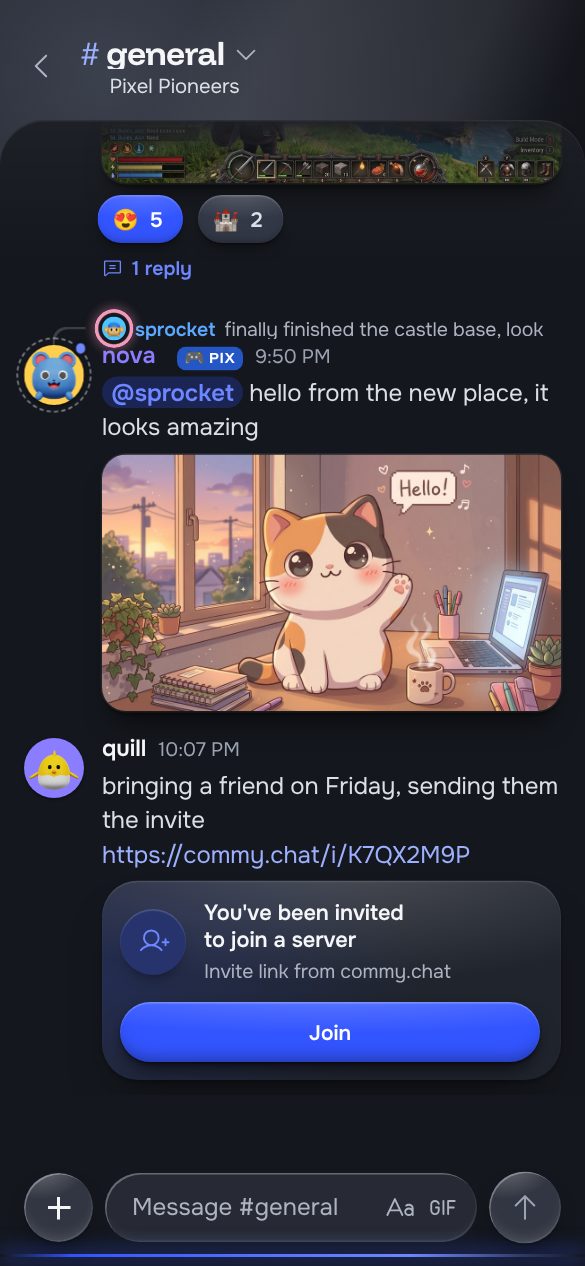
Chat on a phone
A channel opens full screen, with the message box at the bottom. The plus button adds files, GIFs, polls and voice messages, and the smiley button opens emoji, stickers and emoticons. Hold a message for its menu, or swipe it to reply. An open thread is a full screen too. See Messages and chat.
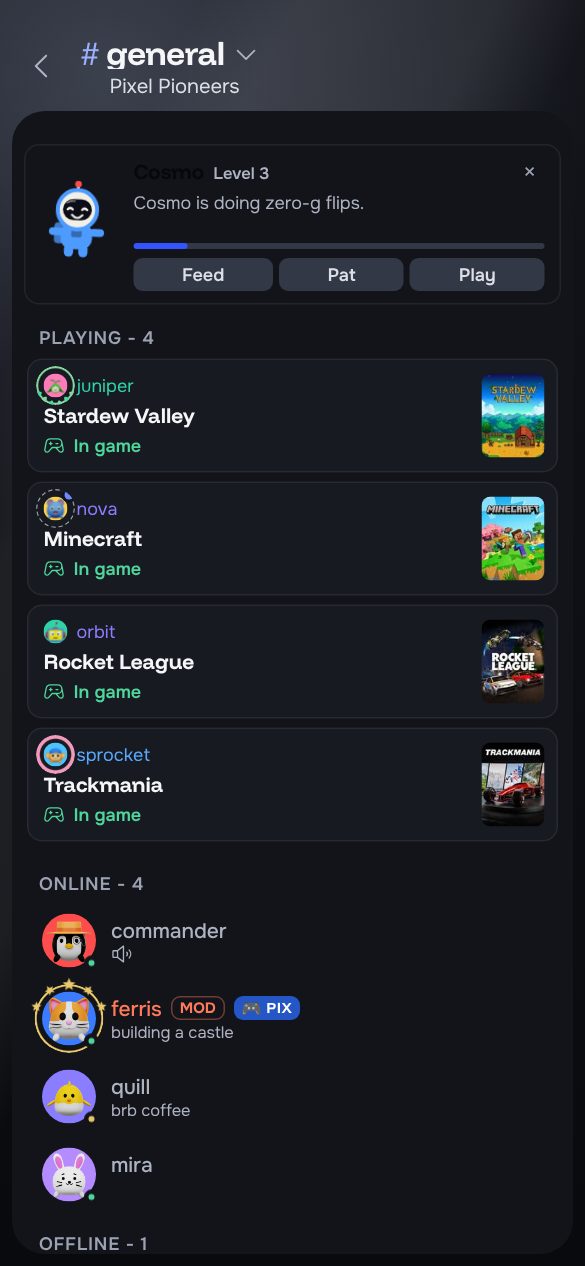
The people button in a channel's header shows the server's members and what they are playing. Tap one to open their card.
Tablets
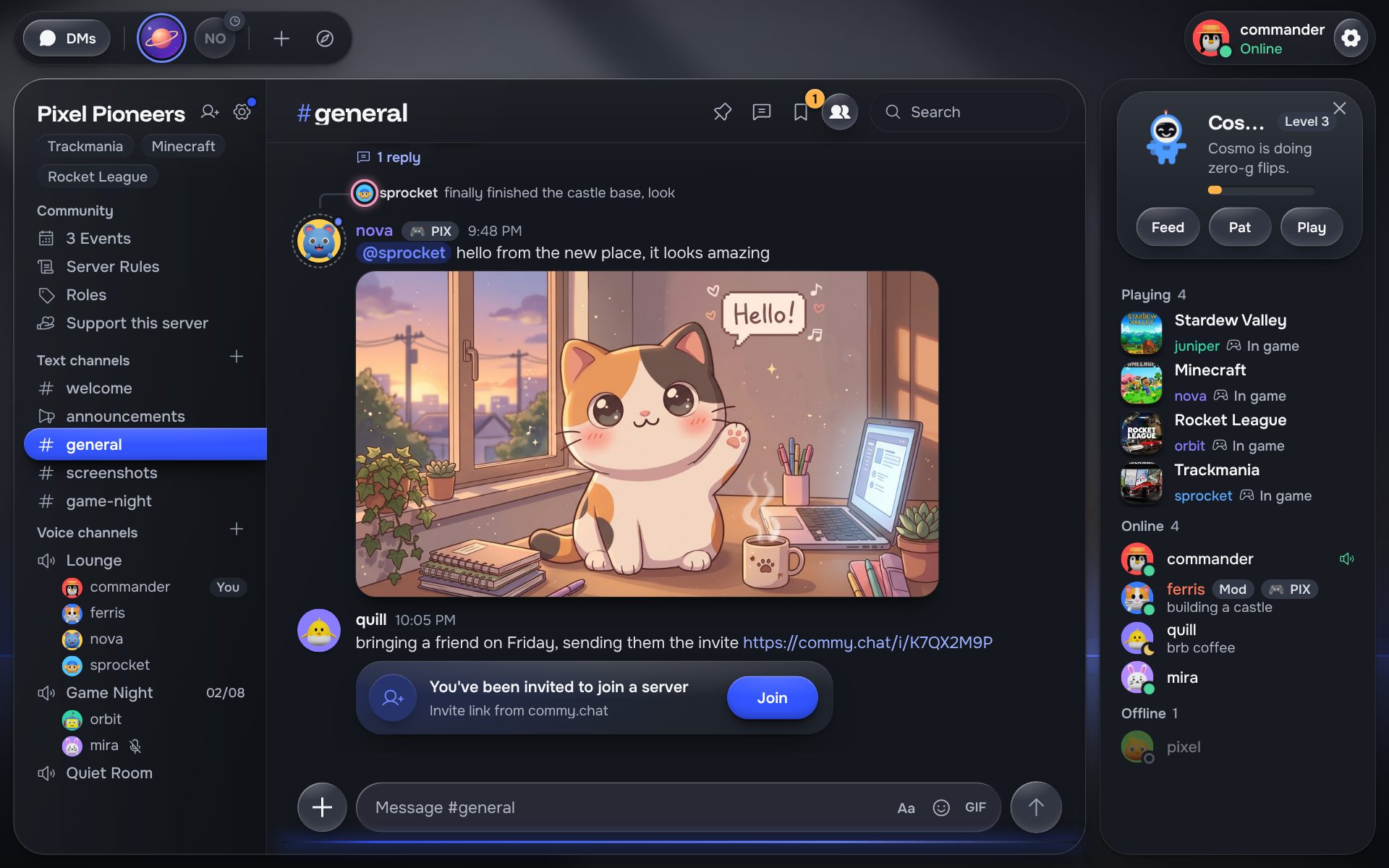
A tablet gets the wider layout once the screen is wide enough, with the channel list, the conversation and the member list side by side.
Voice and calls
Tap a voice channel to join. The first time, Commy asks for the microphone, and you can allow it in your phone's settings if you said no. While you are connected, a mute button, a red hang up button and the channel's name sit on the tab line, so they stay in reach on every tab. See Voice and calls.
Push to talk works on phones too: turn it on in Settings, Voice, and a Hold to talk button appears.
On Android, a call keeps running with a notification while Commy is in the background, and a Bluetooth headset works as your microphone and speaker.
Share your screen from Android
Screen sharing from a phone or tablet works on Android. Tap Share Screen in the voice controls and allow Android to record your screen. The whole screen is shared, so there is nothing to pick. While you share, Commy shows that you are live and how many people are watching, and the sharing notification has a Stop sharing button too. iPhones and iPads can watch streams but cannot share their screen. See Screen and game sharing.
Settings
Open the You tab and tap All settings. The pages are a list, and the back arrow or your phone's back gesture steps out of a page.
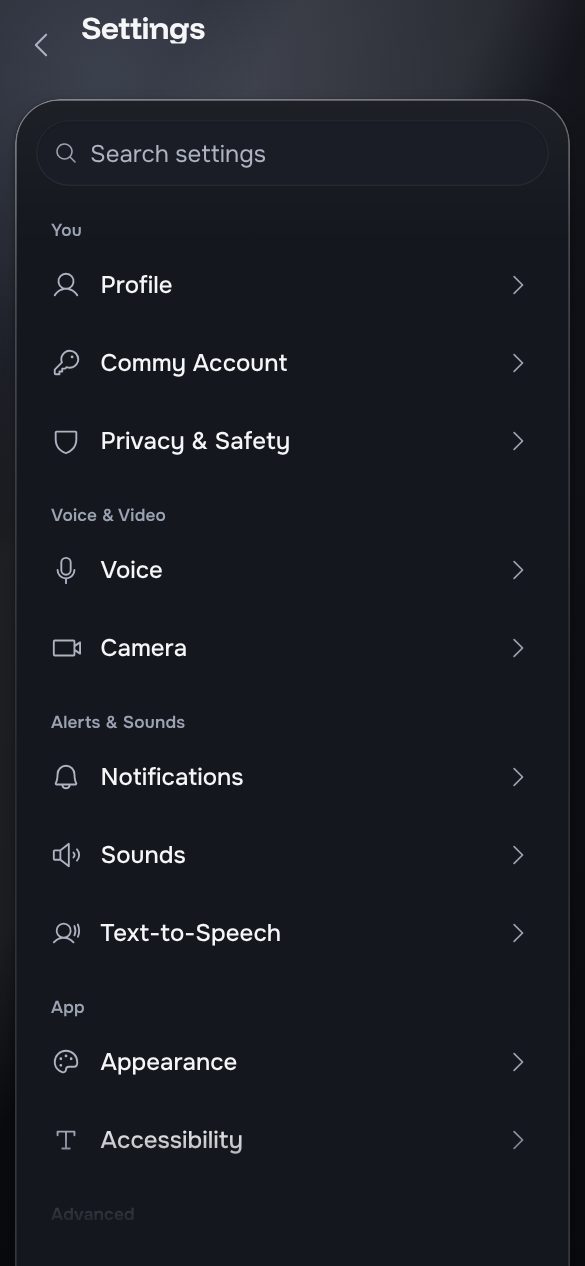
The pages are the same as on the desktop, grouped into You, Voice & Video, Alerts & Sounds, App and Advanced, without the ones that only make sense on a computer. See Settings and accessibility.
What stays on the desktop
Some features only make sense on a computer and are not shown in the phone and tablet apps: the game overlay, the files in drive channels, files over 512 MB, the system tray, start with your computer, keybinds, the app and tray icon, Stream Deck and automatic updates. See Desktop extras.
Everything else
Everything else in the guides works the same on a phone or tablet: messages, direct messages, profile and status, notifications, voice, including voice filters and join sounds, servers, making your server yours and moderation.