 Commy
Desktop extras
These features belong to the desktop app. Windows is the main platform. macOS and Linux builds come with each release, and a few features, such as the game overlay and notification toasts, are Windows only for now.
Game overlay
The overlay is a small see-through panel on top of your game that shows who is talking and recent messages, then gets out of the way. It only appears while a game is in front and you are in voice, and it never takes focus or clicks from the game.
Open Settings, Game Overlay.
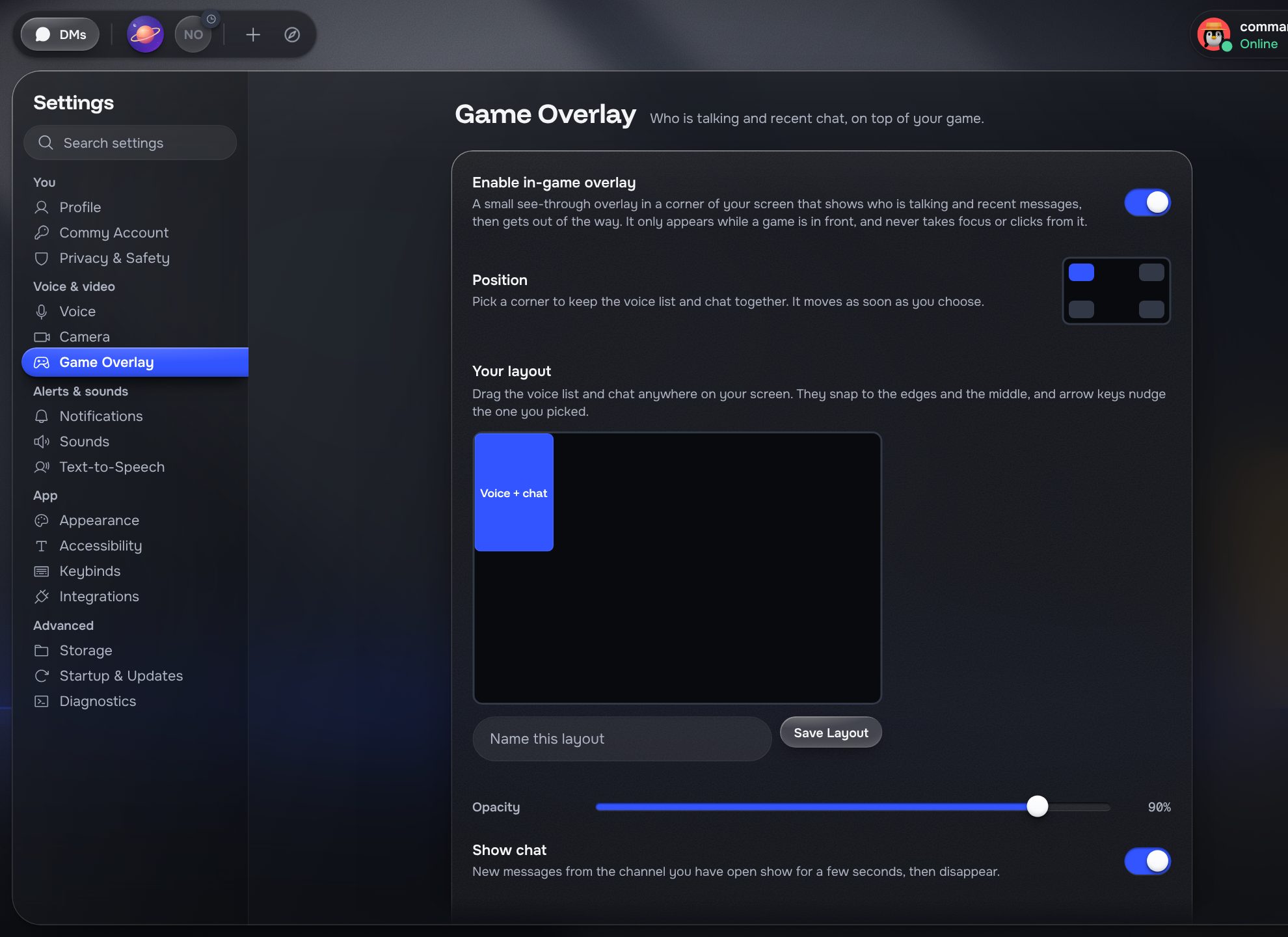
- Enable in-game overlay turns it on.
- Position picks a corner for the voice list and chat together. It moves as soon as you choose.
- Your layout is a small map of your screen. Drag the voice list and the chat to any spot, each on its own, and they snap to the edges and the middle. Arrow keys nudge the one you picked. Name a layout and choose Save Layout to keep it, up to eight, and switch between them later.
- Opacity sets how see-through it is.
- Show chat shows new messages from the channel you have open for a few seconds.
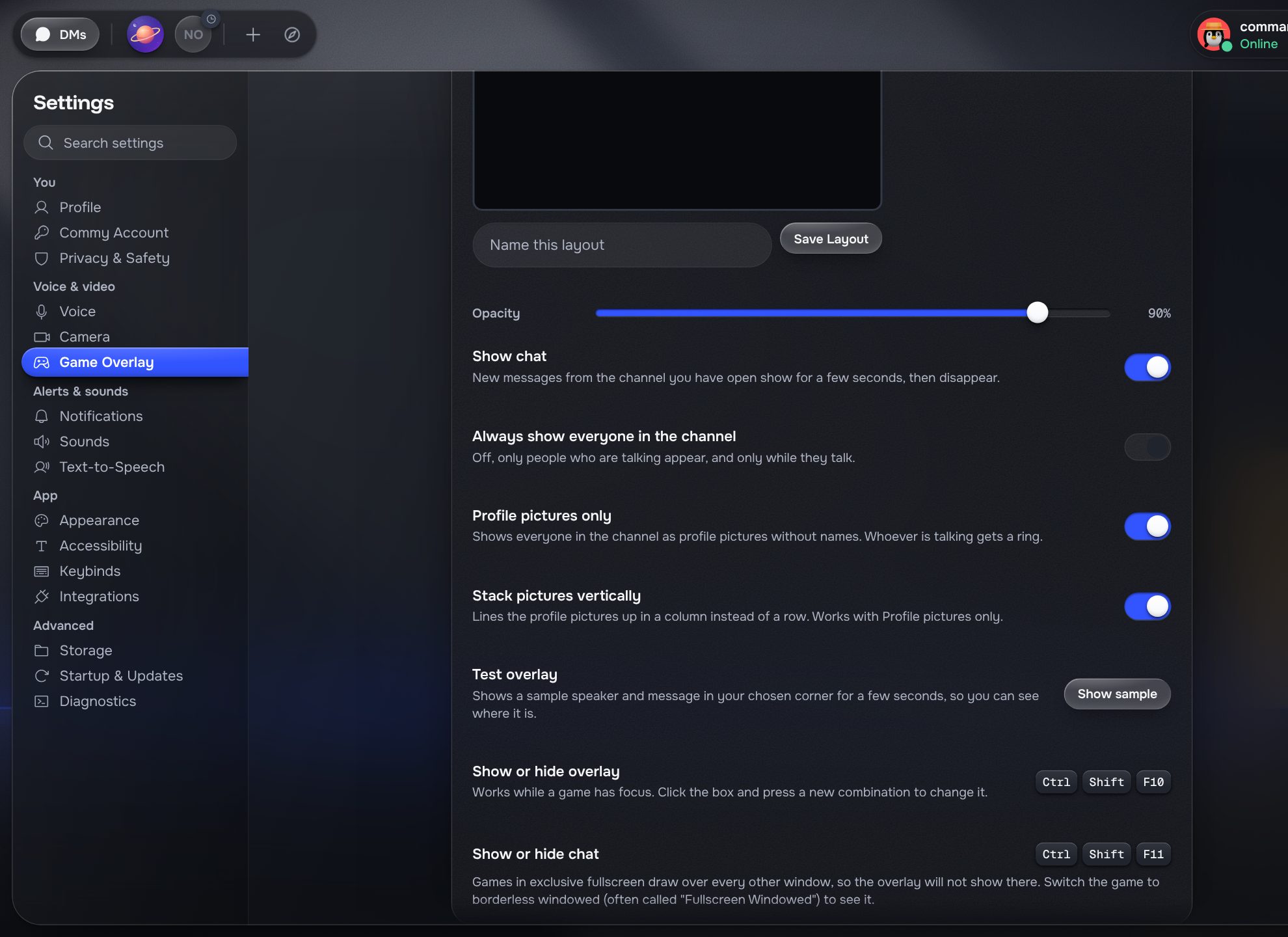
- Always show everyone in the channel keeps everybody listed. Off, only people who are talking appear, and only while they talk.
- Profile pictures only shows everyone in the channel as a row of pictures without names, with a ring on whoever is talking.
- Stack pictures vertically lines those pictures up in a column instead, in any corner.
- Show sample shows a sample speaker and message so you can see where it sits.
- Show or hide overlay and Show or hide chat are hotkeys that work while a game has focus. Click the box and press a new combination to change one.
The overlay over a game, with everyone in the channel at the top left and the latest chat lines under them:

And profile pictures only, stacked in a column:

Games in exclusive fullscreen draw over every other window, so the overlay will not show there. Switch the game to borderless windowed, often called Fullscreen Windowed.
Narrow windows
Make the Commy window narrower, for example beside a game, and it makes room for the conversation. The member list folds away, and the channel header keeps the people button and search while the rest of its buttons move into the ··· menu. Your servers, channels, voice controls and chat stay side by side.
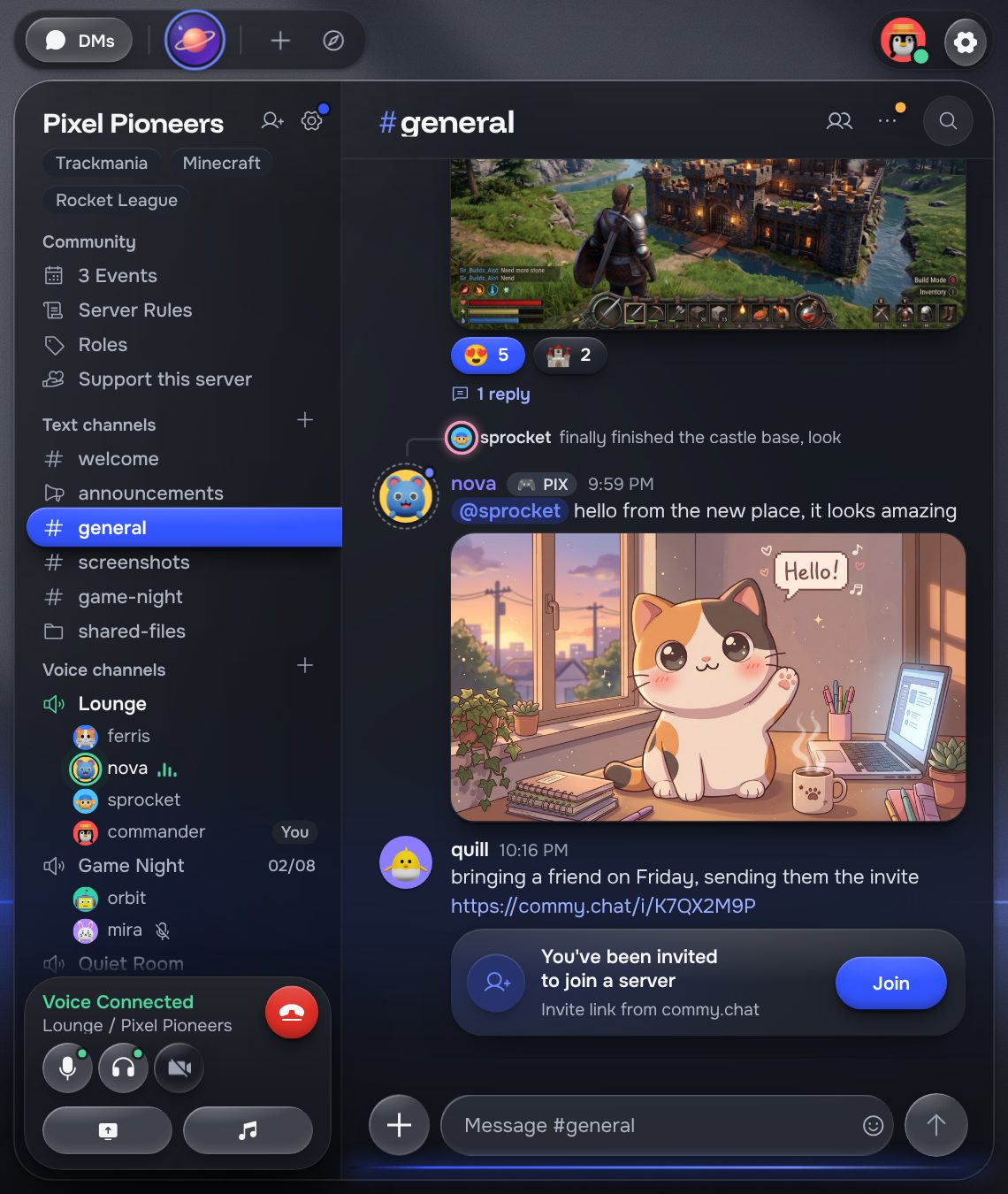
Narrower still, about the width of a phone, Commy switches to the phone layout with the Home, Messages, Live and You tabs, described in Phone and tablet. Drag the edge of the channel list to make it wider or narrower in any window.
System tray and start with your computer
In Settings, Startup & Updates:
- Keep running in the tray keeps Commy running after you close the window, so messages, notifications and calls keep arriving. Quit from the tray icon.
- Start with my computer opens Commy hidden in the tray when you sign in to your computer, so you keep getting message notifications without opening the window.
The tray icon shows your unread count. Starting Commy a second time brings the running app to the front instead of opening another copy.
App icon and tray icon
In Settings, Appearance, pick a colour for the icon in your taskbar or dock and for the tray icon: Classic, Amber, Mint, Ocean, Violet, Mono or your own image. The tray icon can also match the app icon. On Windows the new icon also reaches the taskbar, the Start menu and your desktop shortcut.
Keyboard shortcuts and voice hotkeys
- Ctrl+K opens the quick switcher to jump to any channel, conversation or server.
- Ctrl+F searches the server you are in.
- Voice hotkeys mute or deafen from any app. Set them in Settings, Keybinds: click the box and press a combination, or press Backspace to clear it.
- Push to talk is in Settings, Voice.
Stream Deck
Control Commy from the keys and dials of an Elgato Stream Deck. Commy only listens for it on your computer, and asks before a Stream Deck can connect.
- Download
commy-soundboard.streamDeckPluginfrom the latest Commy release and open it. Stream Deck 7.1 or newer installs it. - In Settings, Integrations, turn on the Stream Deck switch.
- In the Stream Deck app, drag an action from the Commy category onto a key.
- Pick what it does in the key's settings, and choose Allow when Commy asks.
| Action | What the key does |
|---|---|
| Play sound | Plays a soundboard sound for everyone in your voice channel |
| Mute and Deafen | Mute or unmute, deafen or undeafen |
| Push to talk and Push to mute | Hold to talk, or hold to mute for a moment |
| Voice input mode | Switches between voice activity and push to talk |
| Camera and Share screen | Turn your camera on or off, start or stop sharing |
| Voice channel and Text channel | Join or leave a voice channel, open a text channel |
| Volume and Person volume | Change your output or mic level, or how loud one person is, with dial support |
| Audio device | Switches your microphone or speakers |
| Server stats | Shows how many members of a server are online |
| Notifications | Shows your unread count and opens Commy |
Keys show their state, such as whether you are muted, while they are on screen. The Play sound key's settings can also add a new sound to a server: pick a file, trim it to 15 seconds, and give it a name and an emoji.
Automatic updates
Settings, Startup & Updates shows your version and has Check for Updates. With Update automatically on, Commy looks for a new version every time it starts: if there is one, it downloads it with a progress bar, installs it and restarts into it before the window opens. While Commy is running it keeps looking every few hours, downloads in the background, and tells you when a restart will finish it. Turn it off to update only when you click the button.
Starting up
When Commy starts, a short loader shows three checks: Connection, Updates and Sync, which waits until your servers have caught up. Anything slow carries on in the background, and Open Commy now appears after a few seconds so you never have to wait. With no internet, the loader says so and opens what is saved on your device, and a small Offline note sits at the top of the window until you are back online. Your servers catch up on their own as soon as the connection returns, with no restart.
Screen sharing
Sharing a screen, a window or a game in a voice channel is covered in Screen and game sharing.