 Commy
Make your server yours
Open Server Settings from the server menu to find everything below. Owners and anyone with the matching permission can change them.
Soundboard
Add short clips that anyone in a voice channel can play for everyone there. Choose Upload Sound on the Soundboard page, or Add sound in the soundboard itself, and pick an audio file of up to 8 MB. A waveform opens with handles to choose the part you want, up to 15 seconds, and a play button to hear it. Give the clip a name and an emoji, a standard one or one of your server's custom emoji, to find it quickly. Each server can have up to 24 clips, and Commy also includes default sounds that work in every server.
By default only roles with Manage Expressions can upload. Turn on Let everyone upload sounds to open it up. Each person can mute soundboard clips or change their volume in Settings, Sounds.
Join sounds
Members can pick a clip from your soundboard, or a built-in one, to play when they join a voice channel in your server, see Voice and calls. The Join sounds switch on the Soundboard page turns them off for the whole server.
Custom emoji
Add up to 50 emoji that anyone in the server can use. Type :name: in chat or pick them from the emoji menu. PNG, GIF, JPEG and WebP work, and they are resized to 128 px. Animated GIFs must be under 256 KB. Browse emoji.gg finds ready-made emoji to add, and Browse KLIPY on the Stickers page does the same for stickers.
You can let members use your emoji in other servers and in direct messages from the same page.
Roles
Create roles with a name, a colour and any mix of permissions, from managing messages to banning members. Give a role a tag, which can be an emoji or one of your custom emoji, and a banner. Mark it as pickable and members can choose it themselves with Choose Roles in the server menu. Roles show next to a name in the member list.
Server tag
A server tag is a little badge of up to 4 letters or numbers that members can wear next to their name, in this server and in every other server they share with people. Design it under Overview, Server Tag: the letters, an optional emoji, one of nine colours and an effect (None, Shine, Glow or Pulse). The preview shows it on a name as you go.
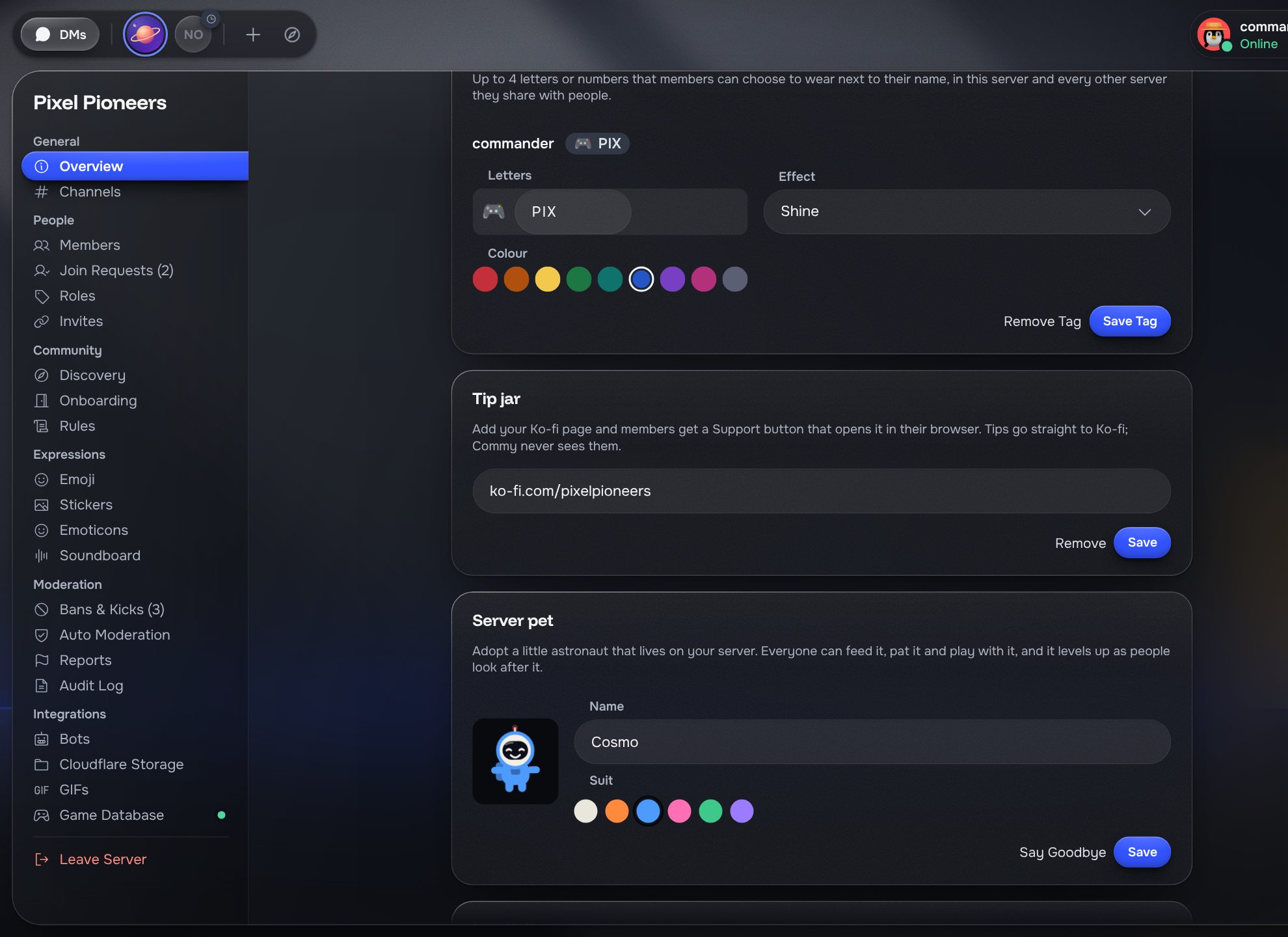
Members choose which server's tag to wear in Settings, Profile, Server Tag, and it shows beside their name in messages, the member list and profile cards. When you change the tag, everyone wearing it gets the new one.
Tip jar
If you would like members to help keep the lights on, add your Ko-fi page under Overview, Tip Jar. Members then get a Support this server link under the server name. Only ko-fi.com pages are accepted, nothing loads from Ko-fi until someone clicks the link, and tips go straight to Ko-fi, so Commy never sees them.
Server pet
Adopt a little astronaut that lives on your server. Under Overview, Server Pet, give it a name and a suit colour and choose Adopt.
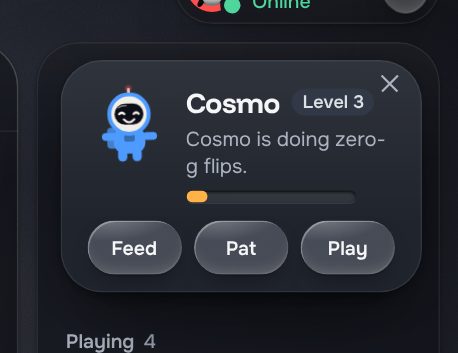
The pet lives at the top of the member list, where everyone can Feed, Pat and Play with it. Each kind of care can be given once every ten minutes per person, and the pet levels up as people look after it. Nobody can level it up alone, so it grows best when the whole server pitches in. Its mood changes with how recently it was cared for. Say Goodbye lets it go.
Events
Open Events to see what is coming up or switch to the calendar. Anyone with Manage Events can create one with a topic, start and end time, a description and an optional voice channel. Members answer Interested or Going.
Server rules
Write your rules in simple formatting: headings, bold, italics, lists and links. New members read and accept them before they can post.
Keeping it tidy
Each text channel can delete old messages after a set number of days, up to a year. Moderators can mute, kick and ban, and members can send private reports to the server owner. See Moderation.
Where it works
- Desktop and phone and tablet: everything on this page.
- Browser: everything on this page.