 Commy
Commy in your browser
The browser app runs Commy in a tab, with nothing to install. It is the quickest way to get to your friends from a computer that is not yours, and to join a call. Your account, servers, direct messages and read positions are the same ones you use on the desktop.
Open commy.chat/web in your browser.
Sign in
Sign in with your Commy account. If you do not have one yet, create it on the same page, confirm your email, and you land back in the app.
Signing in alone opens your servers on a new device, so there is nothing else to do. If they do not open, the browser says so: open Commy on your computer, then choose Try again, or paste your recovery code. See Your account.
Chat in your servers
The browser app looks just like the desktop: your servers are in the top bar, the open server's channels run down the left and its members are on the right. Pick a text channel to read its history and write a message.
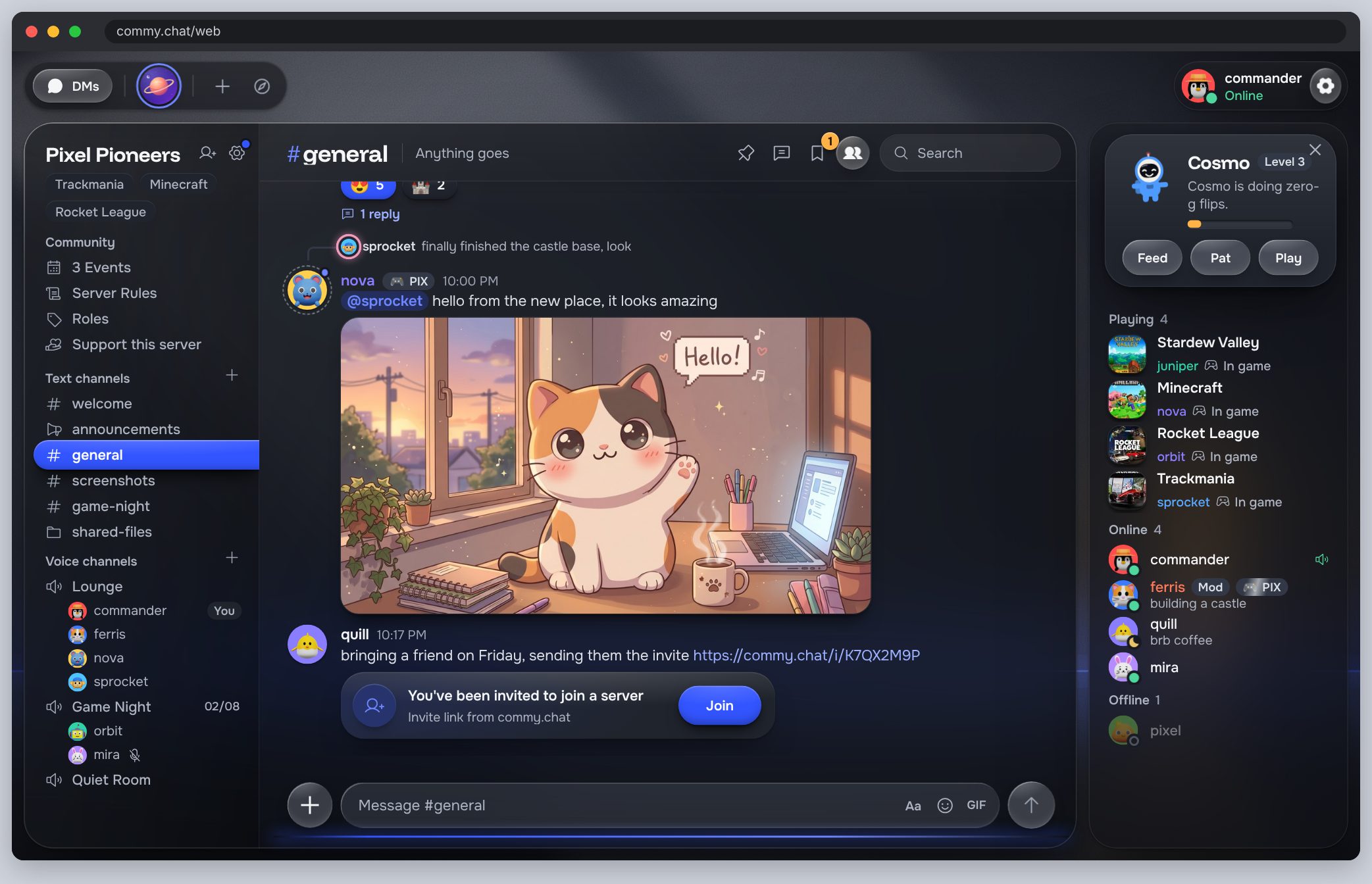
You can send, edit and delete messages, reply, react, start threads, pin and save messages, set reminders, make polls, search, add colours and effects to your text, and add emoji, stickers and GIFs. Files up to 100 MB and voice messages work in channels and direct messages. Something you send from the browser is shared from your tab while it stays open, and members with the desktop app open keep a copy of files up to 25 MB, so those still load after you close it. See Messages and chat.
Direct messages and friends
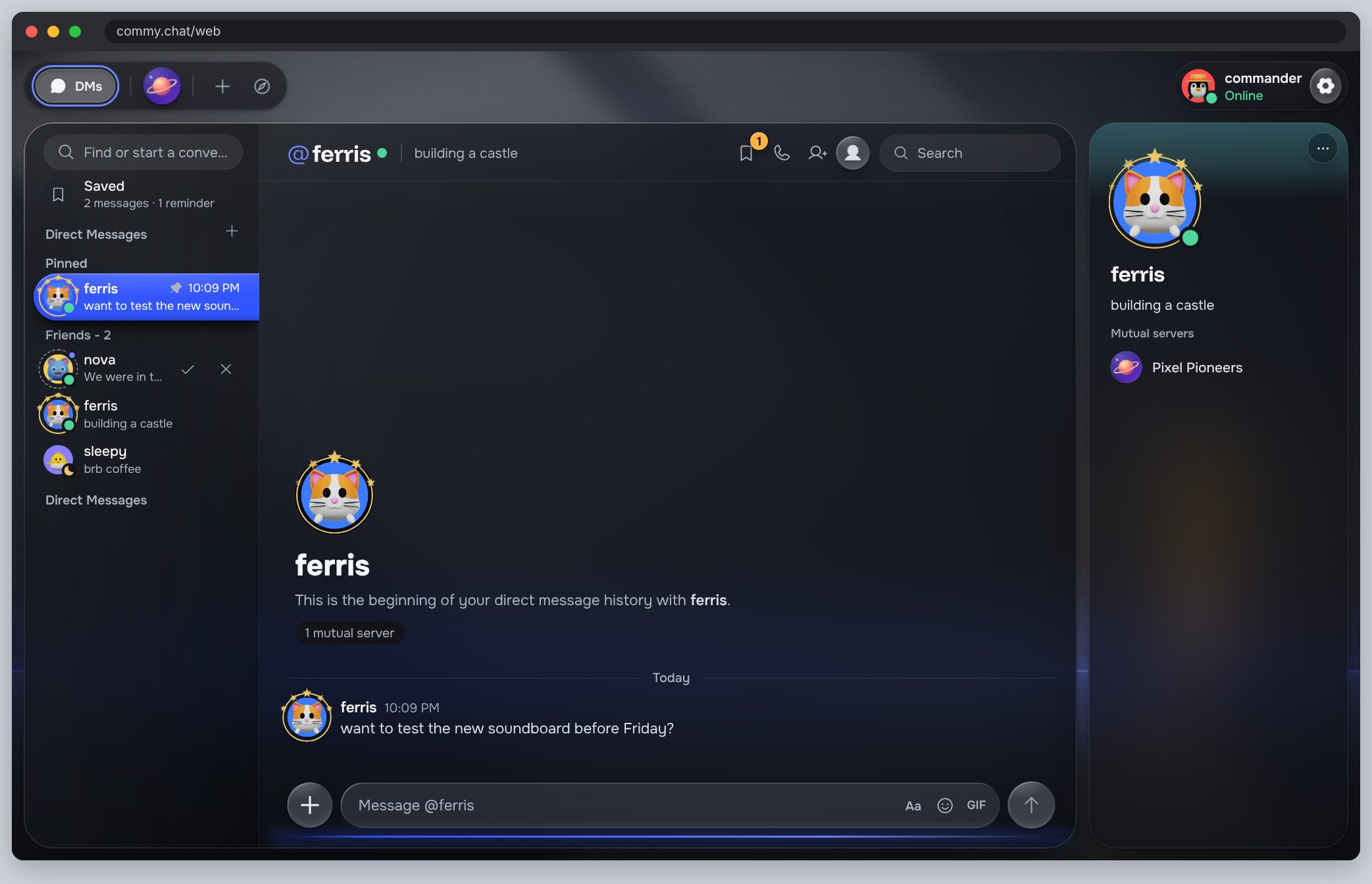
DMs at the top left opens your direct messages. Start a conversation with a person, make a group chat, and add or block friends. See Direct messages and friends.
Calls and voice channels
Call a friend from a direct message, or choose a voice channel to join. The Voice Connected panel at the bottom of the channel list has mute, deafen, Invite to Call and hang up, and the soundboard and activities work too, including Watch together with YouTube links and Tic-tac-toe. Settings, Voice picks your microphone and speakers, sets the volumes, runs a mic test and turns noise cancellation, echo cancellation and automatic mic level on or off, using the browser's own processing. Right click someone for their volume or to mute them for you. The first time, your browser asks to use your microphone, and you can change that from the lock beside the address. A browser always connects through the relay route, which the connection test in Settings, Diagnostics explains.
Run your servers
Create a server, from scratch or from a template, and arrange its channels and categories. Make, open and revoke invite links, manage roles, moderate members, review join requests and bans, set the rules, onboarding questions and auto moderation, plan events, post in forums, run stage channels, and list the server in Discover. A server's tag, tip jar and pet are there too. See Servers and channels and Moderation.
Your profile and settings
Open Settings with the gear beside your name. You can edit your name, status, About Me, avatar, banner, pronouns, avatar border, card effect and the server tag you wear, and choose who sees your profile details. Notifications use your browser's own notifications and follow the same rules as the desktop, while a Commy tab is open. The browser asks for permission once, on your first click after your servers open. Messages you send from the browser notify your friends' phones just like messages sent from the desktop. Appearance and Accessibility are kept on this device and survive a reload. See Settings and accessibility.
Sign out
Sign out in Settings, Commy Account when you are finished on a computer that is not yours.
Where it works
Everything above is in the browser. Screen sharing, watching streams, the camera, voice filters and push to talk are in the desktop and phone apps. Drive channels, files over 100 MB, invite links from another account server and direct video links in Watch together need the desktop app. The full list is in Which app does what.