 Commy
Moderation and safety
Moderation tools live in the member menu, in the channel settings and under Moderation in Server Settings. Owners can do all of it, and other members can do what their roles allow.
Roles and permissions
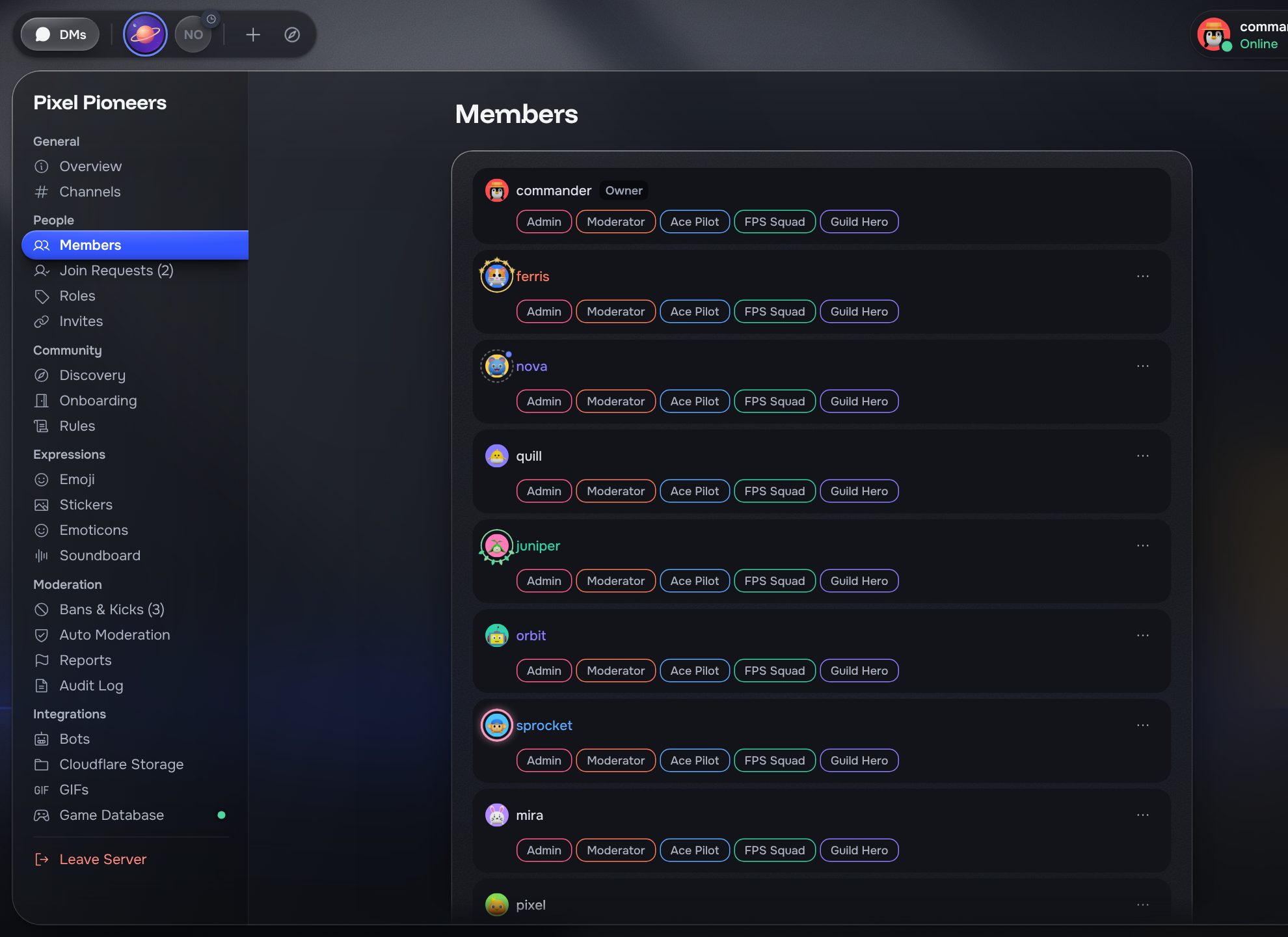
Roles carry a colour and any mix of permissions, from managing messages to banning members. Create and edit them in Server Settings, Roles, see Make your server yours. Server Settings, Members, lists everyone with their roles.
The top of the Roles page also has Everyone can switches for abilities every member has by default: embed links, read message history, start threads, create polls and create events. Switching one off applies to every role, and you turn it back on in a role's form to let that role through. The owner and administrators are never held back. A separate setting decides who can send files and images, and the Use voice filters switch decides who may change how they sound in voice. Switched off, those members are heard with their own voice.
Channel permissions
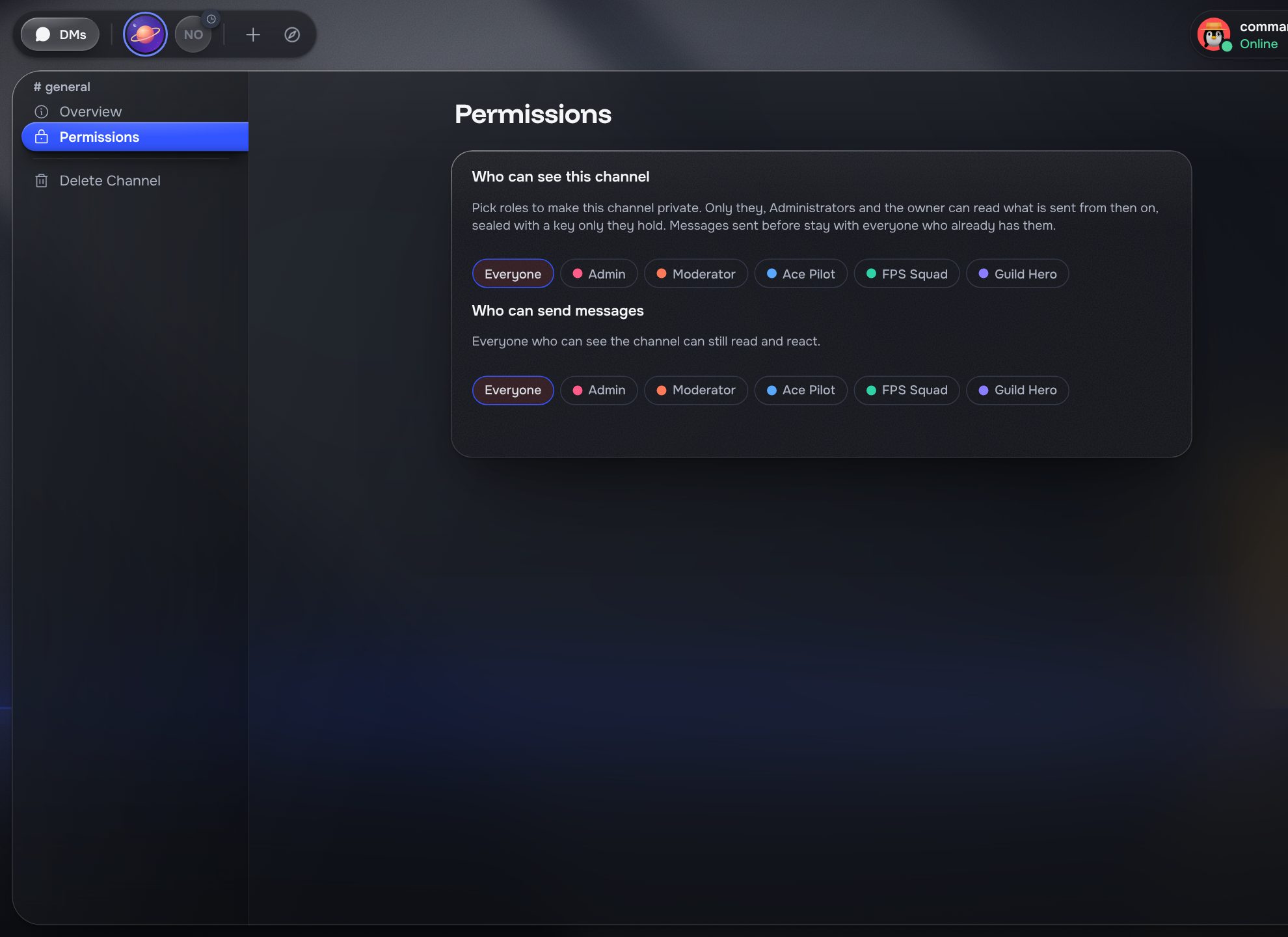
Open a channel's settings and choose Permissions to decide who can see the channel and who can send messages in it. Pick roles for each. A channel limited to some roles is private, and messages sent in it are encrypted so only those roles and admins can read them.
Other channel tools are slow mode, age restriction and message retention, see Servers and channels.
Act on a member
Right click a member in the list or in a voice channel.
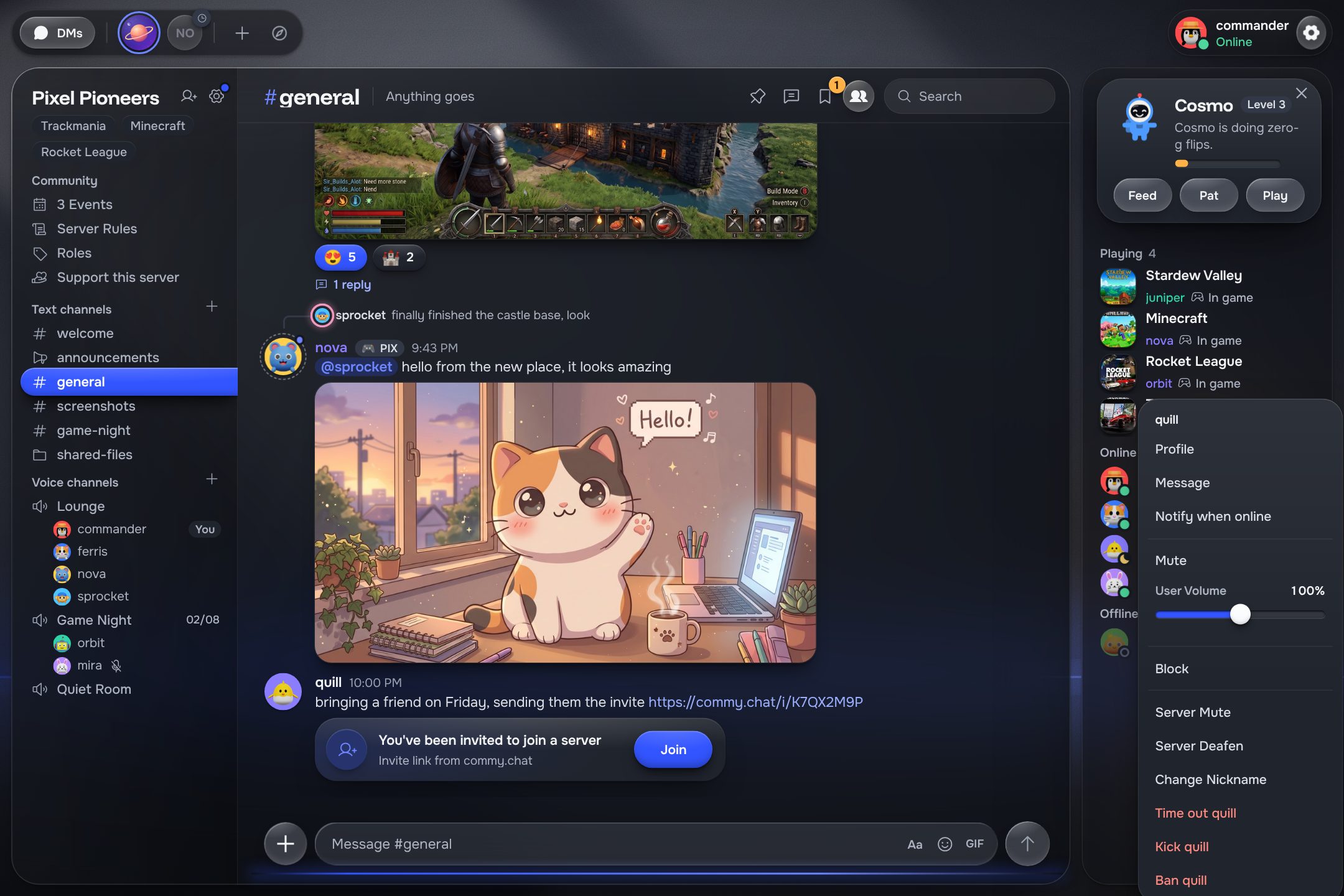
- Server Mute and Server Deafen silence someone in voice.
- Change Nickname sets a nickname that only applies in this server.
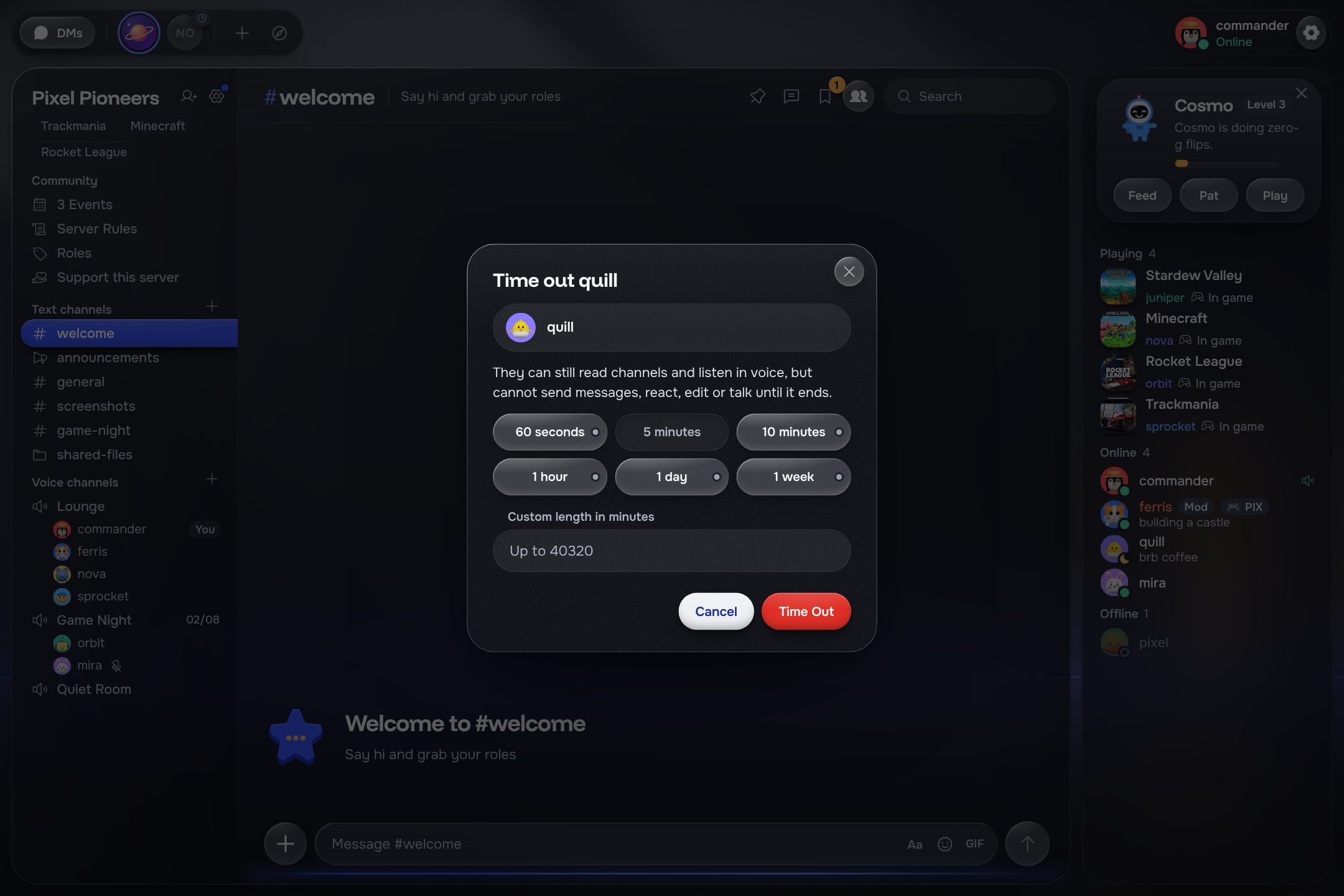
- Time out stops someone sending messages, reacting, editing or talking for a while, while they can still read and listen. Pick 60 seconds, 5 minutes, 10 minutes, 1 hour, 1 day or 1 week, or enter your own length up to 40,320 minutes.
- Kick removes someone from the server. They are told, and can come back with a new invite.
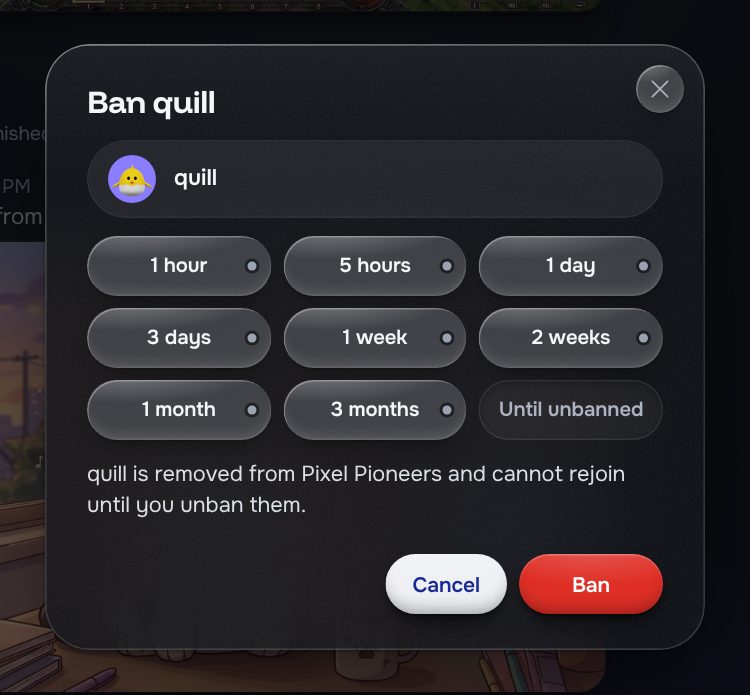
- Ban removes someone and stops them rejoining. Choose how long: 1 hour, 5 hours, 1 day, 3 days, 1 week, 2 weeks, 1 month, 3 months or Until unbanned. A timed ban ends on its own, and the person can then rejoin with an invite.
You can also move people between voice channels if your role allows it. Anyone can Block a person for themselves, see Direct messages and friends.
Bans and kicks
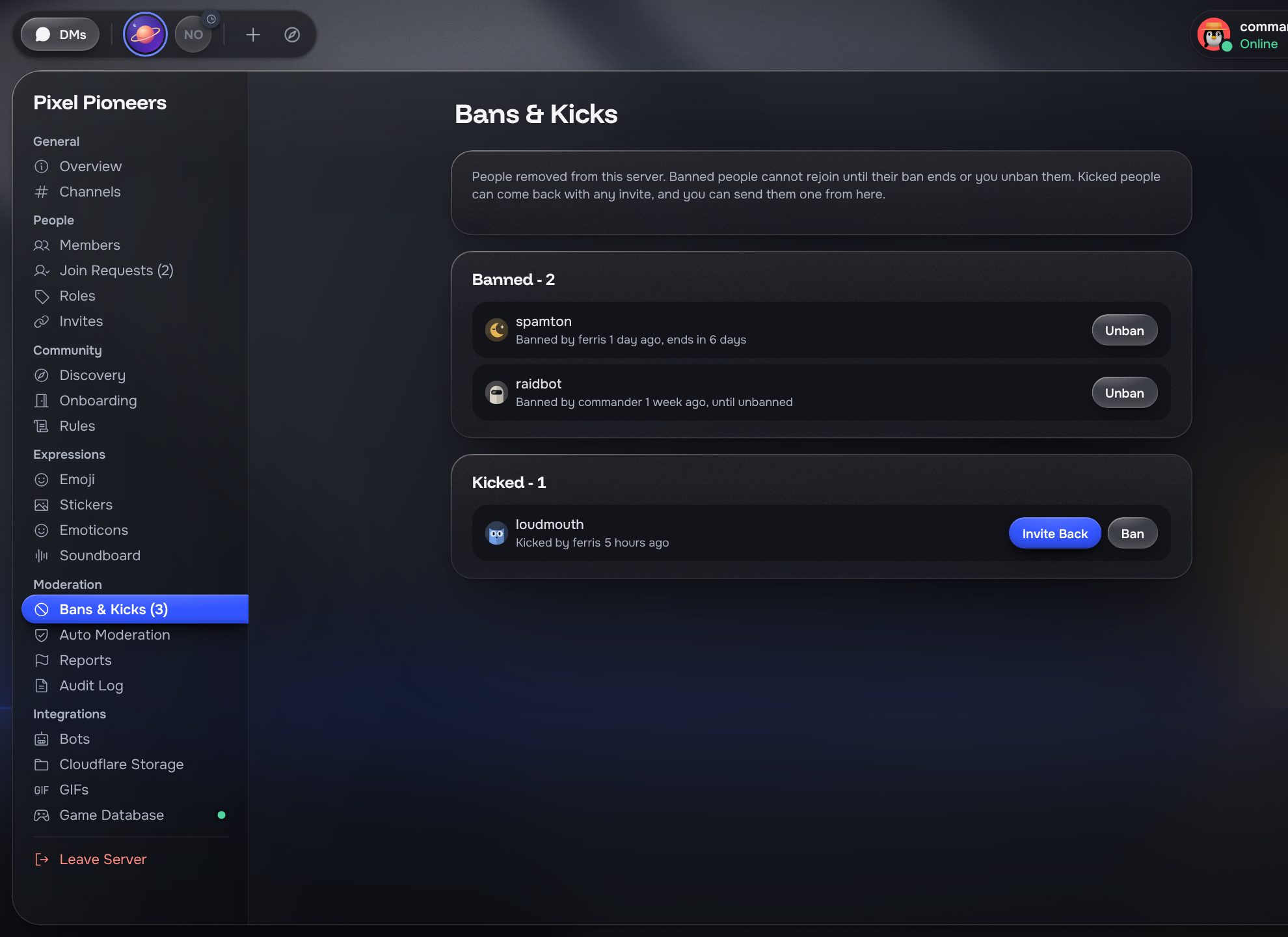
Server Settings, Bans & Kicks lists everyone who was removed. Banned people show who banned them, when, and when the ban ends, with Unban. Kicked people show who kicked them and when, with Invite Back, which sends them a fresh invite link in a direct message, even though you no longer share the server and even if they use Commy in a browser, and Ban.
Ask to join
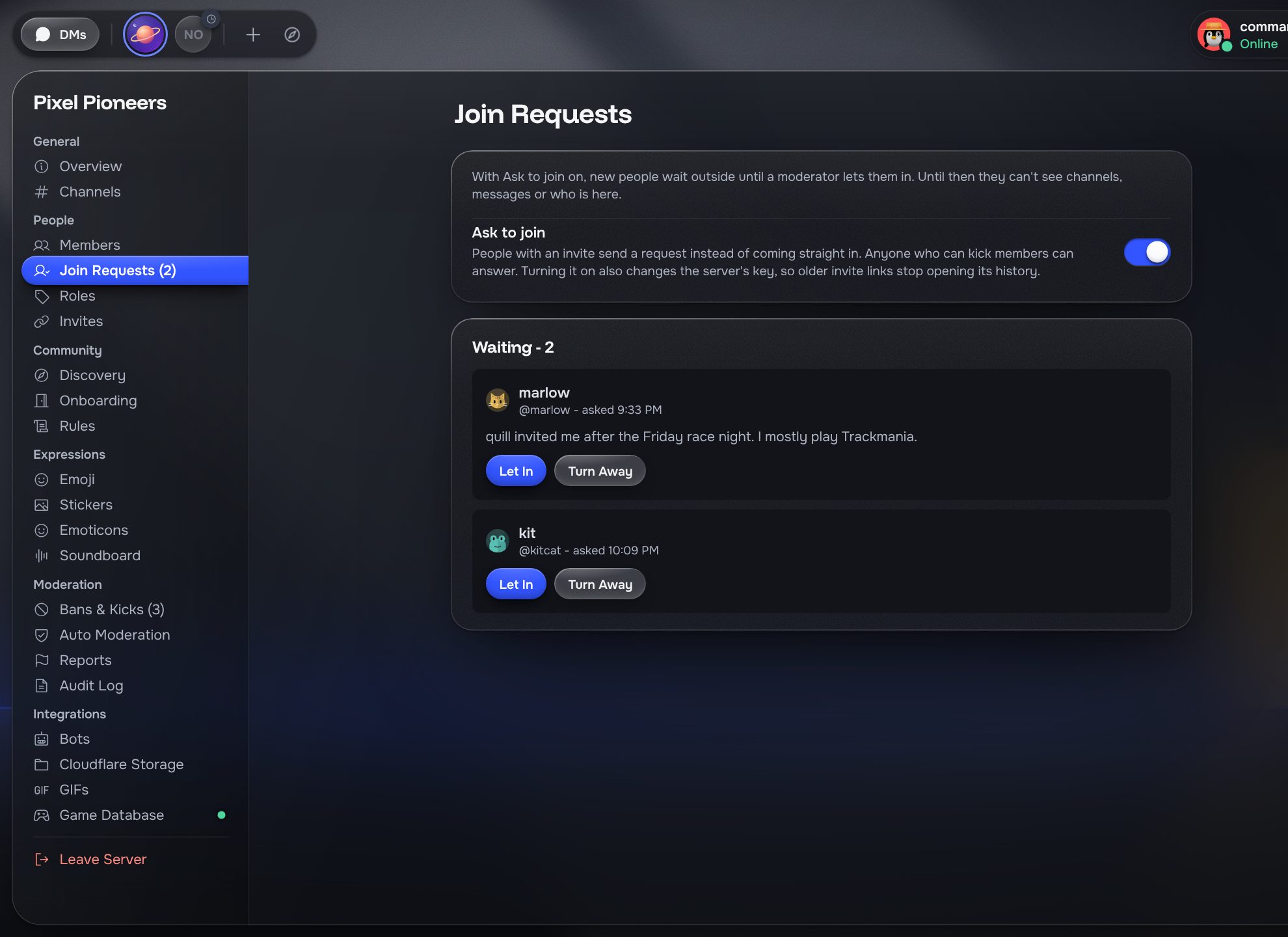
Turn on Ask to join in Server Settings, Join Requests, and people with an invite send a request instead of coming straight in. Until someone lets them in, they cannot see channels, messages or who is in the server. Each request shows who is asking and the note they left, with Let In and Turn Away. Anyone who can kick members can answer. Turning it on also changes the server's key, so older invite links stop opening its history.
Server limits
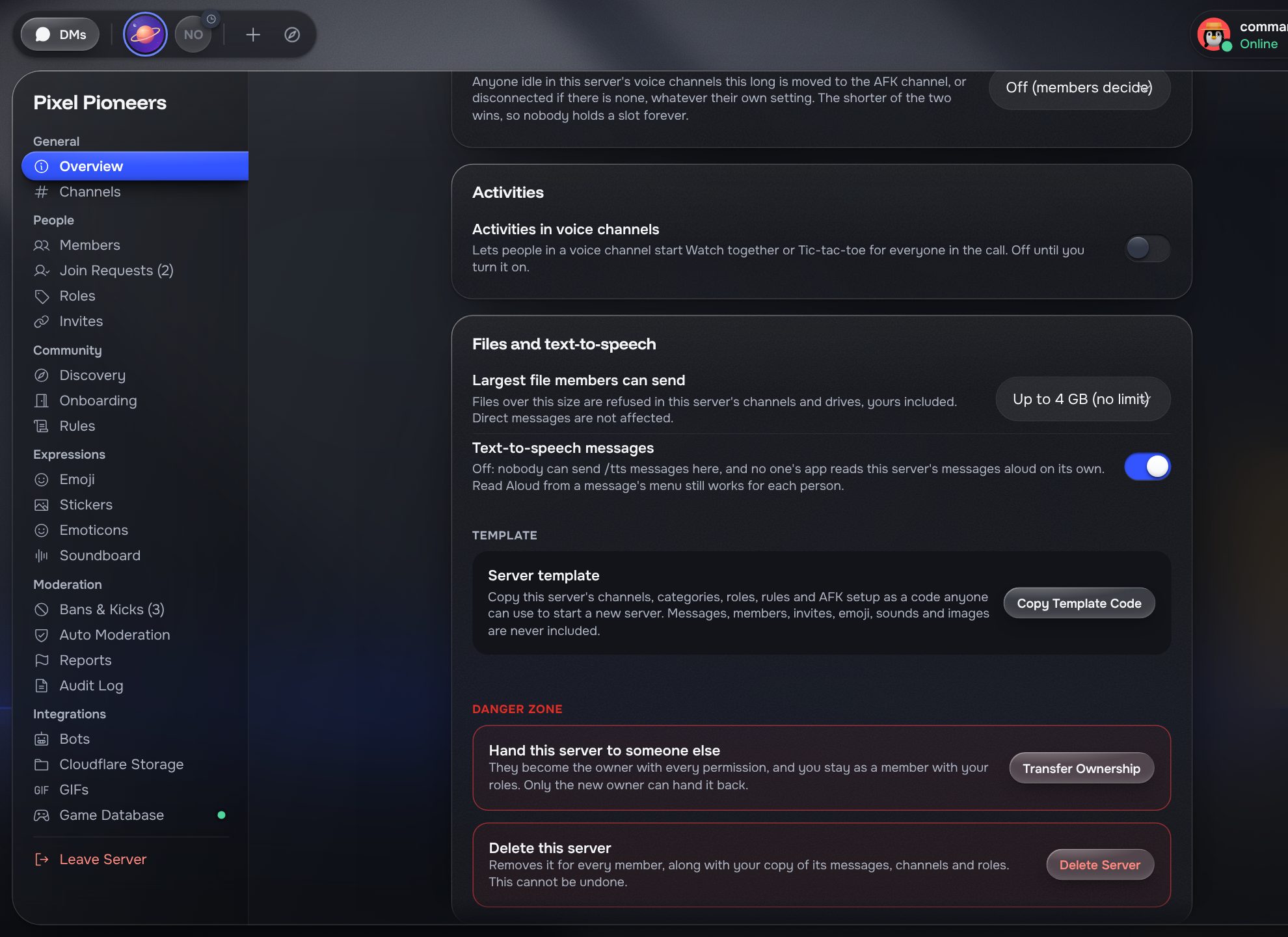
Server Settings, Overview, Files and Text-to-Speech has two switches for owners and admins:
- Largest file members can send caps files in this server's channels and drives, from 8 MB up to the full 4 GB. Direct messages are not affected.
- Text-to-speech messages turns
/ttsoff for the whole server. Read Aloud from a message's menu still works for each person.
Auto moderation
Server Settings, Auto Moderation checks every message against rules you set. A message that breaks a rule is held: members do not see it and are not notified, and moderators see it marked in the channel. The owner and anyone who can manage messages or the server are never held.
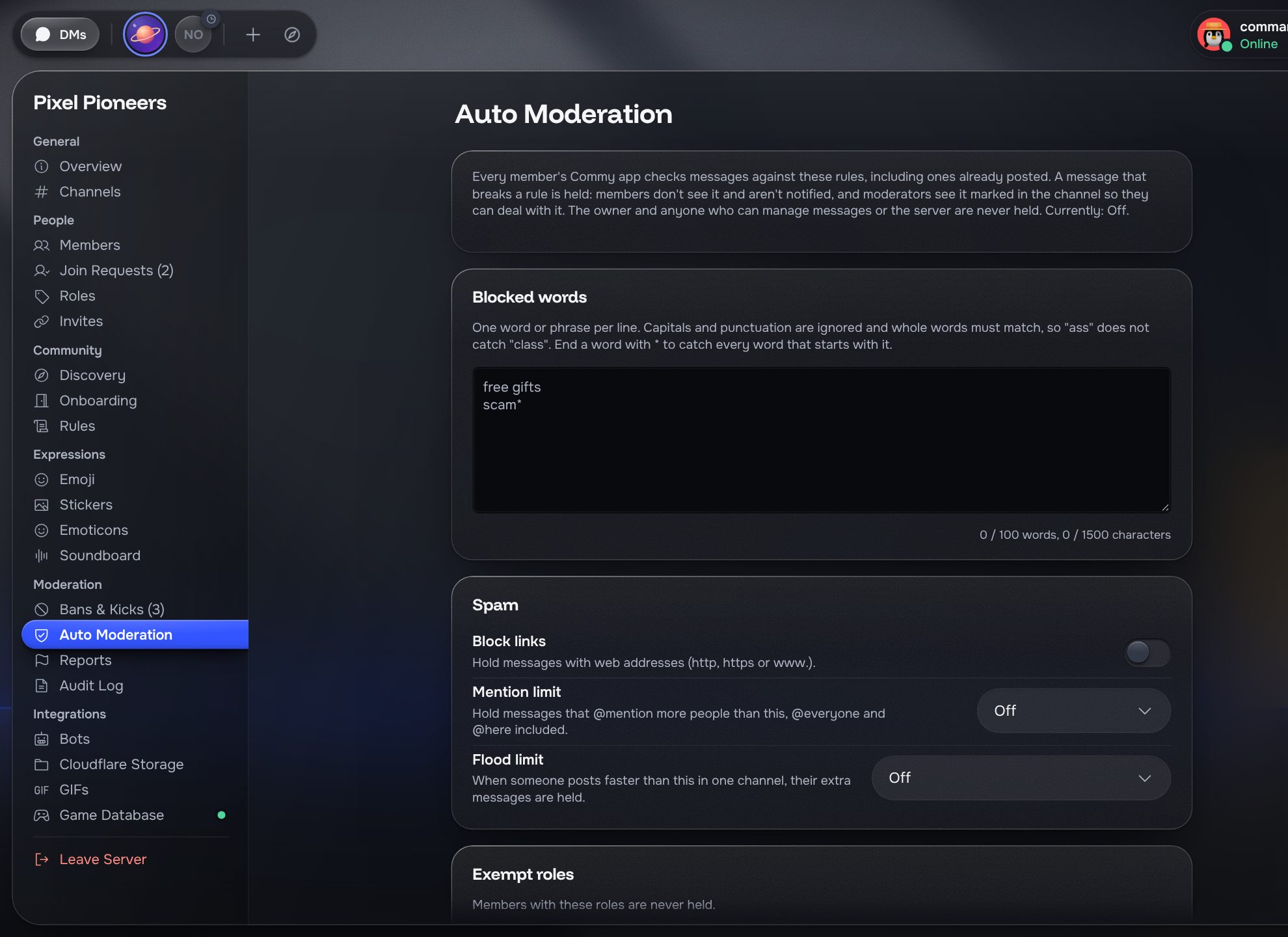
- Blocked words takes one word or phrase per line. Capitals and punctuation are ignored and whole words must match, so a word will not catch longer words that contain it. End a word with
*to catch every word that starts with it. - Block links holds messages with web addresses.
- Mention limit holds messages that mention more people than you choose, with
@everyoneand@herecounted. - Flood limit holds the extra messages when someone posts faster than the limit in one channel.
- Exempt roles are never held.
A moderation bot you run yourself can remove held messages for everyone, see Bots.
Reports
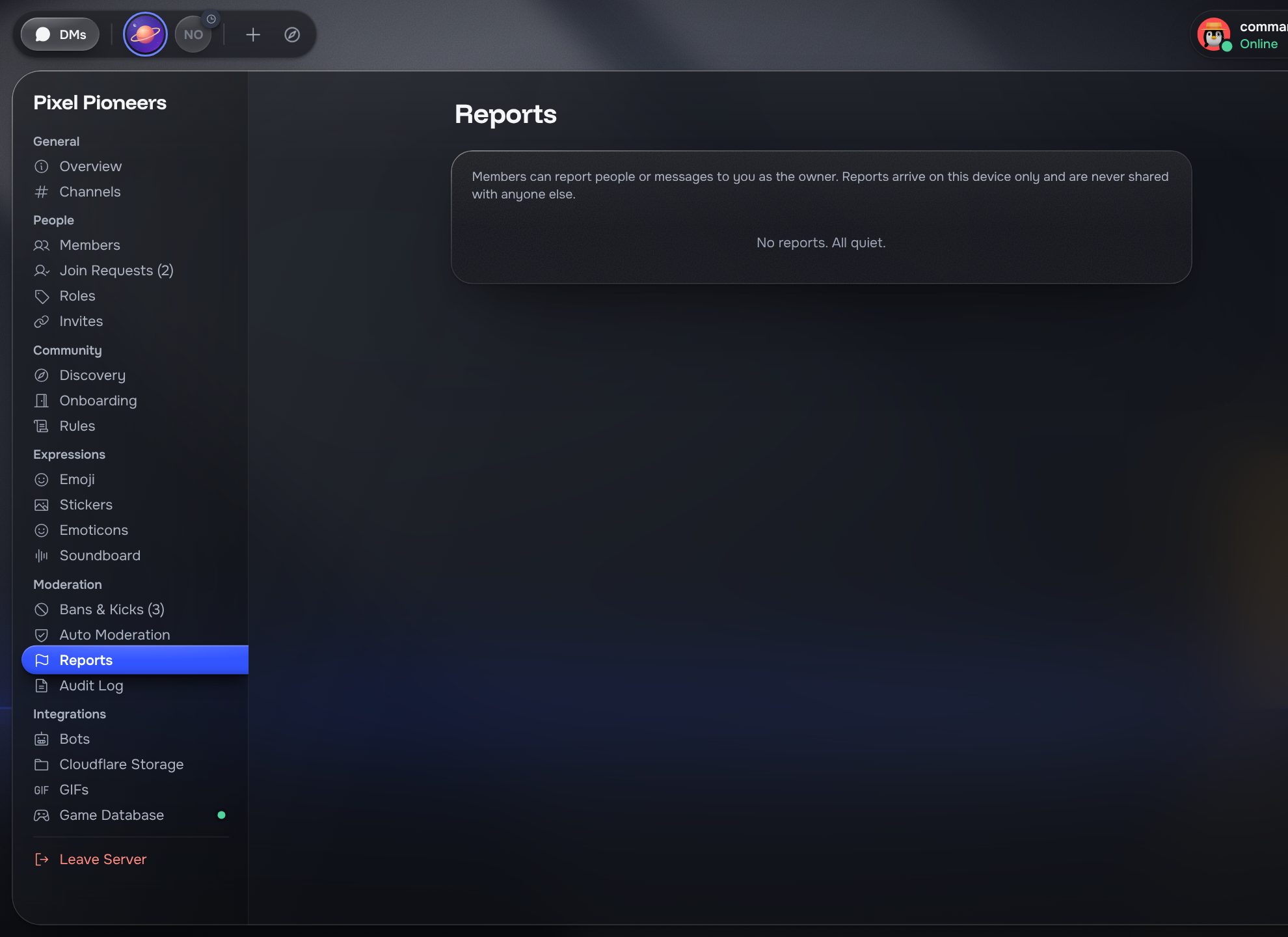
Members can report a person or a message to the server owner, from the flag on a message or the menu on a member. Reports show up under Server Settings, Reports, on the owner's device only and are never shared with anyone else.
Audit log
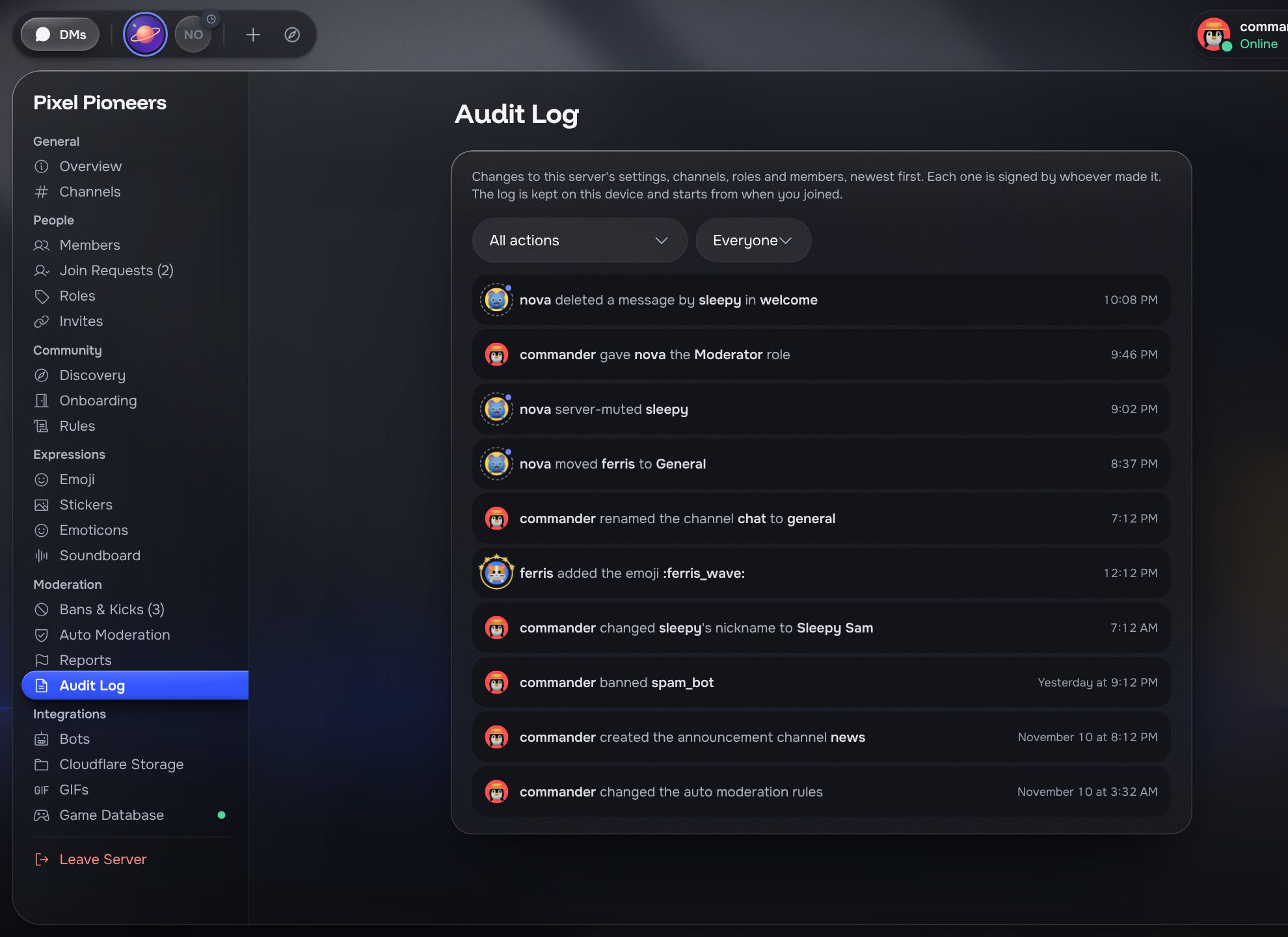
Server Settings, Audit Log lists changes to the server's settings, channels, roles and members, newest first, such as who renamed a channel, gave a role, banned someone or changed auto moderation. Each entry is signed by whoever made it, you can filter by action and by person, and the log is kept on your device starting from when you joined.
Where it works
- Desktop and phone and tablet: everything on this page.
- Browser: everything on this page.