 Commy
A tour of Commy
This page walks through what you see when Commy opens, so every other guide makes sense. The pictures show a demo community called Pixel Pioneers.
The desktop window
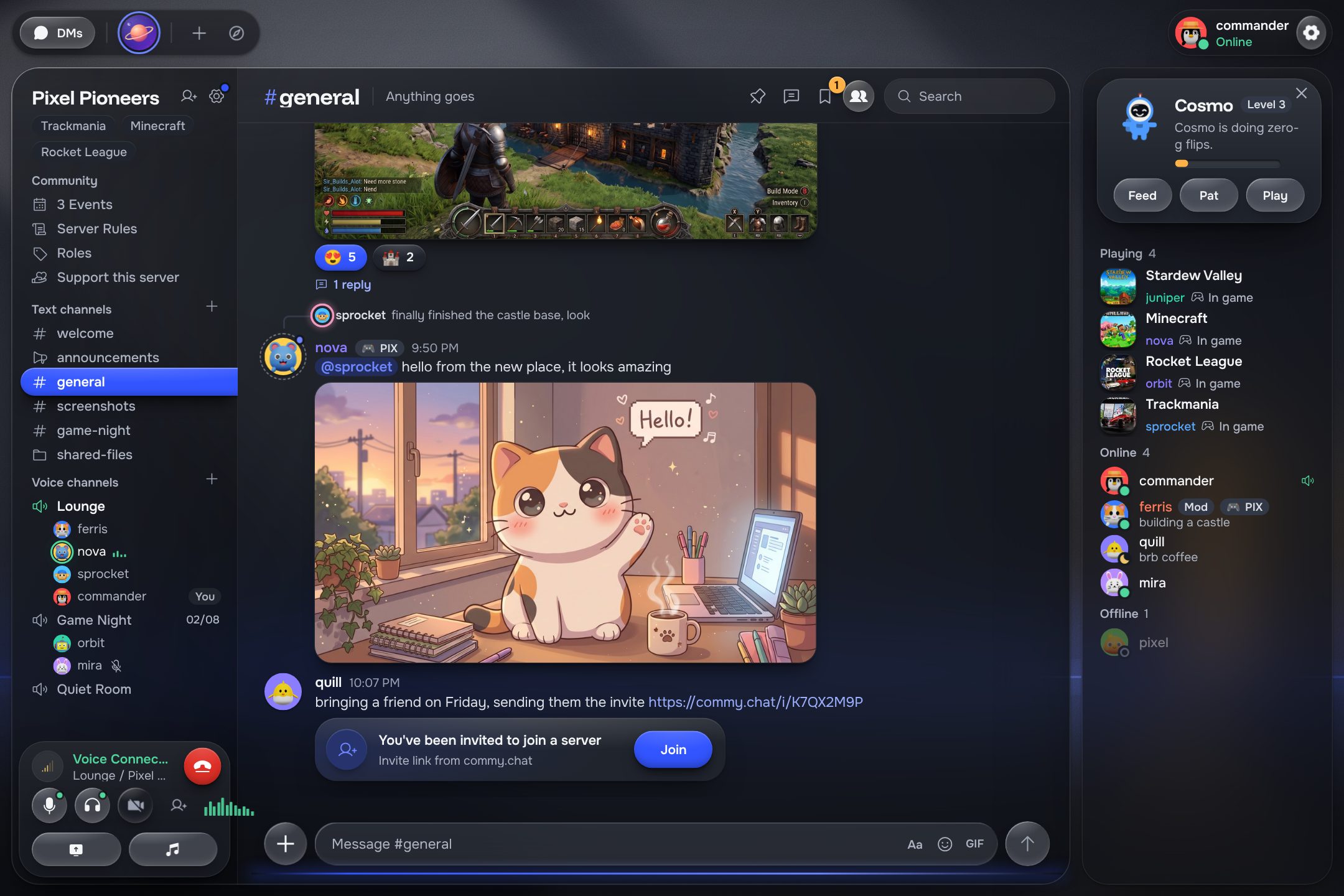
The window has four parts.
- The top bar. On the left, DMs opens your direct messages and friends. Next to it sits one round icon for each server you are in. The plus button adds a server and the compass opens Discover, where you can find public servers. On the right are your name, your status and the gear for Settings.
- The server column. The server's name sits at the top with buttons to invite people and open the server settings. Under it are the games the server plays, the Community links (Events, Server Rules, Roles and Support this server when the server has them), then the text channels and the voice channels. Each voice channel lists who is in it.
- The conversation. The open channel fills the middle. Its header has the channel name, pinned messages, threads, your saved messages, a button that shows or hides the member list, and Search. The message box is at the bottom, with the plus button for files, GIFs, polls and voice messages.
- The member list. On the right, people are grouped by what they are playing, who is online and who is offline. Click anyone to open their profile card. A server can also keep a pet here that members feed, pat and play with.
Bigger windows get more room for each part. Narrow windows fold the side columns away, see Desktop extras.
When you are in a voice channel
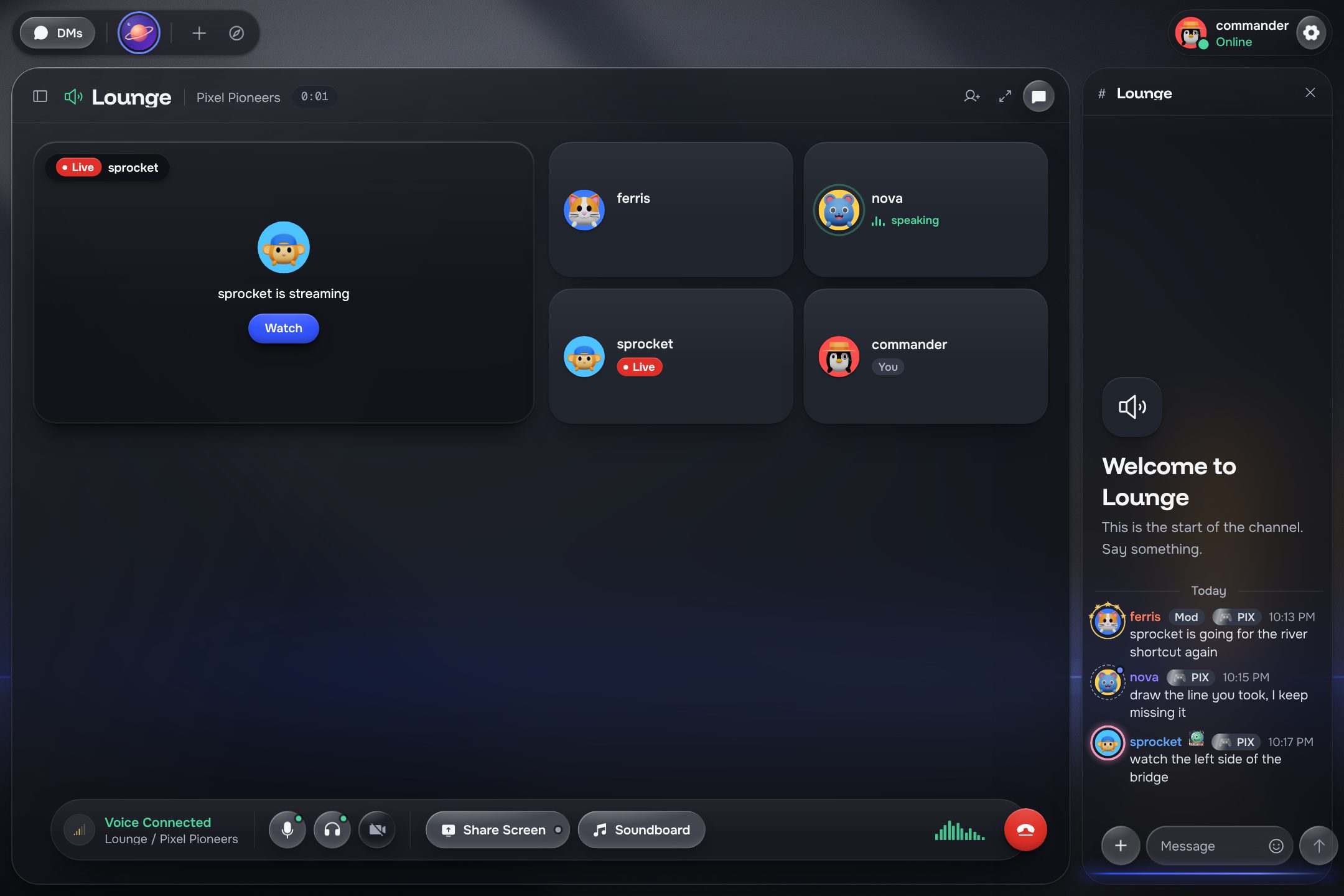
While you talk, the Voice Connected panel at the bottom of the server column keeps your controls close: mute, deafen, camera, invite to call, Share Screen and Soundboard, with your signal bars and a red button to hang up.
Click the voice channel you are in to open the voice room. It gives everyone a tile, shows streams and cameras, and keeps the channel's chat beside it. When someone is live, their tile says Live and Watch opens their stream.
More in Voice and calls and Screen and game sharing.
Settings
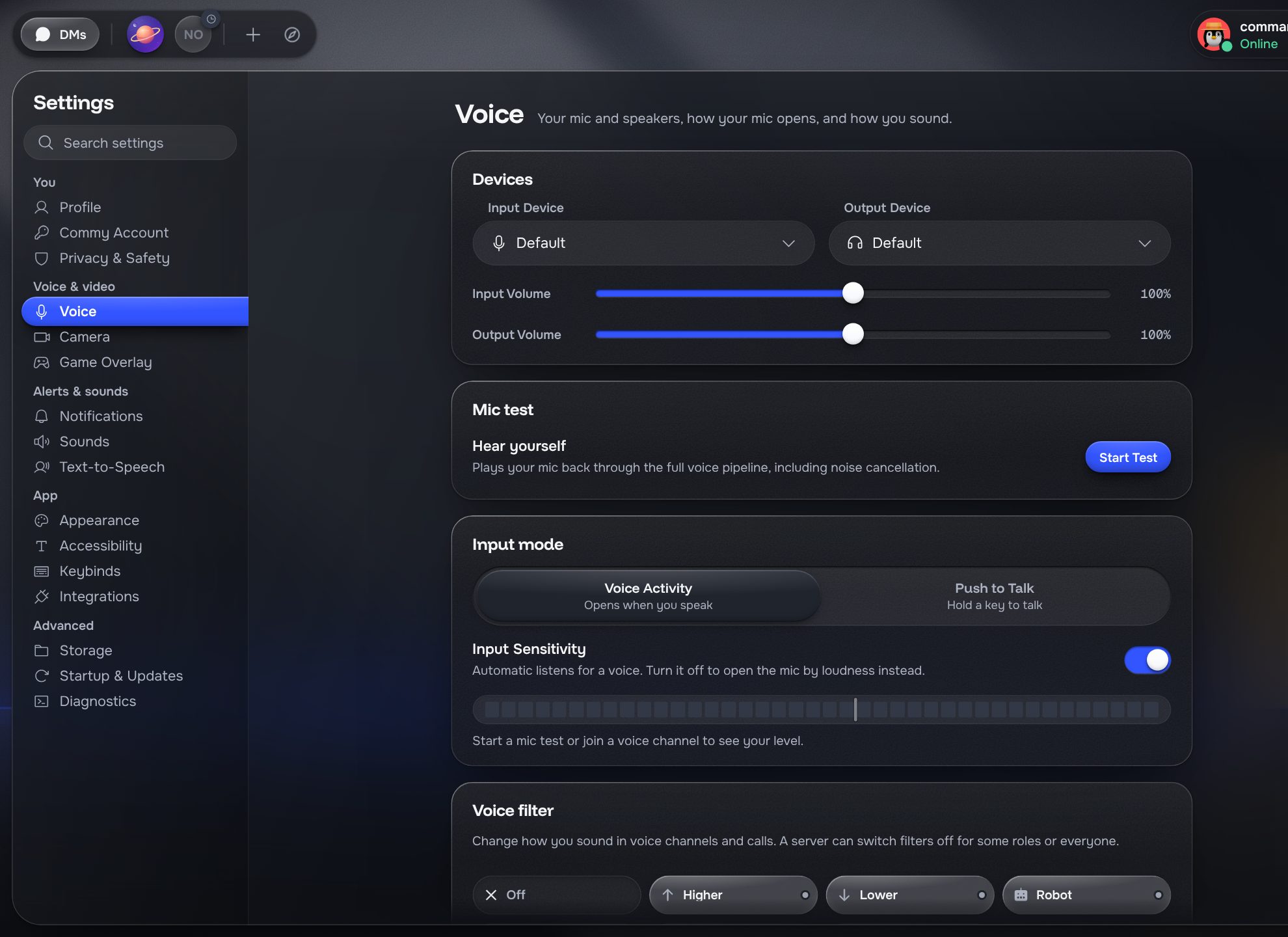
The gear at the top right opens Settings. The list on the left groups the pages under You, Voice & Video, Alerts & Sounds, App and Advanced, and the search box at the top finds any setting by name. See Settings and accessibility.
The phone app
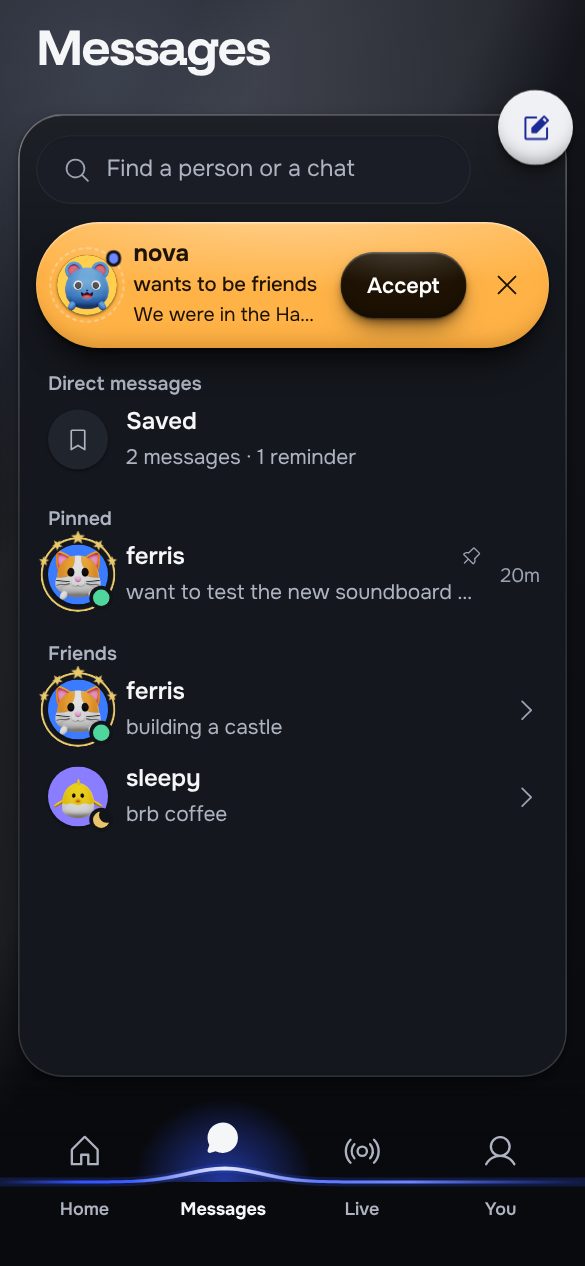
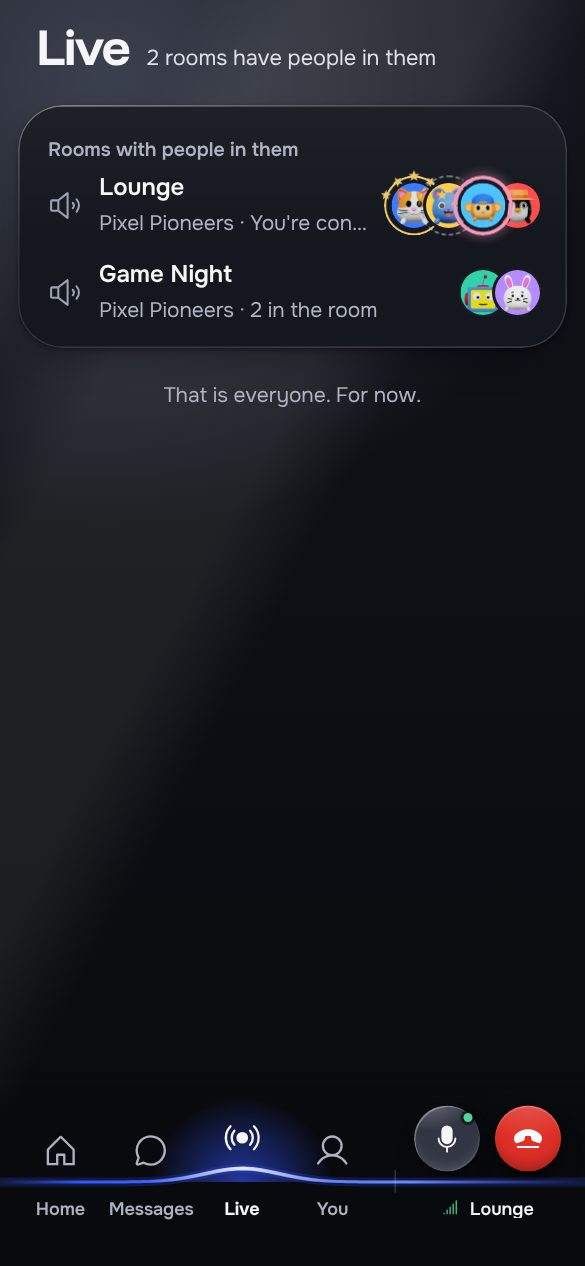
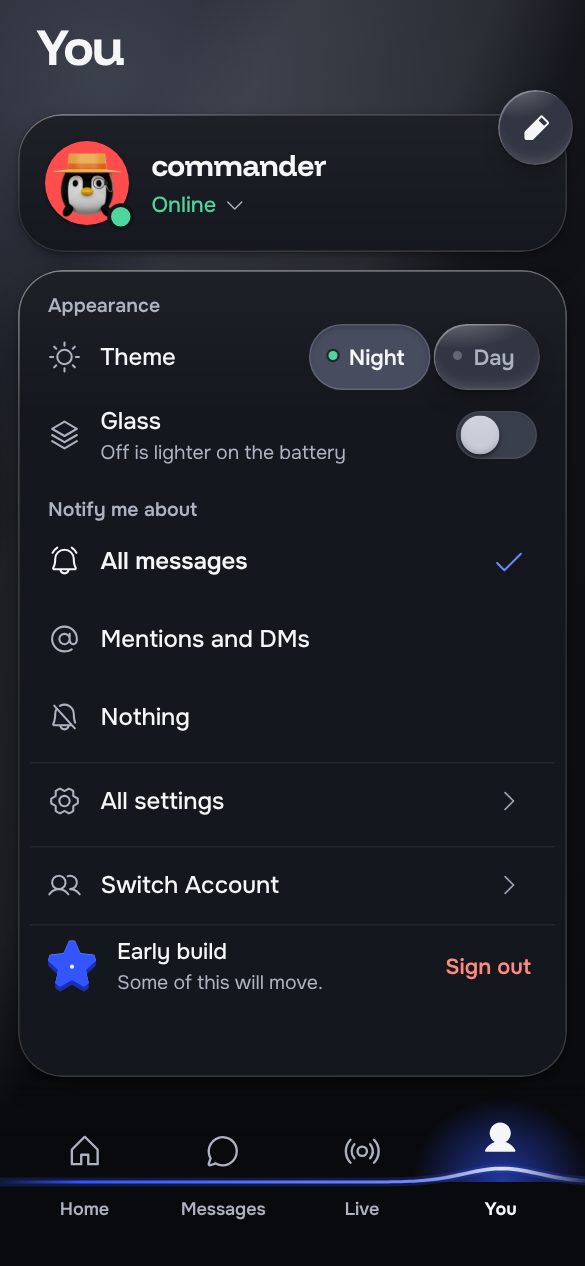
On a phone, four tabs along the bottom take you everywhere.
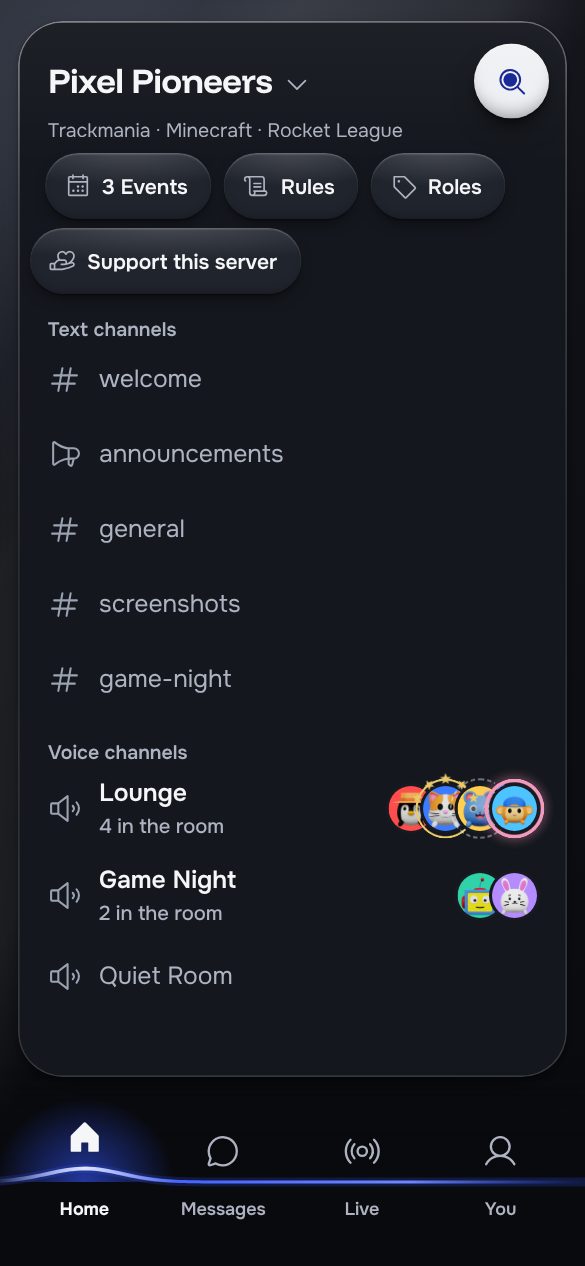
- Home shows the server you are in and its channels. Tap the server's name to switch servers, add one or open Discover.
- Messages holds your direct messages, friend requests, Saved and your friends.
- Live lists every voice room with people in it, across all your servers.
- You has your profile and status, Night or Day, what to be notified about, all settings, and switching accounts.
More in Phone and tablet.
Where to go next
- Getting started if you have not made a server yet.
- Messages and chat for everything the message box can do.
- Servers and channels to set up your own community.