 Commy
Servers and channels
A Commy server is a community with its own channels, roles and rules. It lives on its members' computers and stays reachable while at least one member is online, see How Commy connects you.
Create a server
Click the plus button in the top bar, then Create a Server. Pick a starting point, give the server a name and choose Create Server. Every channel and role can be changed later.
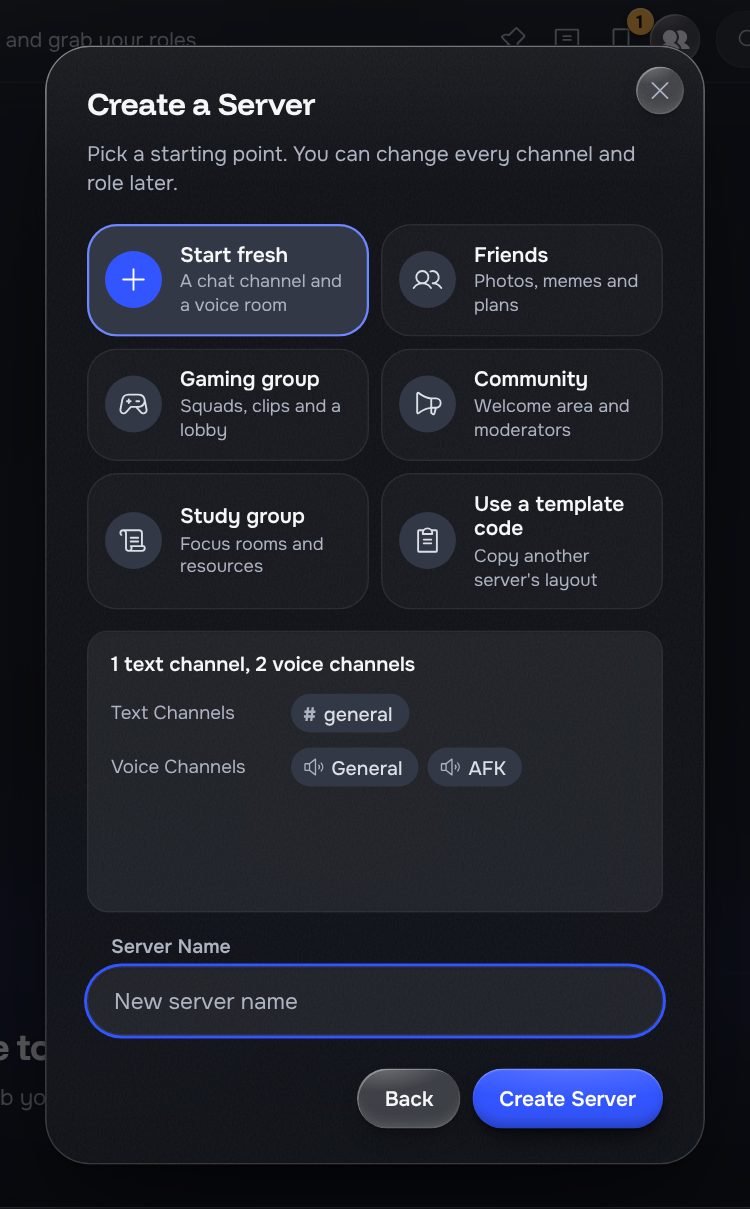
- Start fresh gives you a chat channel and a voice room.
- Friends, Gaming group, Community and Study group start with channels and roles that suit them.
- Use a template code builds a server from a code another server copied from Server Settings, Overview, Copy Template Code. A template copies channels, categories, roles, rules and the AFK setup. Messages, members, invites, emoji, sounds and images are never included.
Join a server
Click an invite link, or paste a link or invite into Add a Server, the same plus button. See Invite links. To invite people yourself, choose Invite People at the top of the channel list.
Ask to join
Some servers ask newcomers to wait until a moderator lets them in. Joining one sends a request instead, and the server waits in the top bar with a small clock. Open it to read the server's rules, leave a Note for the moderators, such as who invited you, or Withdraw Request. Until you are let in you cannot see its channels, messages or who is there. To turn this on for your own server, see Moderation.
Find your way around
Your servers sit in the top bar, the open server's channels run down the left, and the member list is on the right. Right click a server icon for its menu. A tour of Commy walks through every part of the window.
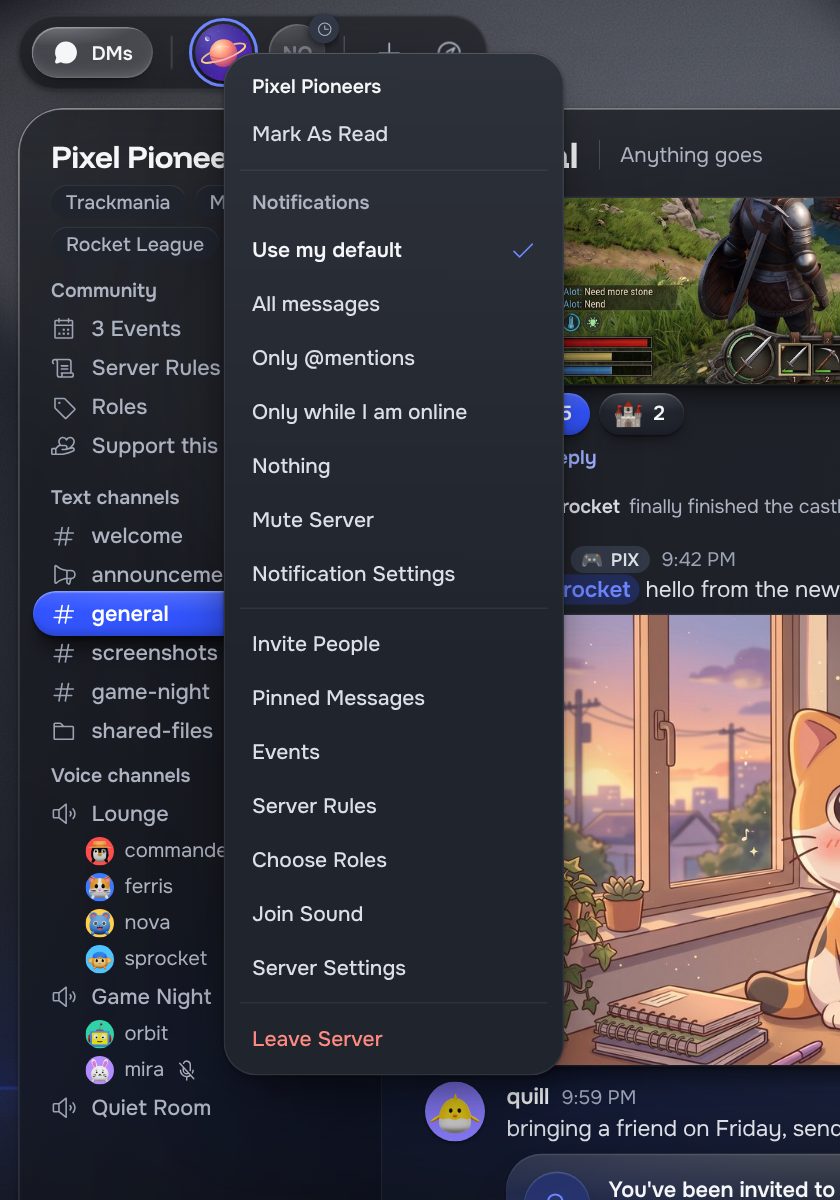
- Drag server icons to reorder them, and drop one on another to make a folder. Right click a folder to rename it.
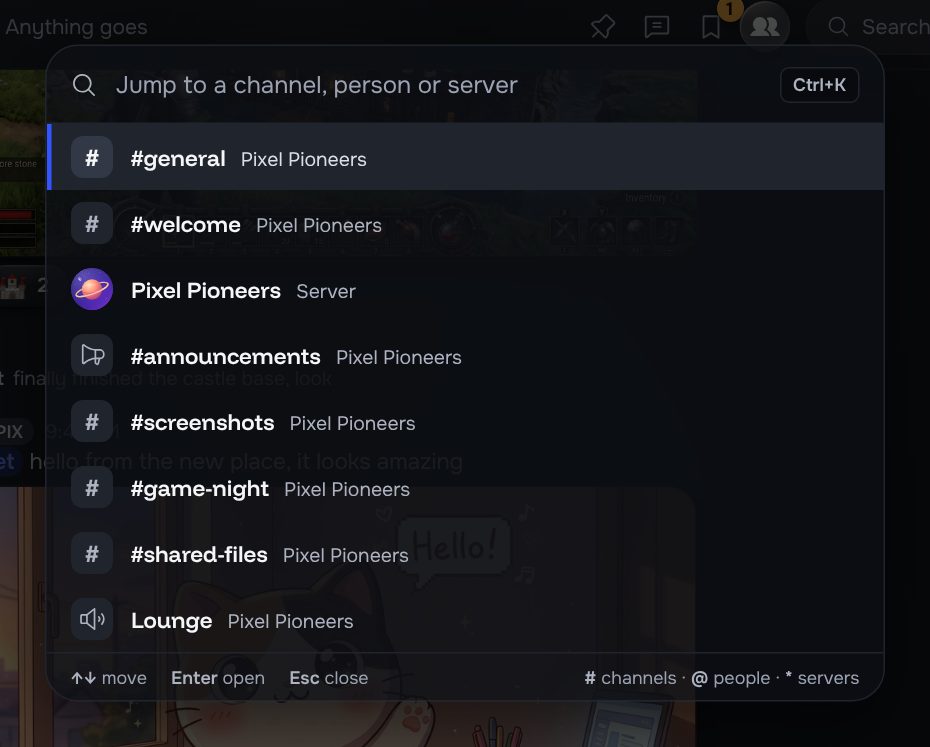
- Ctrl+K opens the quick switcher. Type to jump to any channel, conversation or server. Start with
#for channels,@for people or*for servers.
- The compass button opens Discover, where you can find public servers.
- Each server has a Community section under its name with Events, Server Rules, Roles and, if the owner set up a tip jar, Support this server. Click the heading to fold it away. The game tags the owner chose sit above it.
- If the server has adopted a pet, it lives at the top of the member list. See Make your server yours.
Channels
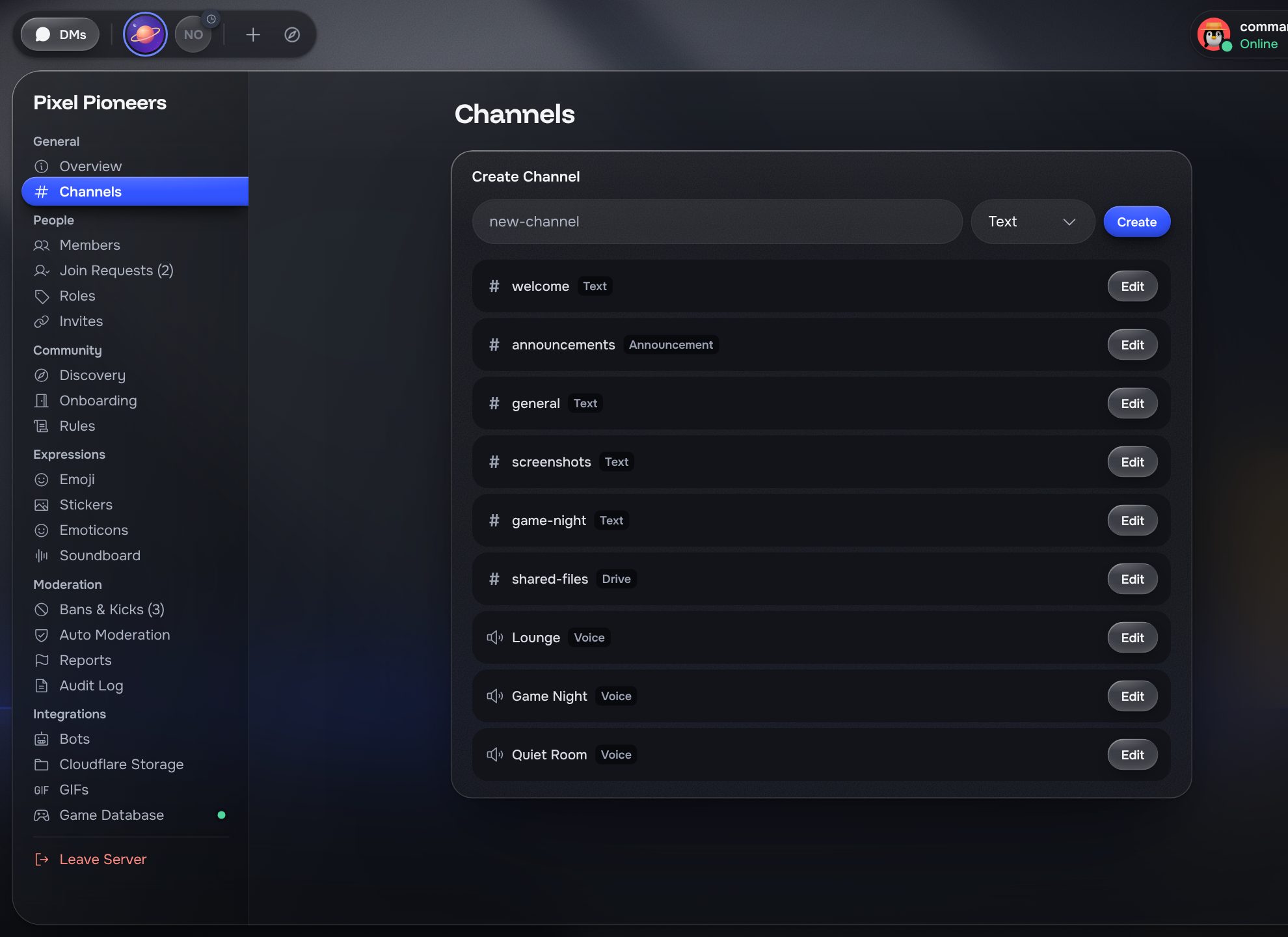
Choose the plus beside a section in the channel list, or Create Channel in Server Settings, Channels.
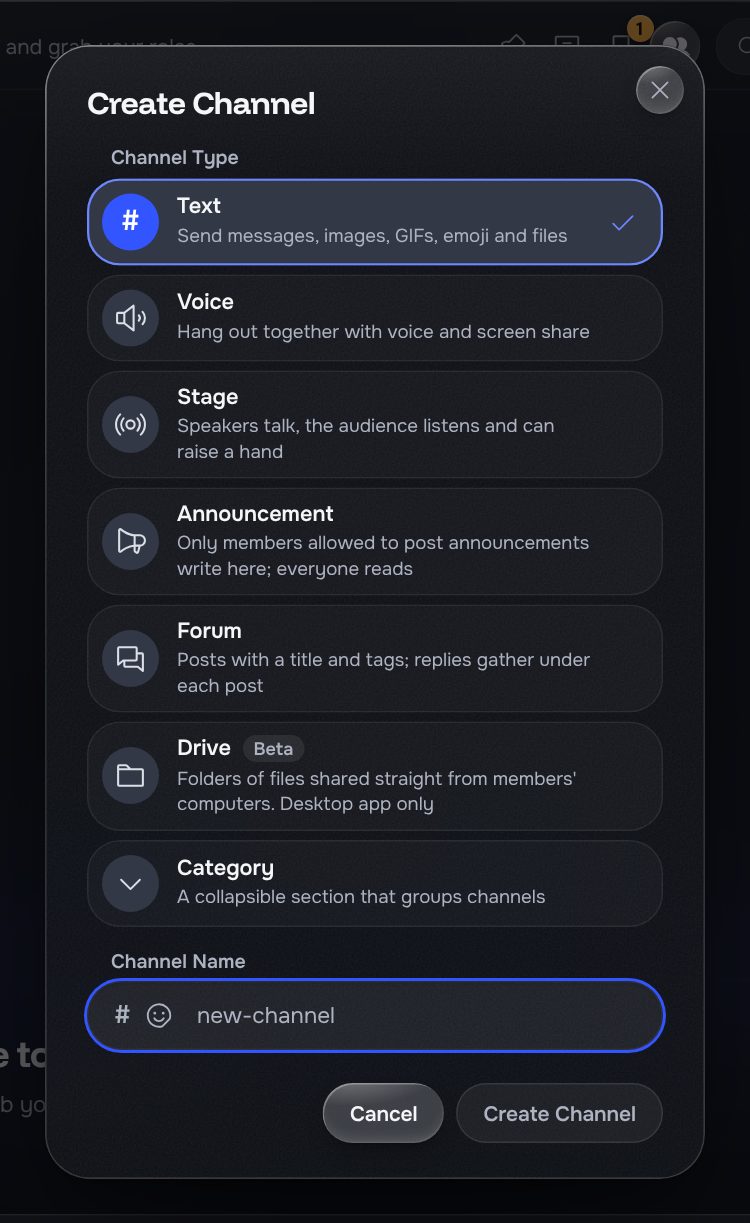
- Text is for messages, images, GIFs, emoji and files.
- Voice is for voice, video and screen sharing, see Voice and calls.
- Stage is for talks, where the audience listens and can raise a hand.
- Announcement channels let only members allowed to post announcements write, and everyone can read and react.
- Forum channels hold posts with a title and tags, and replies gather under each post.
- Drive channels (Beta) are shared folders of files kept on members' computers, see Files and drives.
- Category is a collapsible section that groups channels.
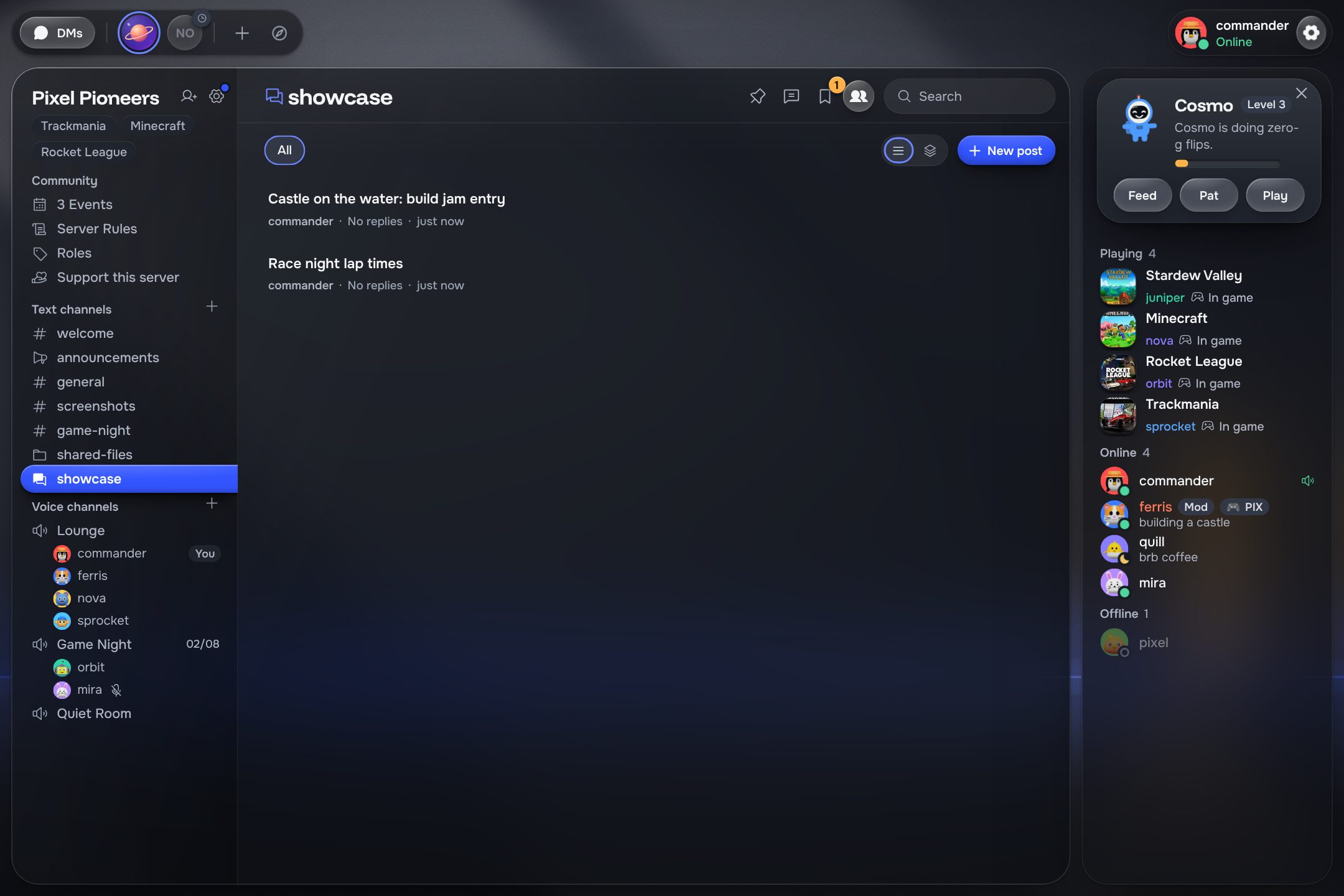
Open a channel's settings with the gear beside its name. Text channels can have a name banner and a channel banner, an Announcement Channel switch, an Age-restricted switch that asks people to confirm they are 18 or older, Message Retention, and Slow Mode from 5 seconds to 6 hours. Voice channels can have a User Limit. The Permissions page decides who can see a channel and who can send in it. Messages in a private channel are encrypted so only those roles and admins can read them.
Server settings
Open Server Settings from the server menu or the gear at the top of the channel list. The left side groups the pages: General (Overview, Channels), People (Members, Join Requests, Roles, Invites), Community (Discovery, Onboarding, Rules), Expressions (Emoji, Stickers, Emoticons, Soundboard), Moderation (Bans & Kicks, Auto Moderation, Reports, Audit Log) and Integrations (Bots, Cloudflare Storage, GIFs and Game Database).
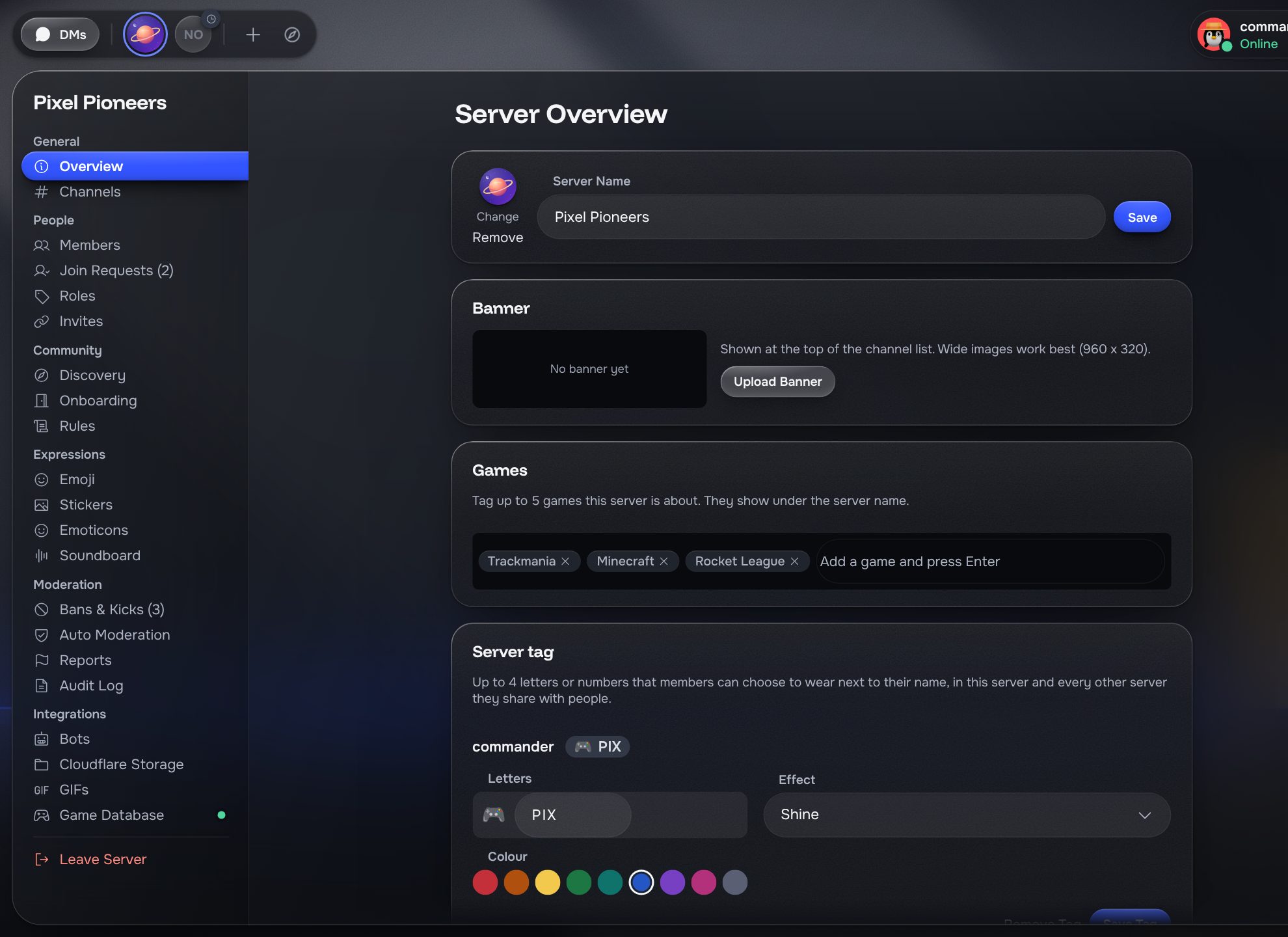
Overview is also where you set the server name, banner and games, design a server tag, add a tip jar, adopt a server pet, choose an AFK channel and an idle time, turn on voice activities, set the largest file and text to speech, copy a template code, transfer ownership and delete the server. The pages for expressions, roles and events are in Make your server yours, and moderation is in Moderation. Running a small server? Set up Cloudflare Storage so pictures and files load even when the people who posted them are offline.
Rules and onboarding
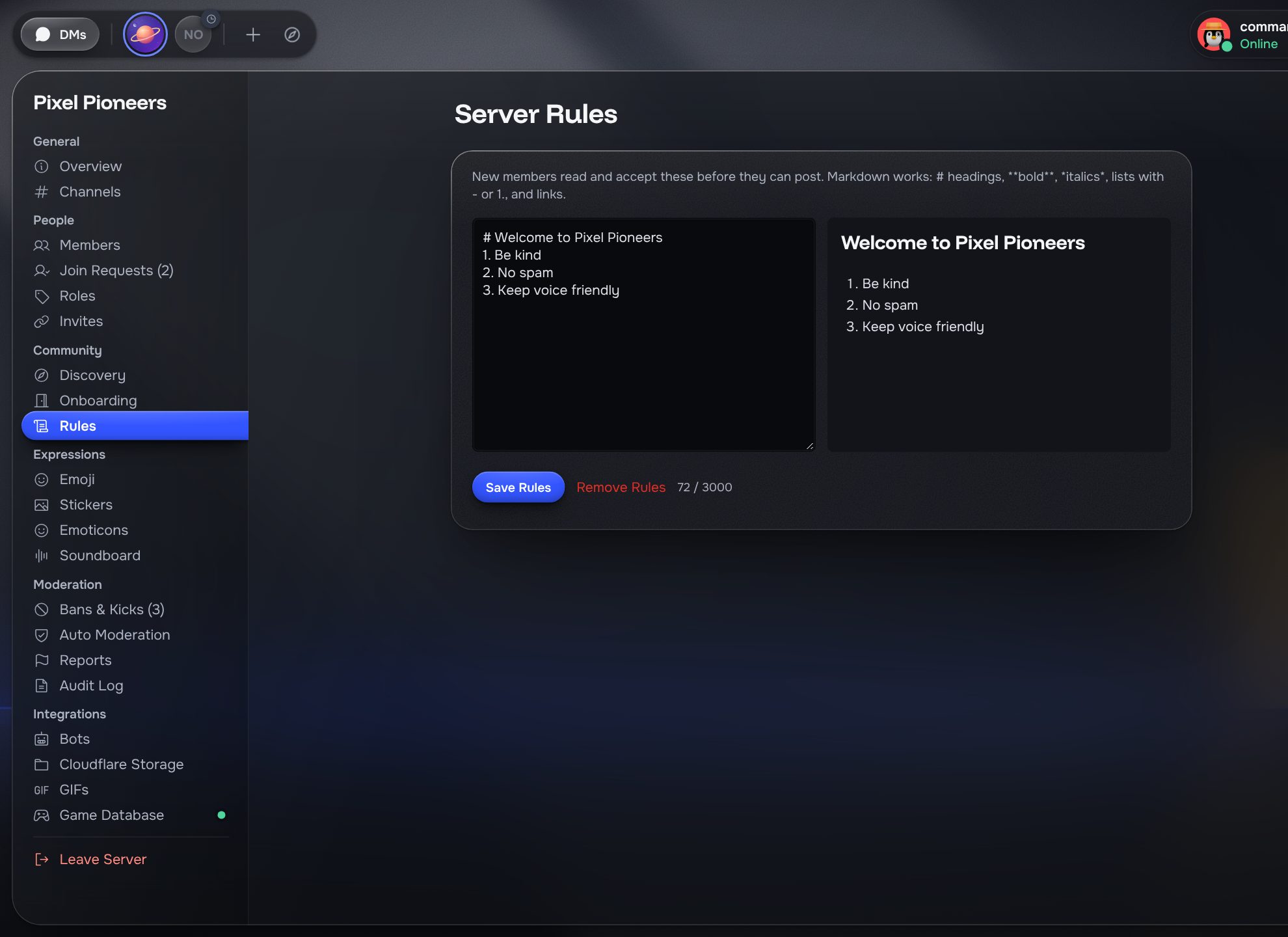
Rules takes simple formatting: headings, bold, italics, lists and links. New members read and accept them before they can post.
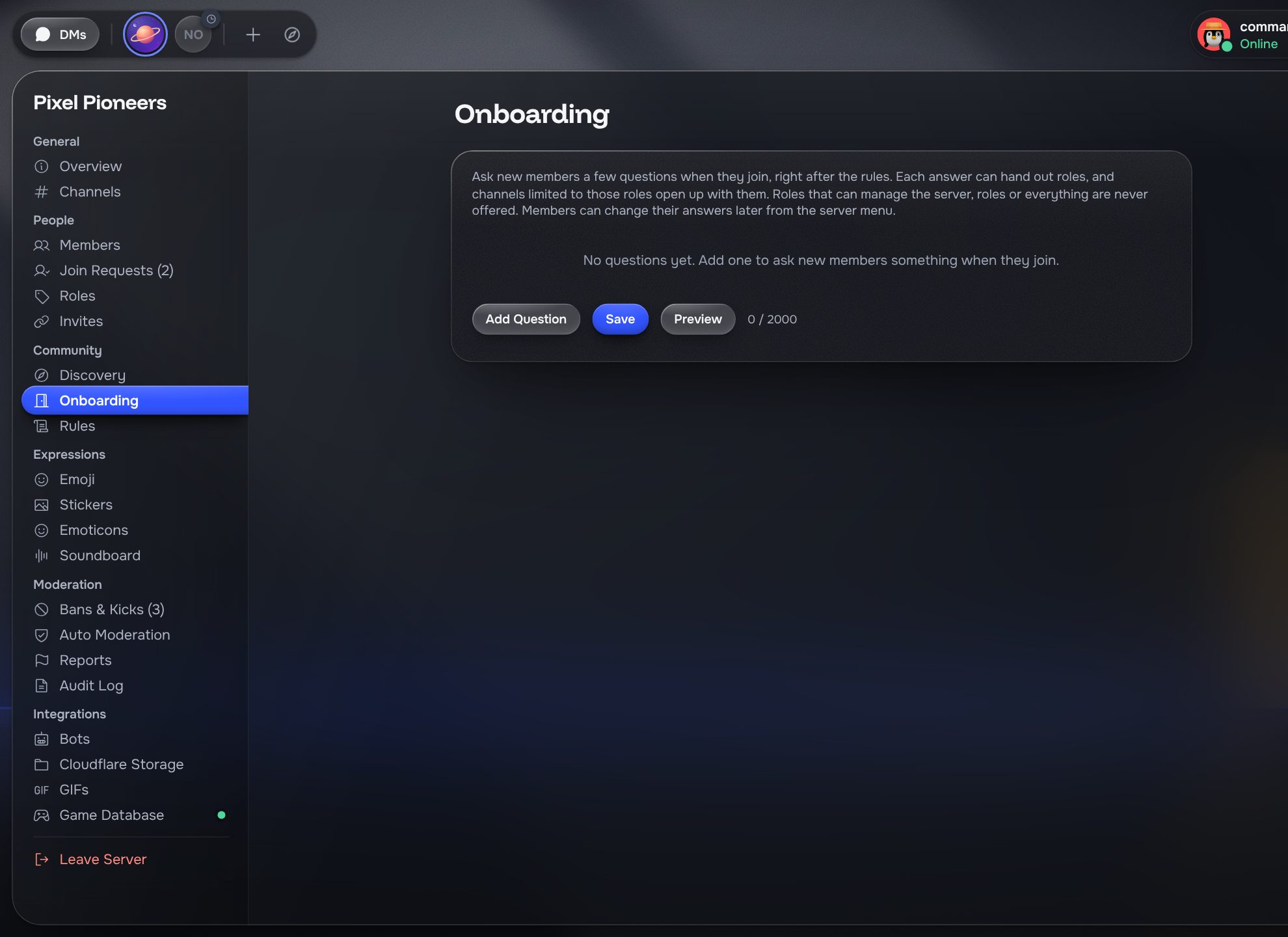
Onboarding asks new members a few questions right after the rules. Each answer can hand out roles, and channels limited to those roles open up with them. Members can change their answers later from the server menu. Roles that can manage the server are never offered.
Discover
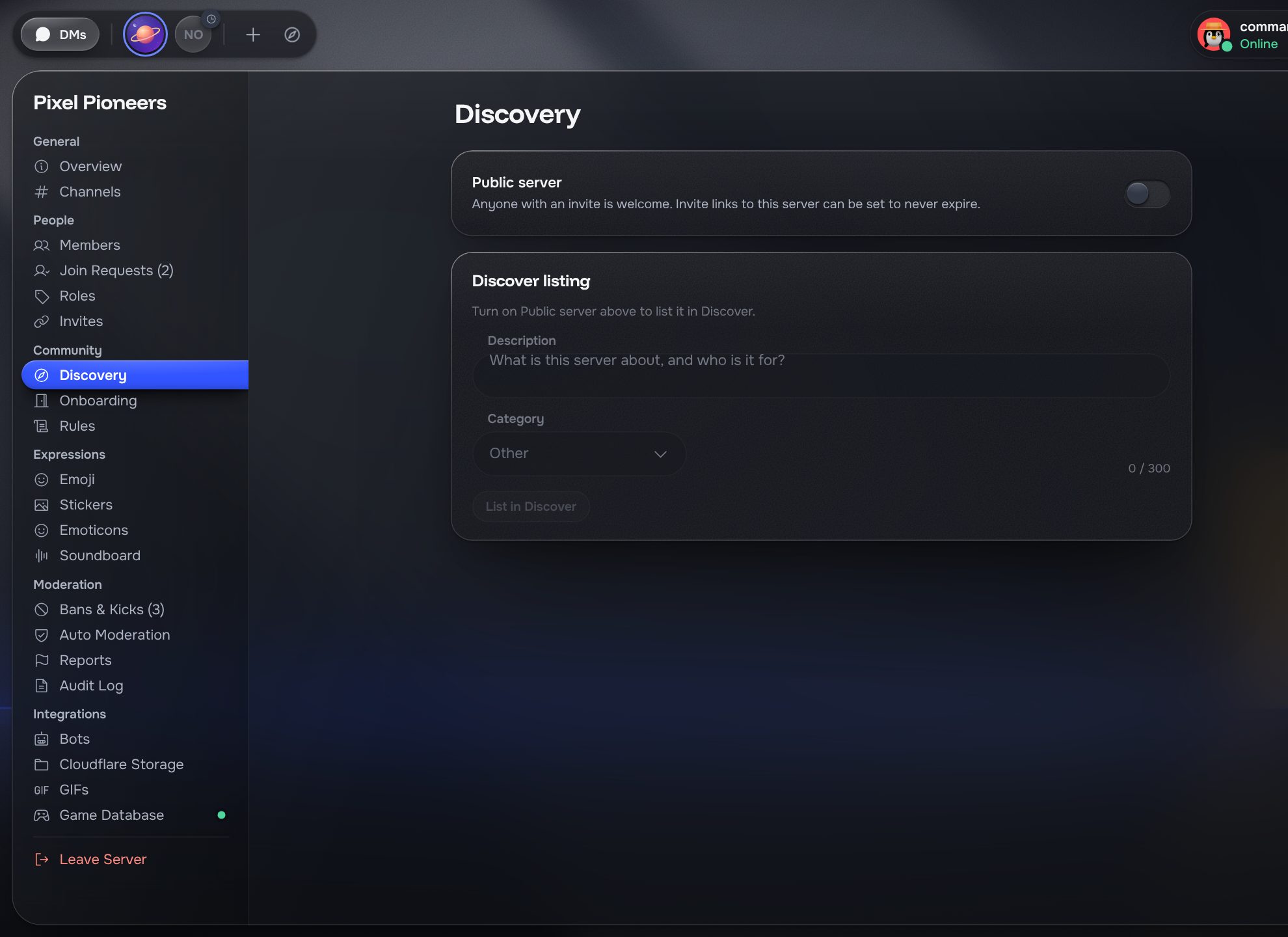
Turn on Public server in Server Settings, Discovery, write a description, pick a category and choose List in Discover to appear in the Discover list. You can also tag up to five games the server is about. Invite links to a public server can be set to never expire.
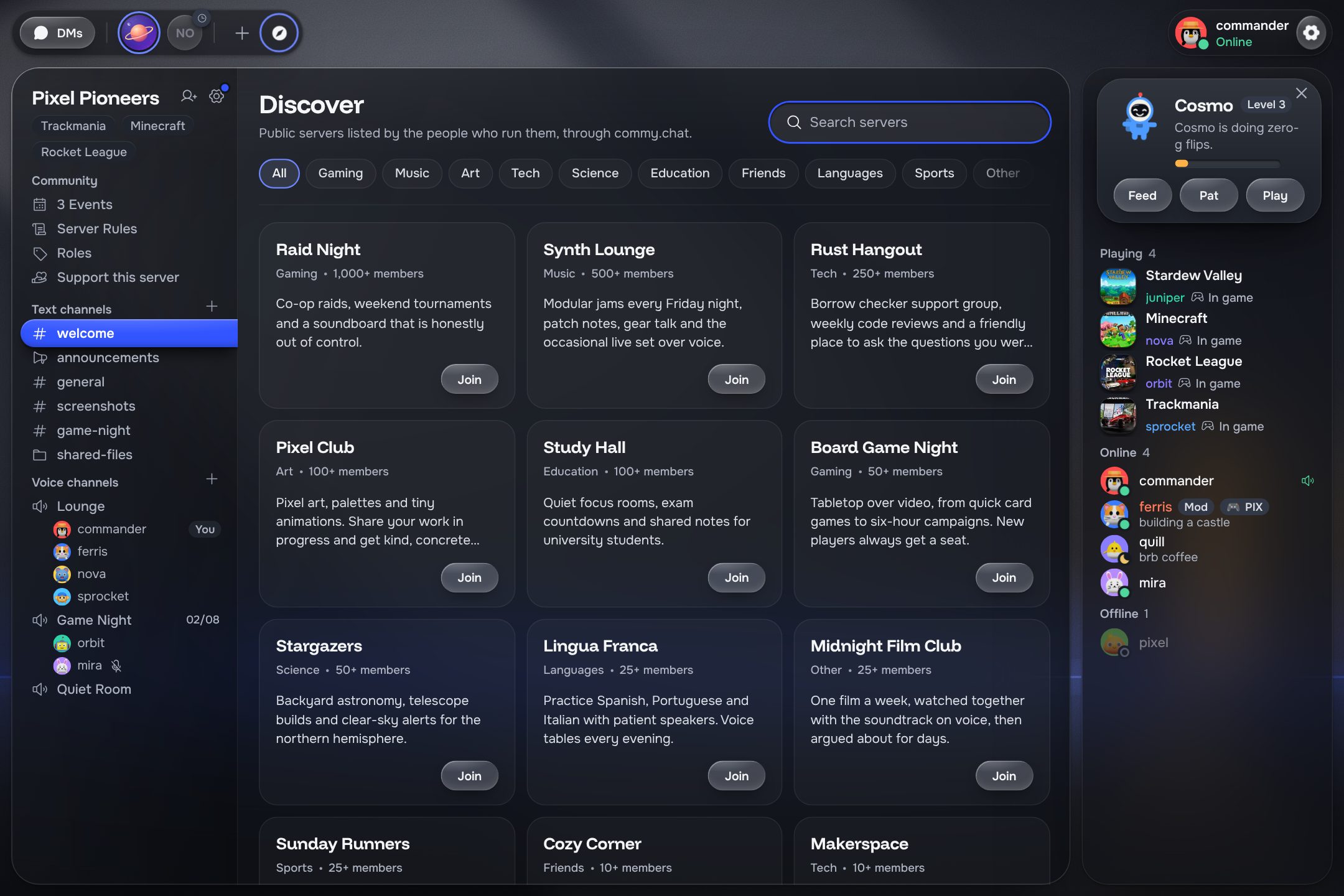
To find a server to join, click the compass in the top bar. Discover lists public servers with their member counts, and the chips across the top filter by topic.
Where it works
- Desktop and phone and tablet: everything on this page.
- Browser: everything on this page except drive channels, which are desktop only, and the Game Database page, which is in the desktop and phone apps.