 Commy
Your account and devices
A Commy account is free. It keeps spam bots out of communities and links your devices, so your servers and direct messages follow you. Your account lives on the account server you choose, commy.chat by default or your own.
Sign in
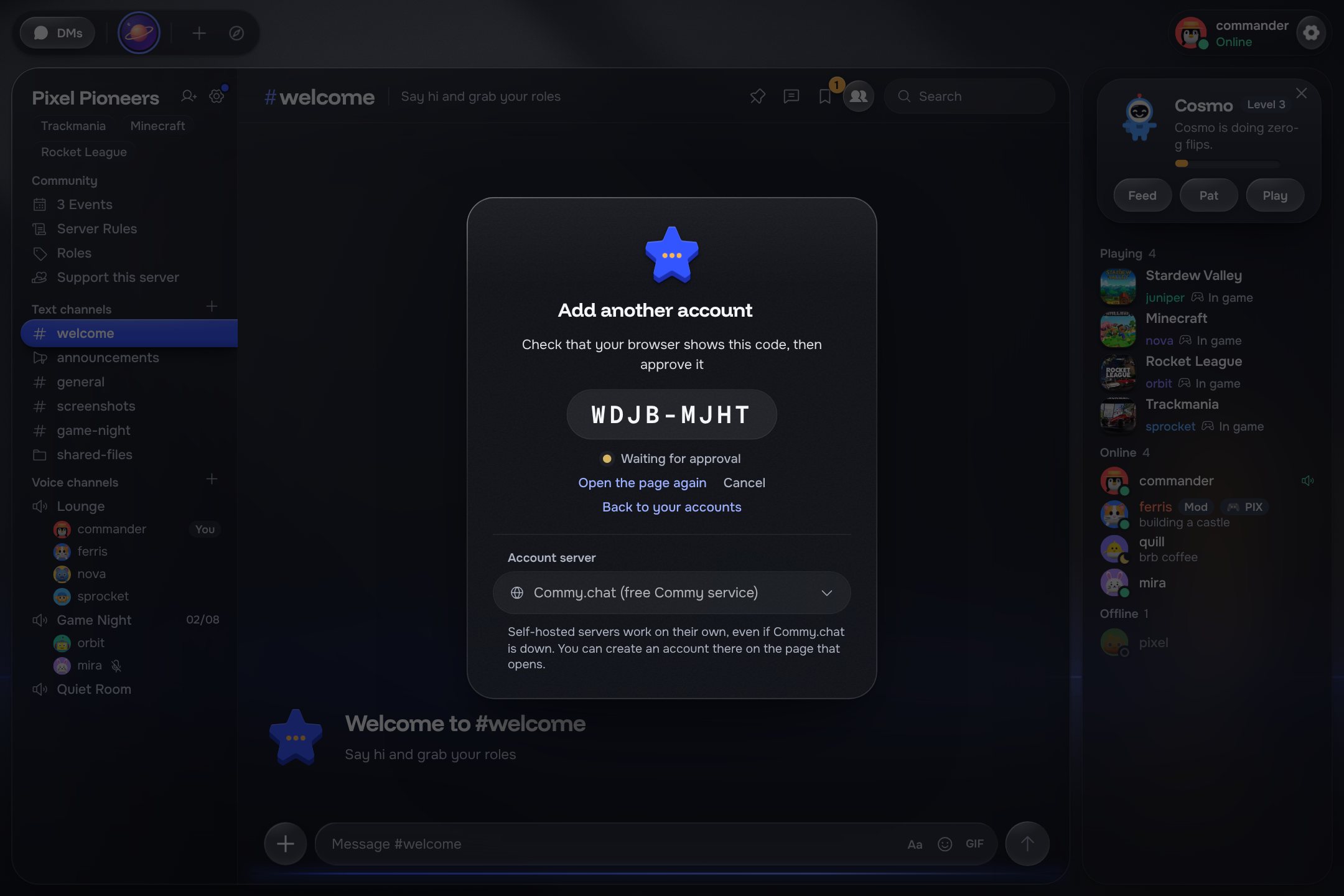
In the desktop and phone apps, choose Sign in. Commy shows a short code and opens the sign in page in your browser. Check that the code matches, sign in there, and the app is signed in.
On the page you can sign in with Google, Twitch, a passkey, a link sent to your email, or an email and a password. New to Commy? Choose Create an account.
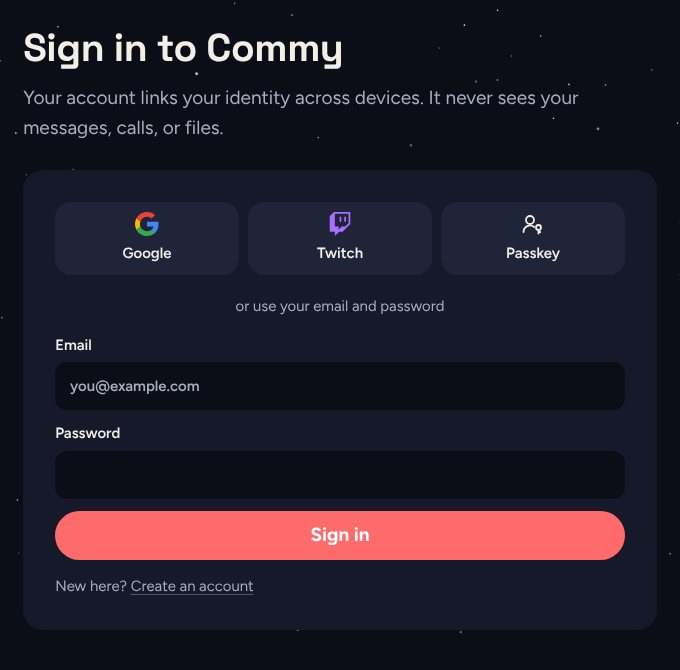
In the browser app, choose Sign in on commy.chat. You come back to the app when you are done.
Your account page
Open Account on the website to manage how you sign in.
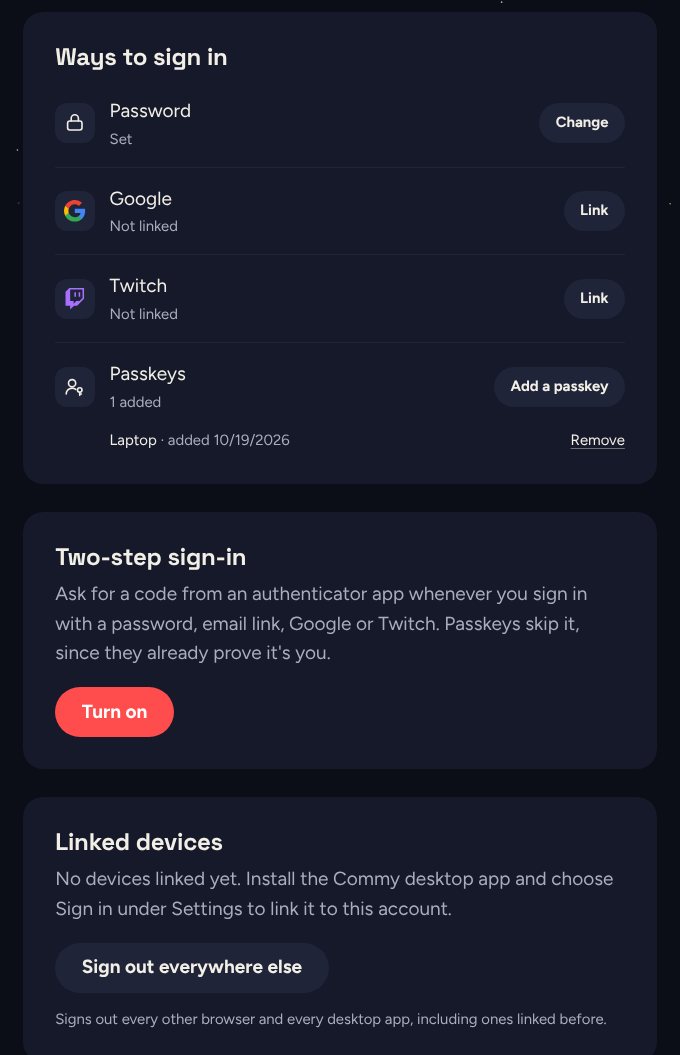
- Ways to sign in lets you set or change a password, link Google or Twitch, and add passkeys, such as the one on your laptop or phone.
- Two-step sign-in asks for a code from an authenticator app whenever you sign in with a password, email link, Google or Twitch. Passkeys skip it, since they already prove it is you. Turning it on shows a QR code to scan and gives you backup codes. Each backup code signs you in once if you lose your authenticator, so save them somewhere safe.
- Linked devices lists the apps linked to your account. Sign out everywhere else signs out every other browser and desktop app.
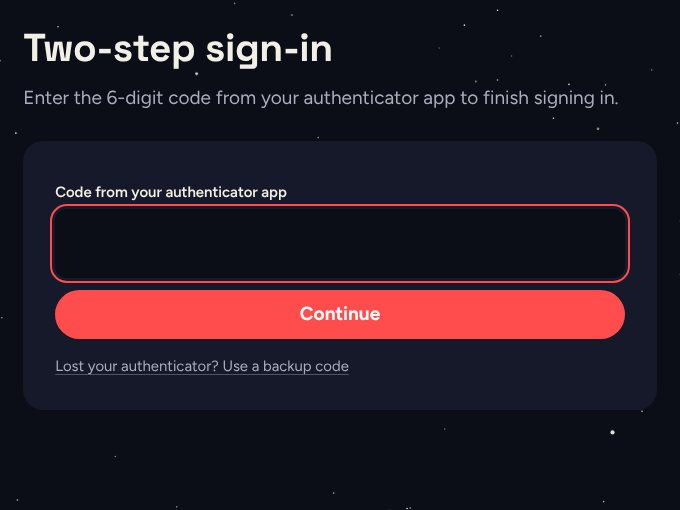
When two-step sign in is on, a code step follows your first sign in.
Open your servers on a new device
Your servers, identity and read positions are shared between your devices.
- Sign in on the new device. Signing in is all it takes, and your servers open.
- If they do not open, open Commy on a device that already has your servers. It passes them on to your new device by itself, with nothing to approve.
- Or enter your recovery code. Find it on a device that is already set up, in Settings, Commy Account, Show recovery code.
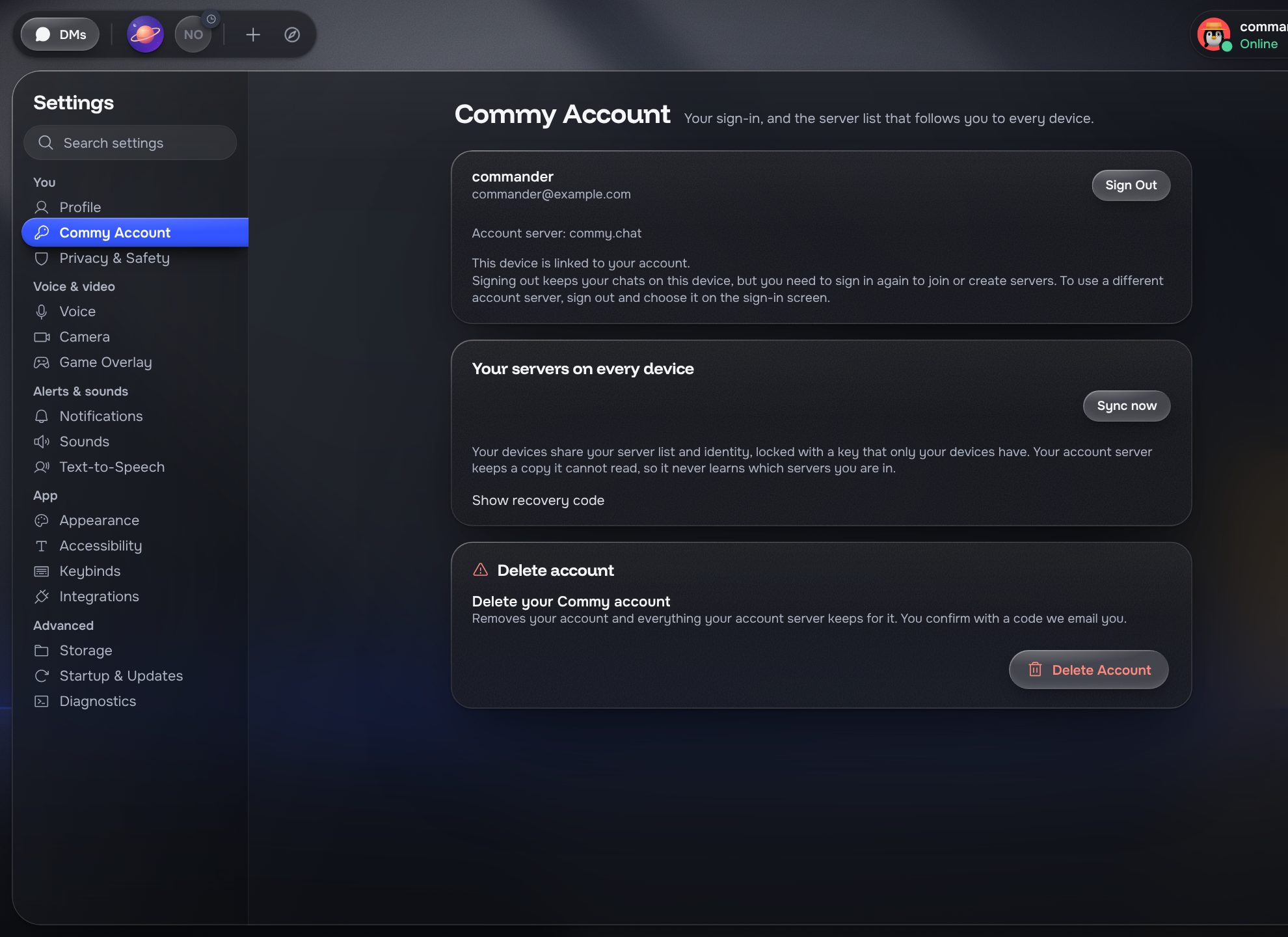
Sync now in the same place asks the app to bring your server list up to date straight away.
Switching and signing out
- Switch Account in the status menu lets more than one account use the same computer.
- Sign Out in Settings, Commy Account keeps your chats on this device. You sign in again to join or create servers.
- To use a different account server, sign out and choose it on the sign in screen. To take your identity, friends and servers with you, move your account instead.
Delete your account
In Settings, Commy Account, choose Delete Account. Commy emails you a 6-digit code, and entering it deletes the account for good. If your account has a password, you can enter that instead. It works the same in the desktop, phone and browser apps, and without an app on Delete your account.
Deleting removes your account, every way you sign in, your linked devices, the locked copy of your server list, the invite links you made and your Discover listings. Every app and browser signed in to it is signed out, and the app you delete from removes its copy of your chats the next time it starts. Messages you already sent stay with the people and servers that received them.
Where it works
Sign in works in the desktop, browser and phone and tablet apps. Managing your account page is on the website, and switching accounts and recovery codes are in the desktop and phone apps. The browser app signs in with the website, so its sign out ends that session.