 Commy
Profile, status and presence
Edit your profile
Open Settings with the gear at the top right, then Profile.
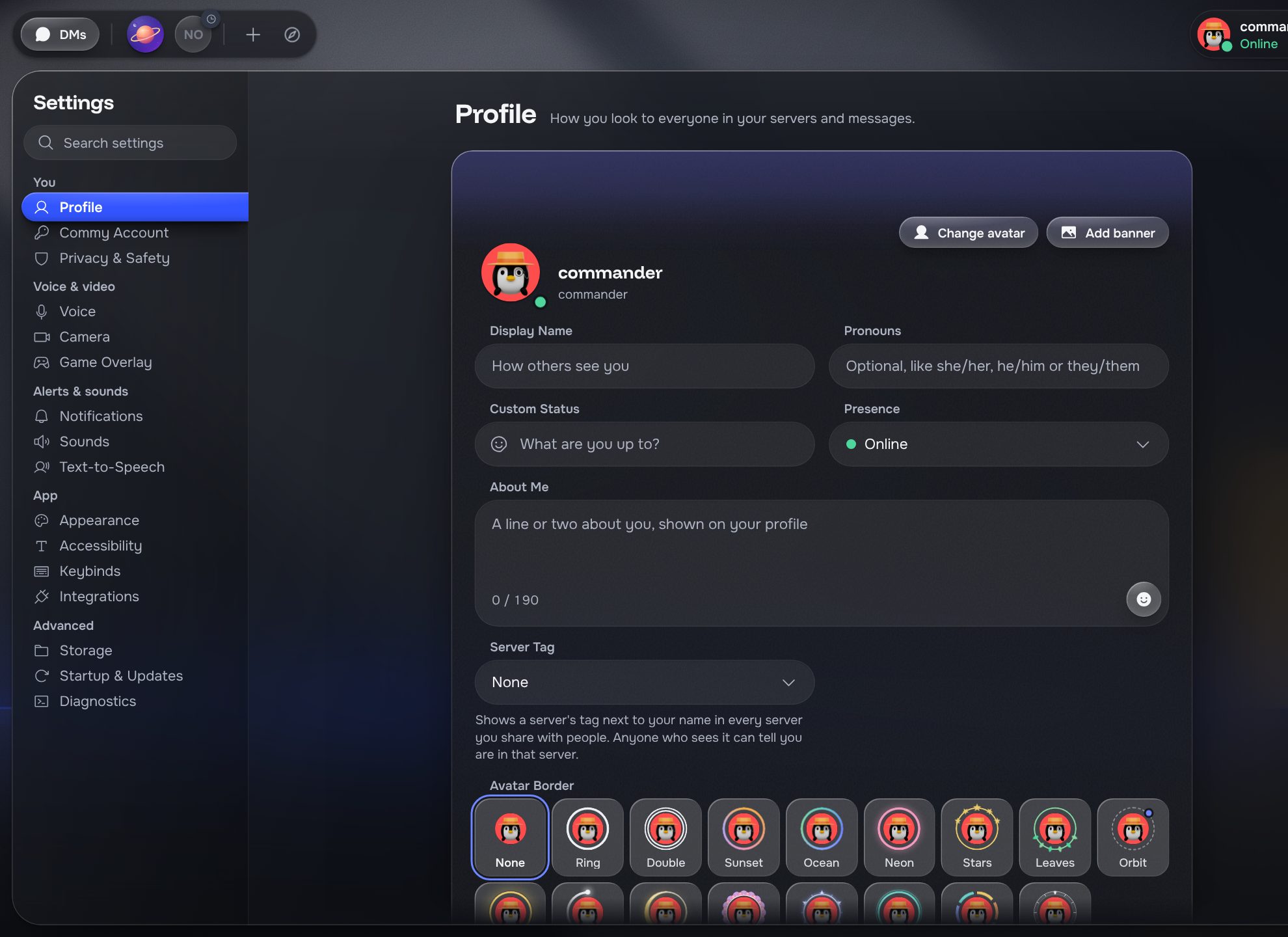
- Change Avatar picks your picture: an image of your own, an emoji, one of your servers' custom emoji, or a GIF from the built-in search. GIFs up to 512 KB stay animated.
- Add banner sets the wide image behind your name on your card.
- Display name is how people see you.
- Custom status is a short line under your name. Add an emoji, including your server's custom emoji.
- Presence sets whether you show as Online, Idle, Do Not Disturb or Appear Offline.
- Pronouns and About me are optional and show on your profile.
- Server Tag picks which server's tag you wear next to your name, in every server you share with people. Anyone who sees it can tell you are in that server, so it is up to you. See Make your server yours.
- Avatar Border puts a ring around your picture: Ring, Double, Sunset, Ocean, Neon, Stars, Leaves or Orbit.
- Profile Effect plays inside the banner of your card: Sparkles, Snow, Aurora or Bubbles.
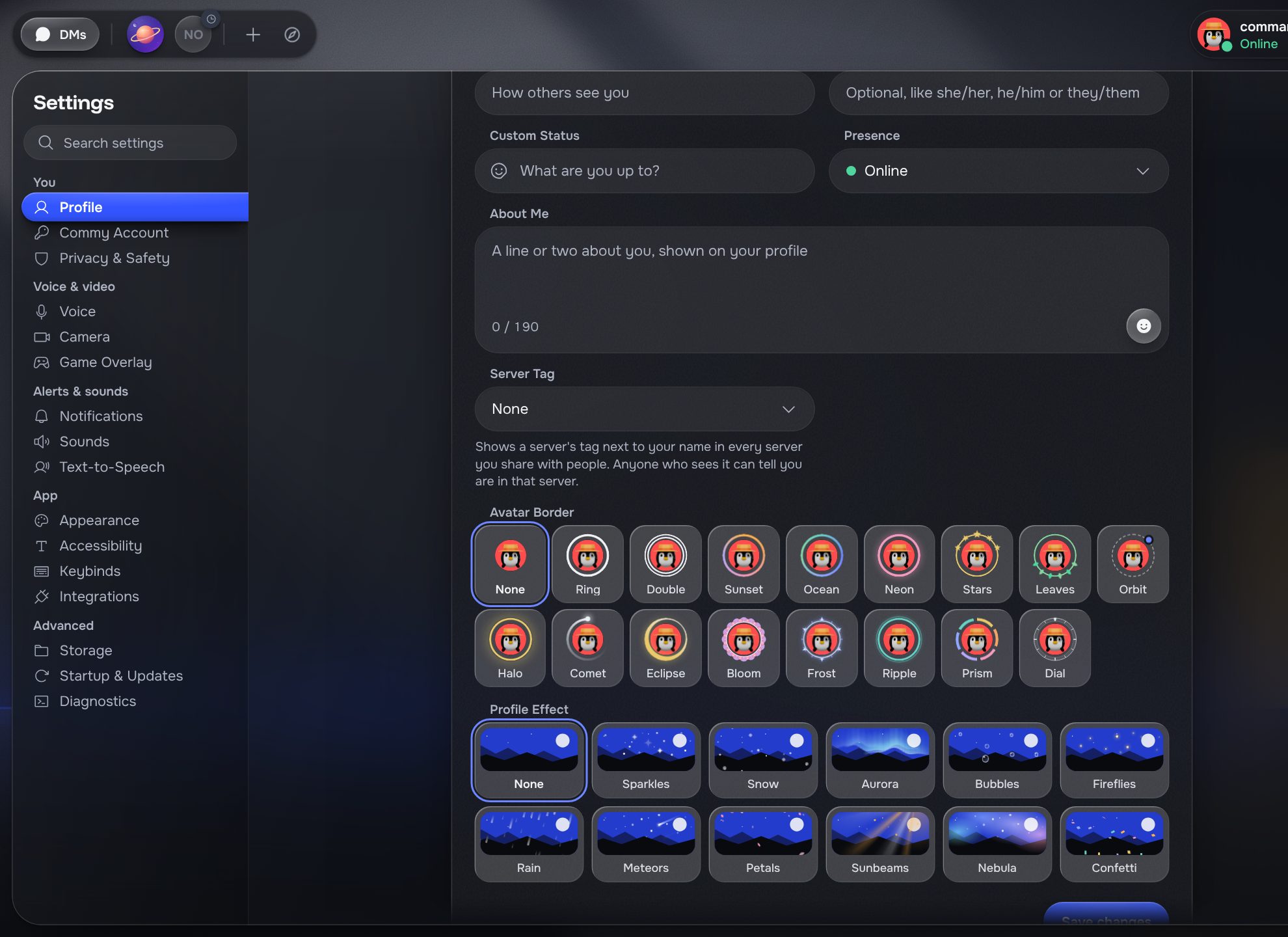
Borders and effects are drawn by the app itself, so nothing is downloaded to show them. Moving borders play on profile cards and when you hover, and stay still in long lists. All of it stands still when reduced motion is on.
Choose Save Changes when you are done.
Set your status quickly
Click your name at the top right to open the status menu.
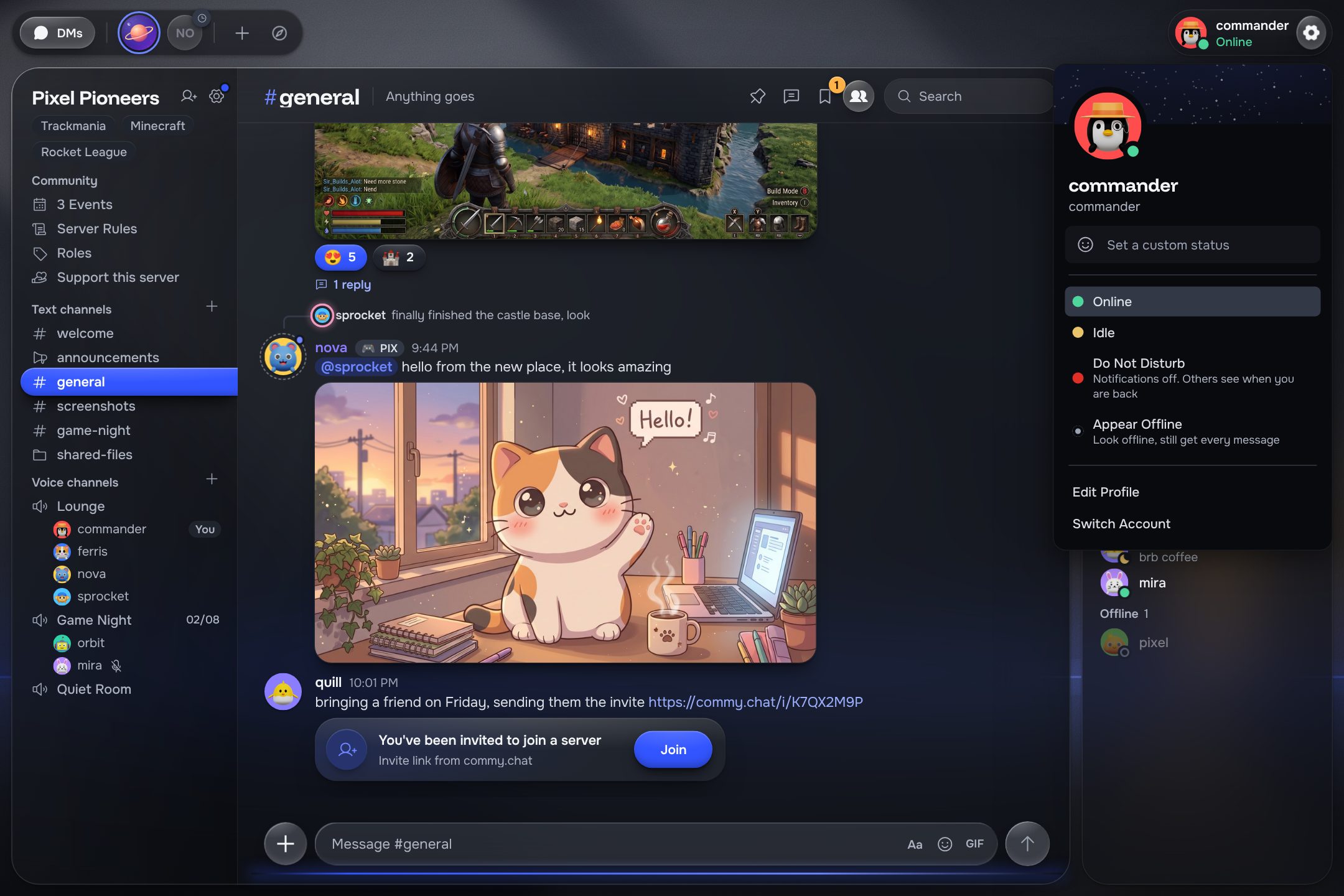
- Online is the normal state.
- Idle shows you as away. Commy also switches you to Idle on its own after a while with no typing, clicking or talking. Choose how long under Settings, then Voice & Camera, then Idle, where you can also pick Go AFK after.
- Do Not Disturb turns notifications off, and others see when you will be back.
- Appear Offline makes you look offline while you still get every message.
The same menu has Edit Profile and Switch Account.
What others see
Click a member in the list to open their card: avatar with its border, banner with its effect, server tag, status, roles with their tags, and what they are playing. Full Profile shows everything, including pronouns and about me.
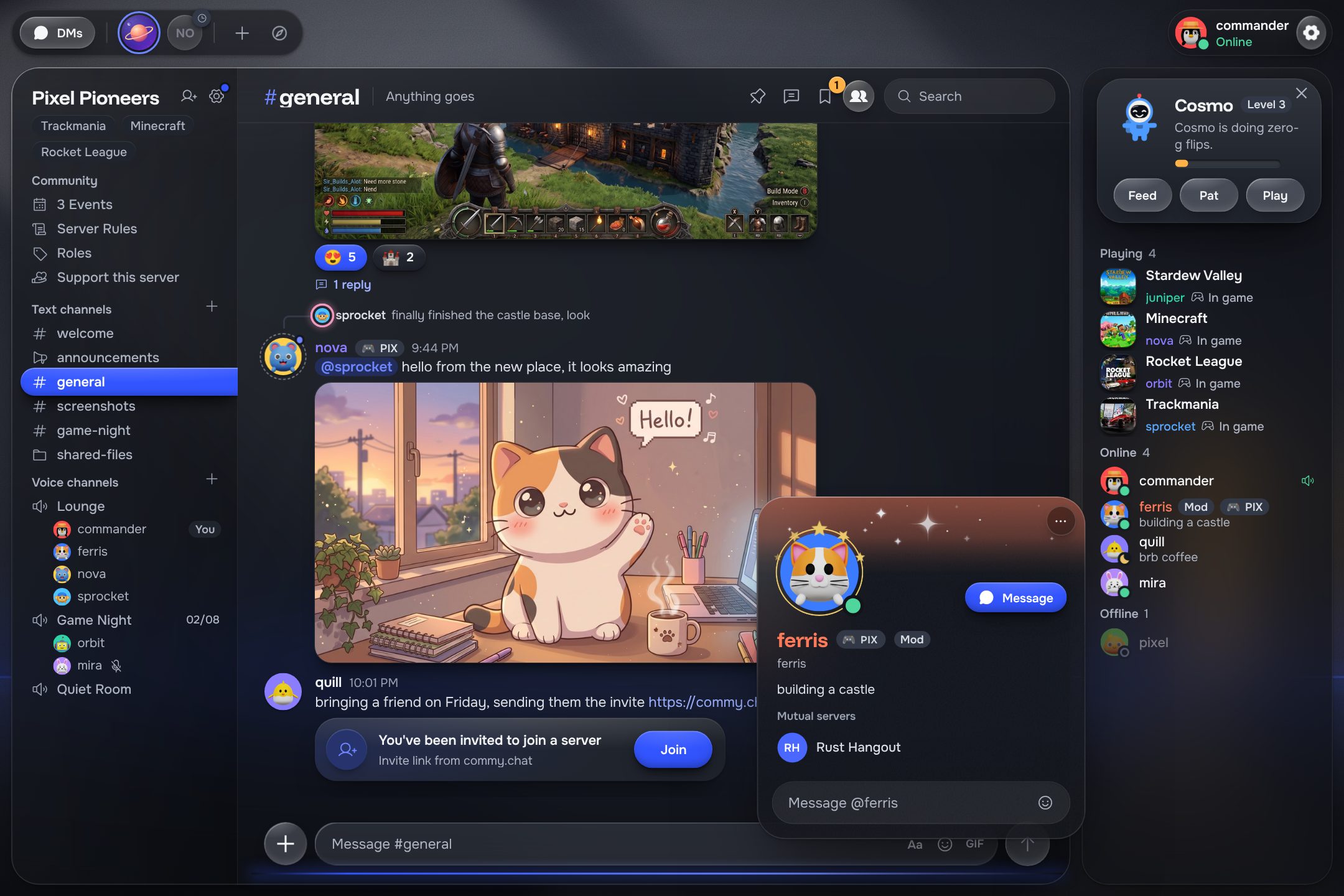
- Playing and using. The desktop app can show the game or app in front of your screen as "Playing ..." under your name, with its cover art. Turn it off in Settings, Privacy & Safety, Activity, and it clears right away.
- Who can see your profile. In Privacy & Safety choose Everyone, Friends and servers we share or Friends only for your bio, banner, pronouns and what you are playing. Your name and avatar always show.
- Nicknames. People with the right role can change a member's nickname in a server from the member's menu.
- Roles. A role can have a colour, a tag and a banner. Roles that members may pick are under Choose Roles in the server menu, see Make your server yours.
Where it works
- Desktop: everything on this page.
- Phone and tablet: everything on this page except sharing what you are playing, which the desktop app does.
- Browser: everything on this page except sharing what you are playing. Friends see you online while the tab is open.